
View Orders
Browse all incoming orders, filter by status, and view order details.
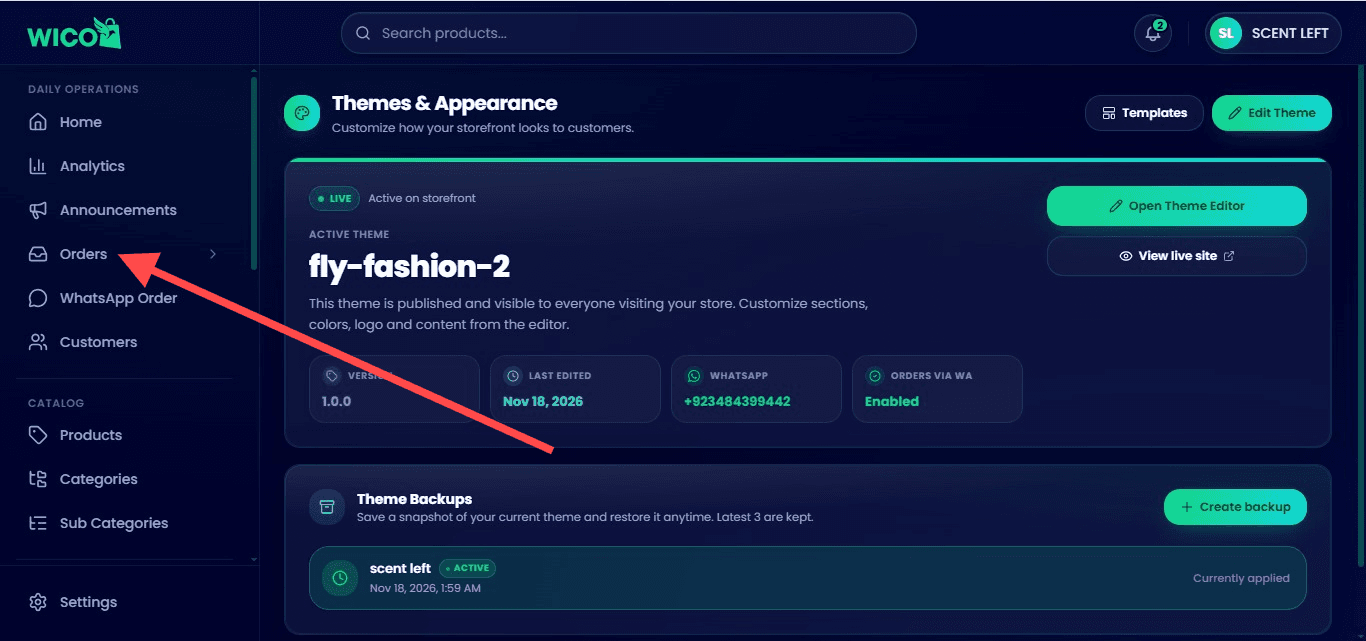
Click on "Orders" from the left sidebar under Daily Operations.
This opens the Orders page showing all orders with a total count badge (e.g. "3 total").
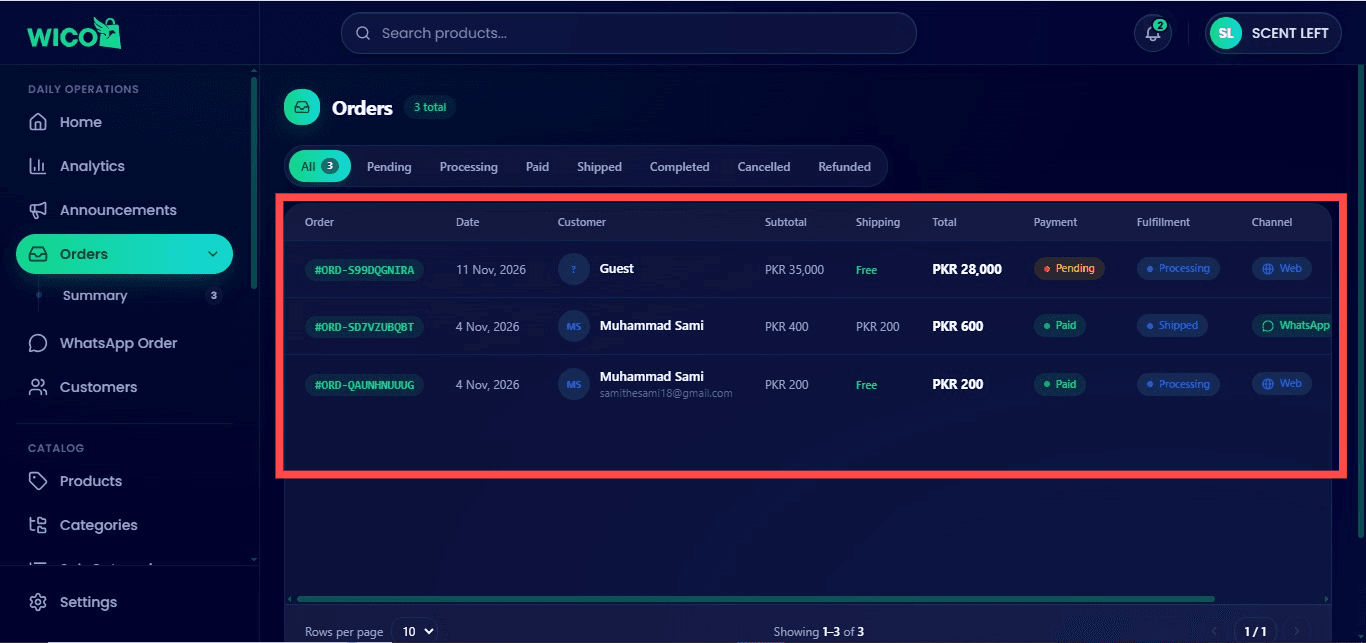
Browse the orders table.
Each row shows: Order ID (e.g. #ORD-S99DQGNIRA), Date, Customer name, Subtotal, Shipping cost, Total amount, Payment status (Pending/Paid), Fulfillment status (Processing/Shipped/Completed), and Channel (Web or WhatsApp). The Actions column has an eye icon to view and a pencil icon to edit.
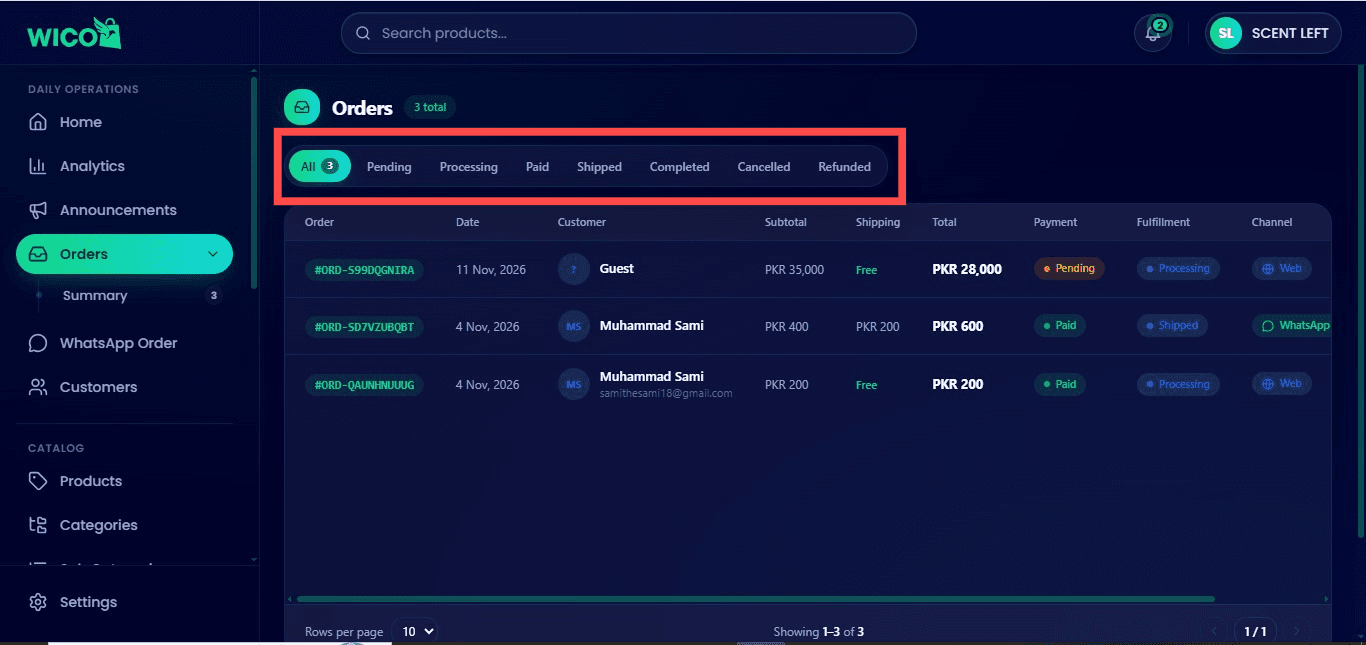
Filter orders by status using the tabs at the top.
Available filters: All, Pending, Processing, Paid, Shipped, Completed, Cancelled, Refunded. Each tab shows the count. Click any tab to instantly filter the table.
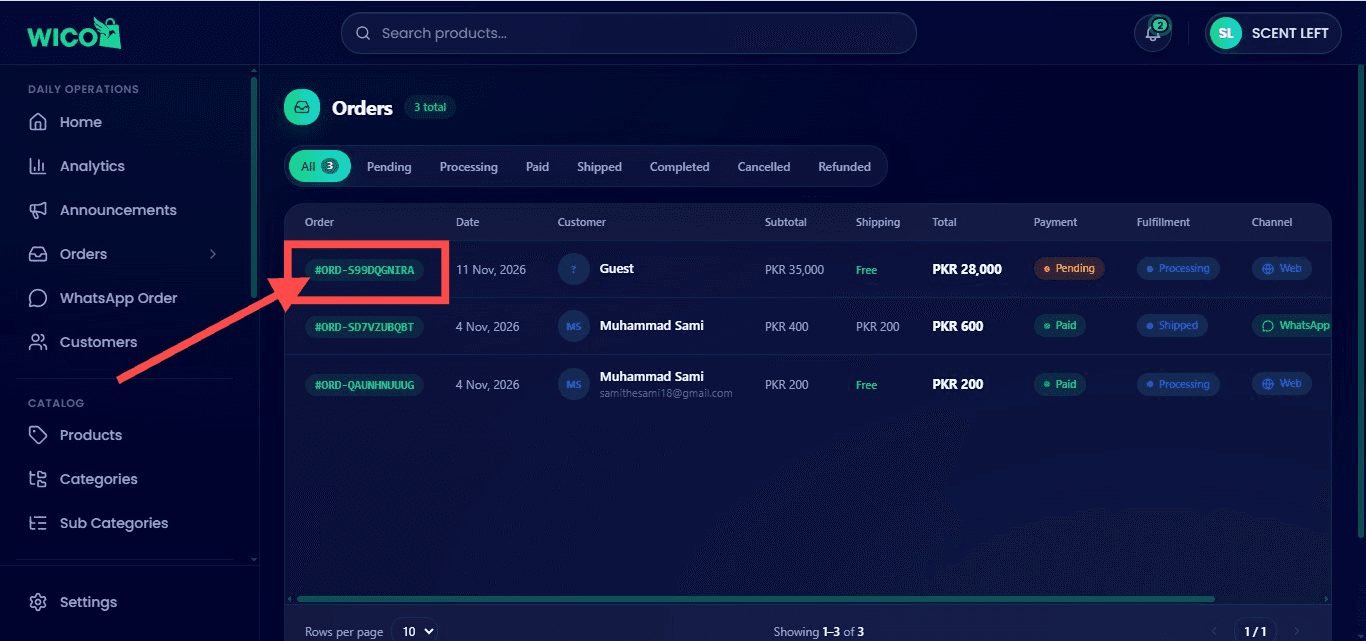
Click the eye icon or Order ID to open Order Details.
This opens the full order details page with fulfillment, items, payment info, cost summary, customer details, shipping address, and time logs.
That's it!
Your view orders task has been configured successfully. Your Wicofly store is updated.
Related Helps
Manage Order Details
View items, verify customer details, manage payment, add tracking, and fulfill orders.
Update Order Status
Change order status, add shipping tracking, and mark orders as fulfilled or paid.
WhatsApp Orders
View and manage orders that came through the WhatsApp ordering channel.
Track Customer Orders
Customers can track their orders in real time at tracking.wicofly.com.
Manage Customers
View customer contact details, order history, and lifetime spending.
Verify Invoice Payments
Review customer payment proofs, approve or reject invoice payments, and auto-update order status.