
Store Design 2 min read·4 Steps
Create Custom Pages
Add About Us, Contact Us, Return Policy, and FAQ pages to your store.
0 of 4 steps completed
1
Step 1Sidebar > Themes > Theme Editor
Click on "Themes" from the sidebar and select "Theme Editor".
This displays your store custom content pages.
accounts.wicofly.com/dashboard
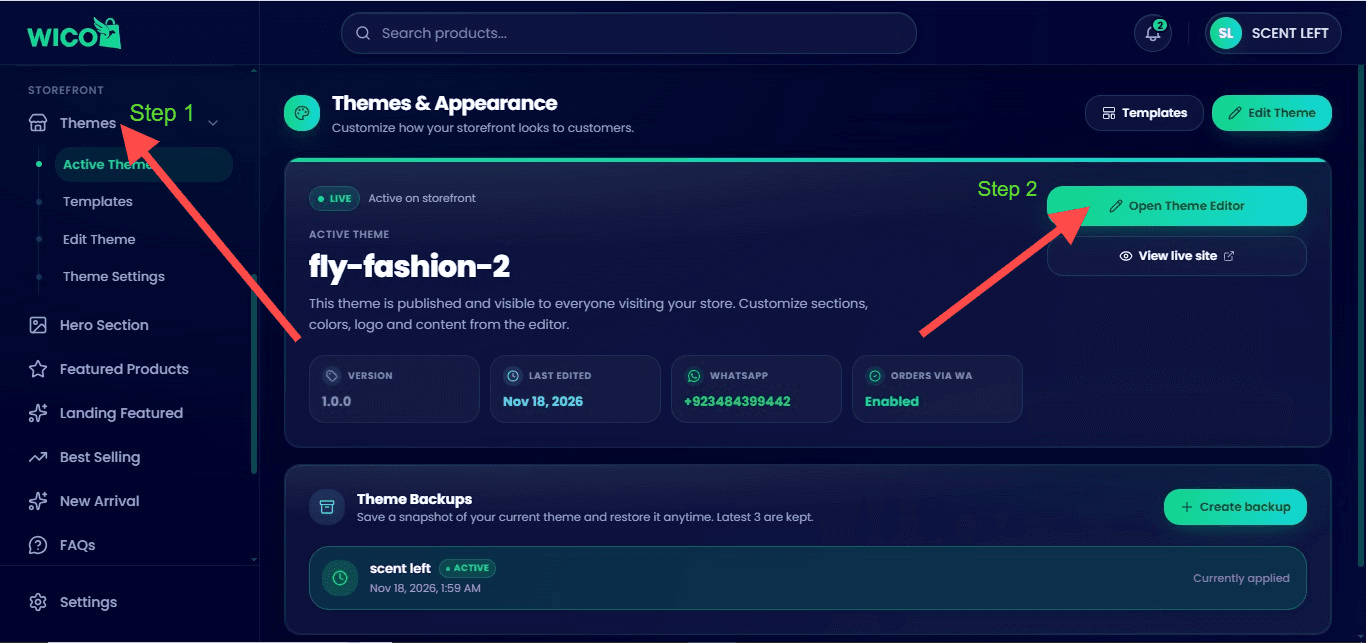
Open Pages
2
Step 2Top Middle > Add Page
Click on the "Pages" button in the top middle.
Add New Page
accounts.wicofly.com/dashboard
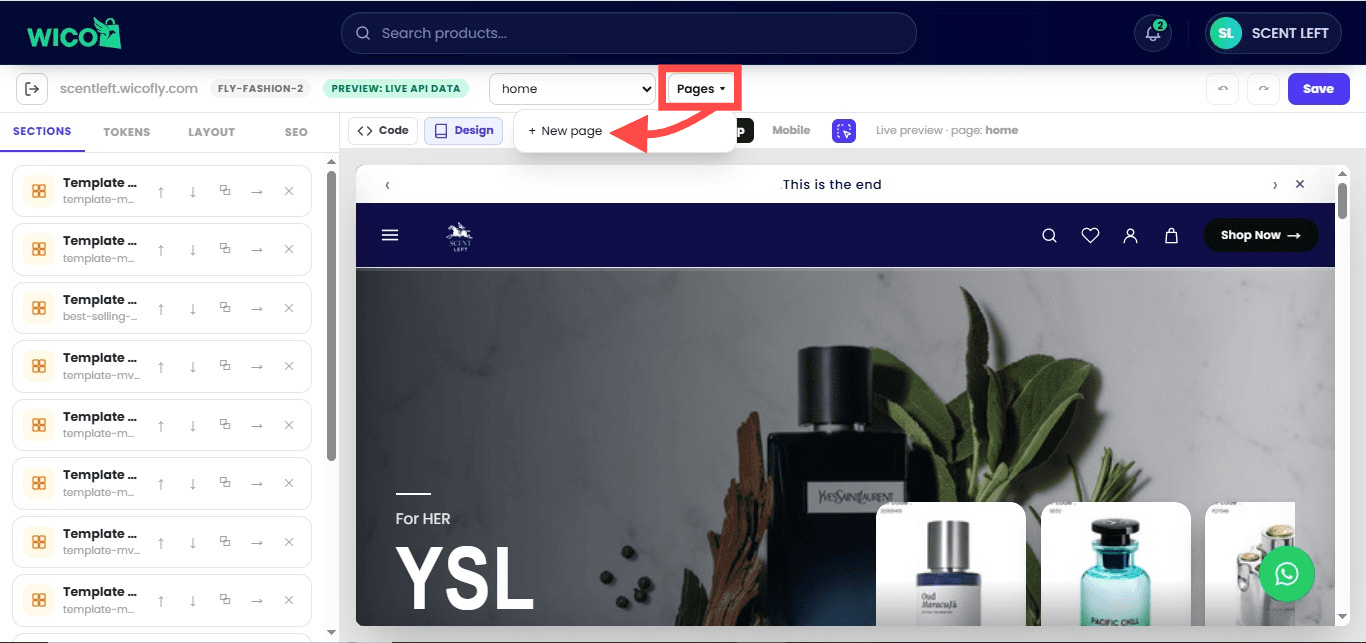
Click Add Page
3
Step 3Page Editor
Enter Page Title (e.g. "About Us") and write your content.
You can insert paragraphs, lists, bold text, and images.
accounts.wicofly.com/dashboard
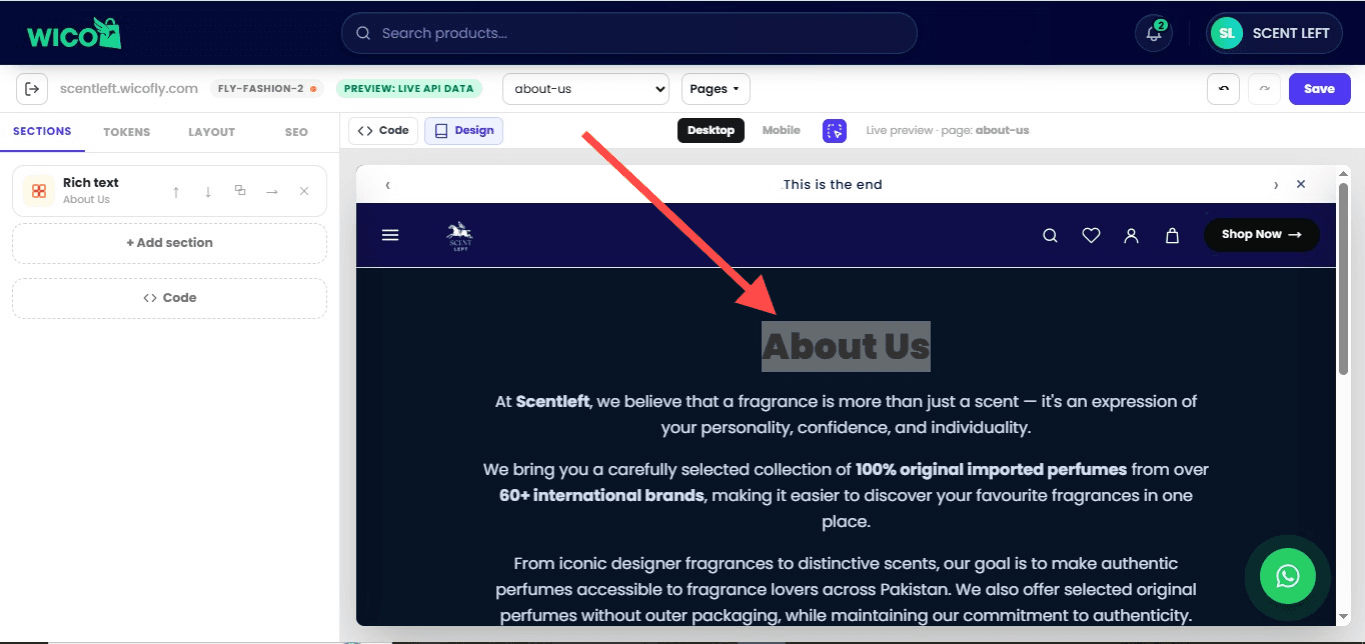
Write page content
4
Step 4Save Page
Click "Save Page".
Your new page is created with a clean URL slug (e.g. yourstore.wicofly.com/pages/about-us).
accounts.wicofly.com/dashboard
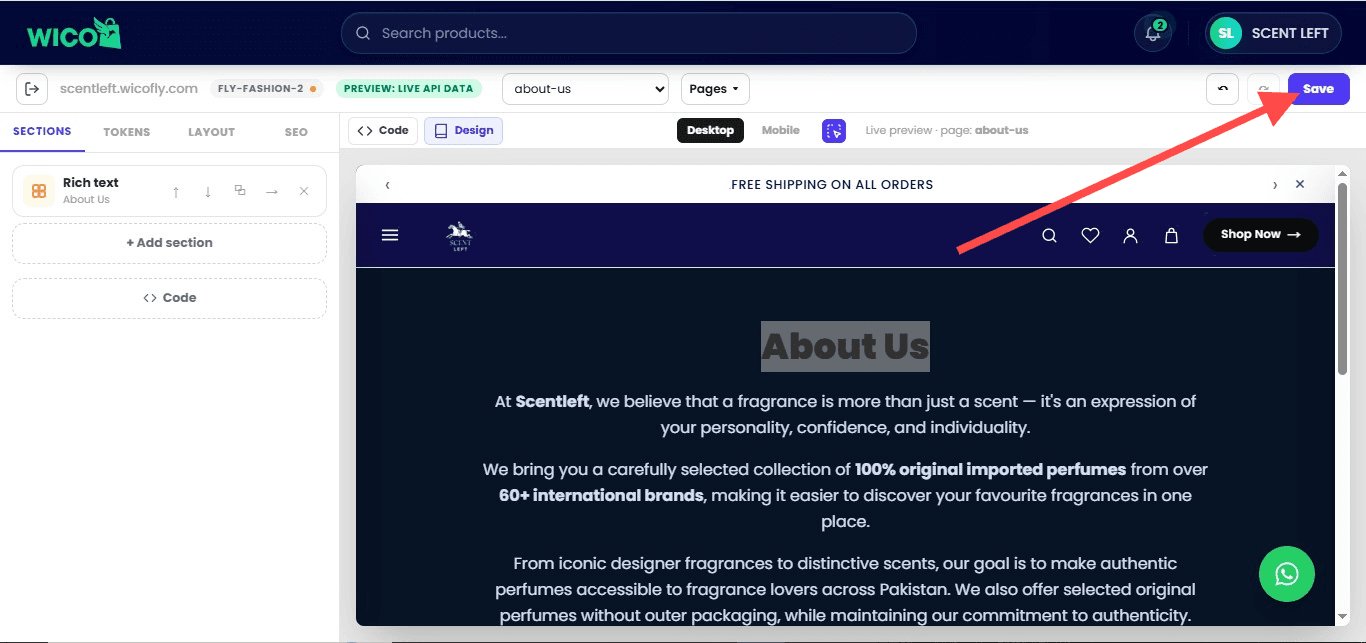
Click Save Page
That's it!
Your create custom pages task has been configured successfully. Your Wicofly store is updated.
Related Helps
store design
Select a Theme
Browse the Wicofly theme library and switch to a different storefront design.
4 stepsRead
store design
Customize Your Store
Fine-tune brand colors, layout, button styles, and fonts from the theme editor.
5 stepsRead
store design
Edit Homepage Sections
Rearrange sections, change section designs, add new sections, and customize your homepage layout.
7 stepsRead