
WhatsApp Orders
View and manage orders that came through the WhatsApp ordering channel.
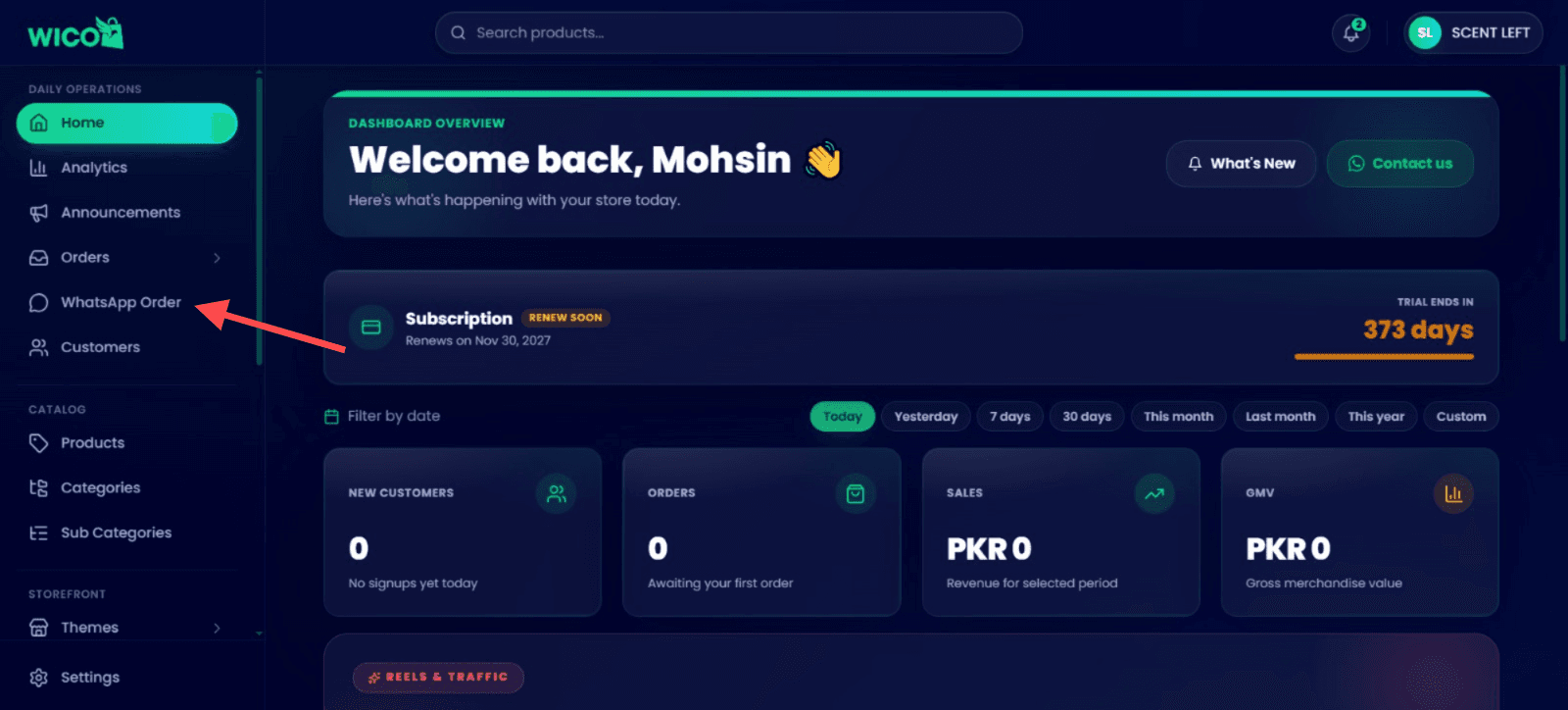
Click on "WhatsApp Order" from the left sidebar under Daily Operations.
This opens the WhatsApp Orders page — a filtered view showing only orders placed through the WhatsApp channel. The page header shows "WhatsApp Orders" with a total count badge.
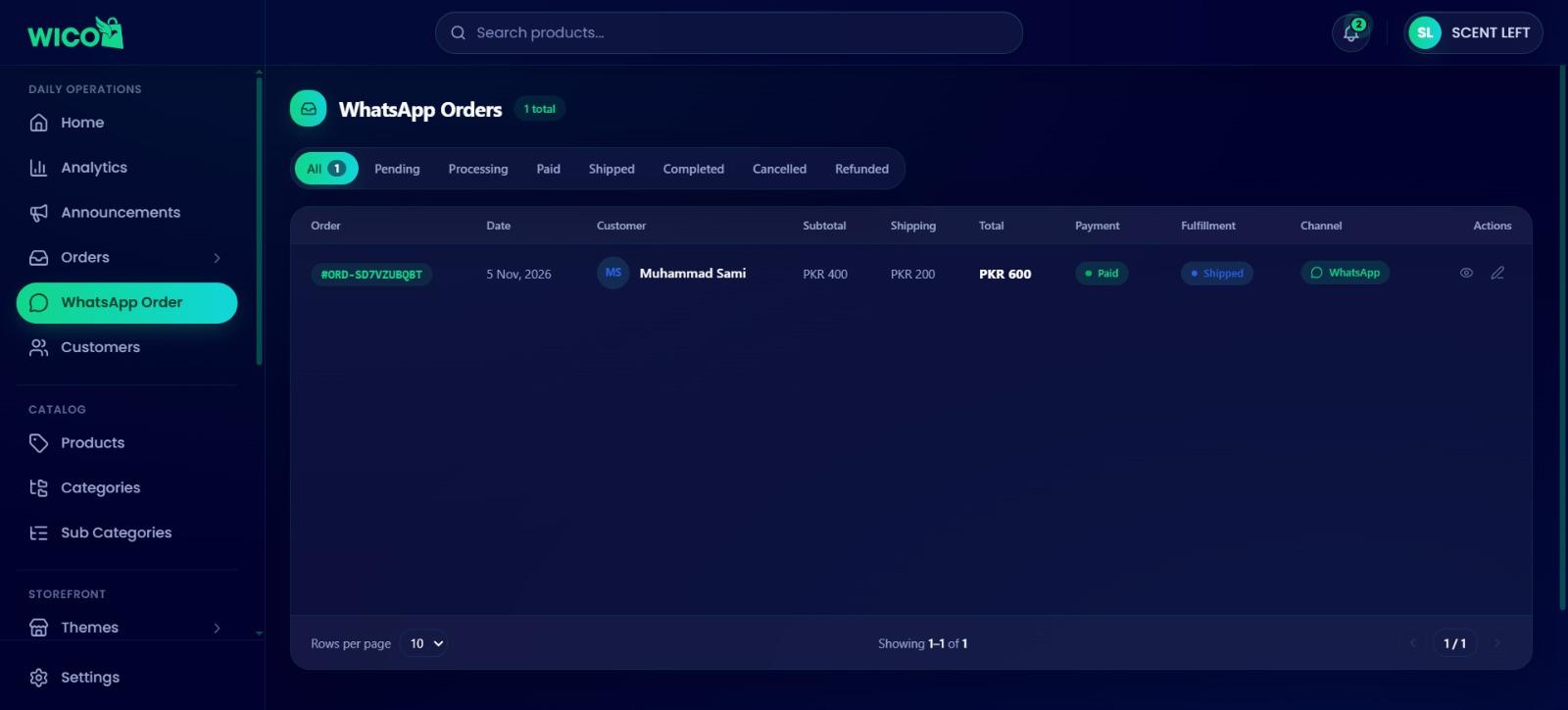
Browse WhatsApp orders in the table.
Same columns as the main Orders page — Order ID, Date, Customer, Subtotal, Shipping, Total, Payment, Fulfillment — but the Channel column shows "WhatsApp" with a green badge instead of "Web".
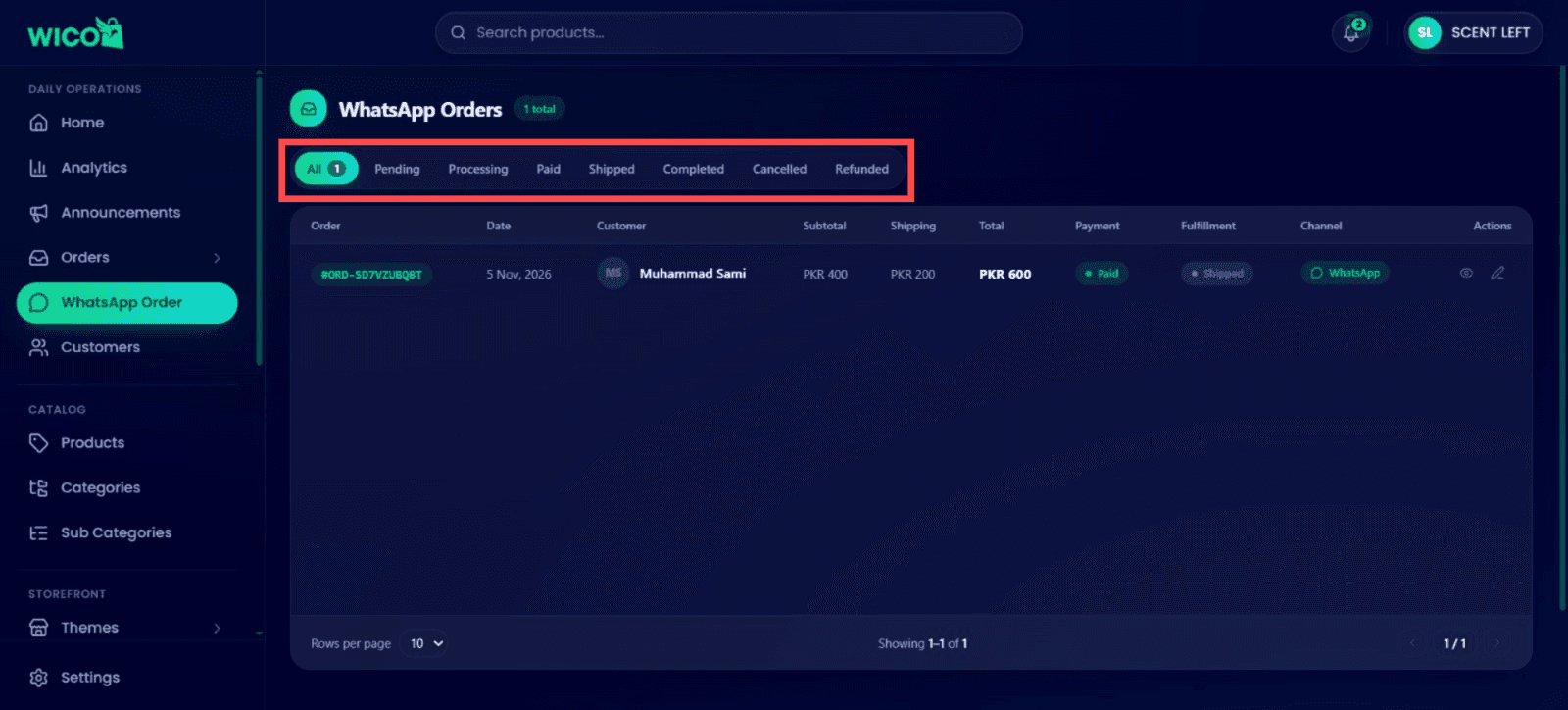
Filter and manage orders the same way as regular orders.
Use the same status filter tabs (All, Pending, Processing, Paid, Shipped, Completed, Cancelled, Refunded). Click the eye icon to view details, or the pencil icon to edit. All order management features (tracking, fulfillment, payment) work exactly the same.
That's it!
Your whatsapp orders task has been configured successfully. Your Wicofly store is updated.
Related Helps
View Orders
Browse all incoming orders, filter by status, and view order details.
Manage Order Details
View items, verify customer details, manage payment, add tracking, and fulfill orders.
Update Order Status
Change order status, add shipping tracking, and mark orders as fulfilled or paid.
Configure WhatsApp Ordering
Enable WhatsApp ordering on your storefront by adding your WhatsApp business number.