
Update Order Status
Change order status, add shipping tracking, and mark orders as fulfilled or paid.
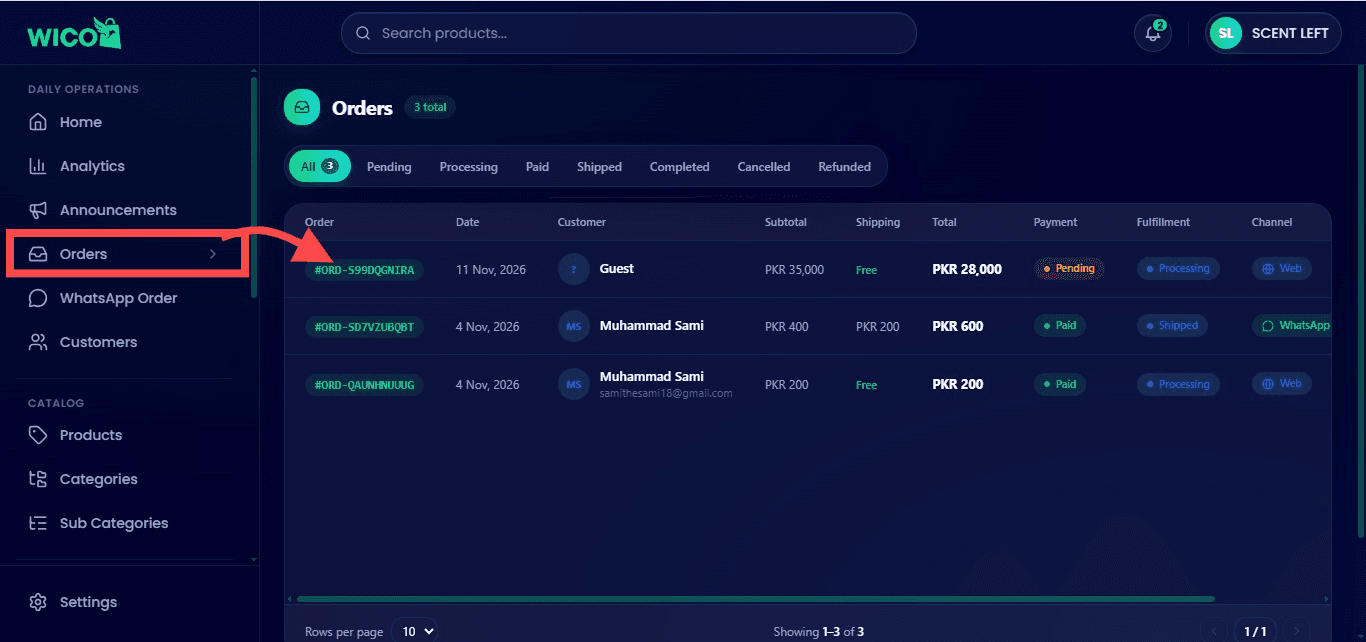
Open the Order Details page.
From the Orders list, click the eye icon on any order to open its details.
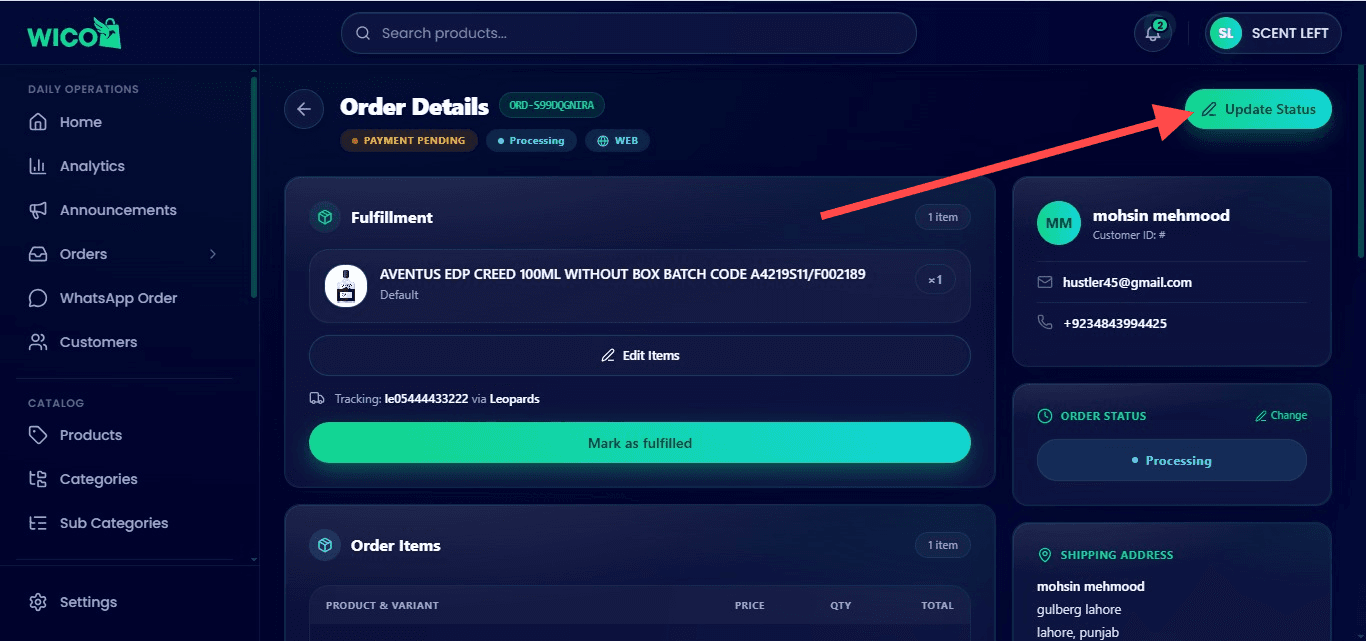
Click "Update Status" in the top right corner.
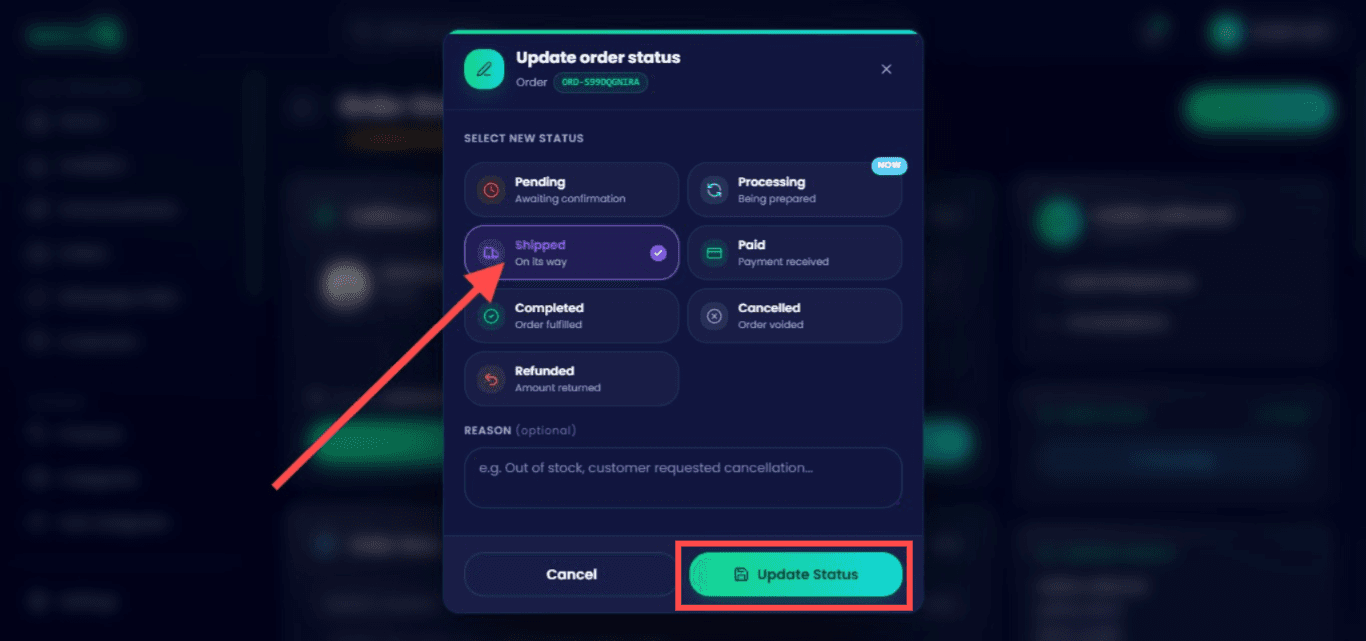
A modal opens titled "Update order status" showing your current order ID. You will see 7 status options to choose from.
Select the new status from the modal.
Choose from: Pending (Awaiting confirmation), Processing (Being prepared), Shipped (On its way), Paid (Payment received), Completed (Order fulfilled), Cancelled (Order voided), or Refunded (Amount returned). The current status is marked with a "NOW" badge. Optionally enter a reason (e.g. "Out of stock, customer requested cancellation"). Click "Update Status" to save.
Add shipping tracking in the Fulfillment section.
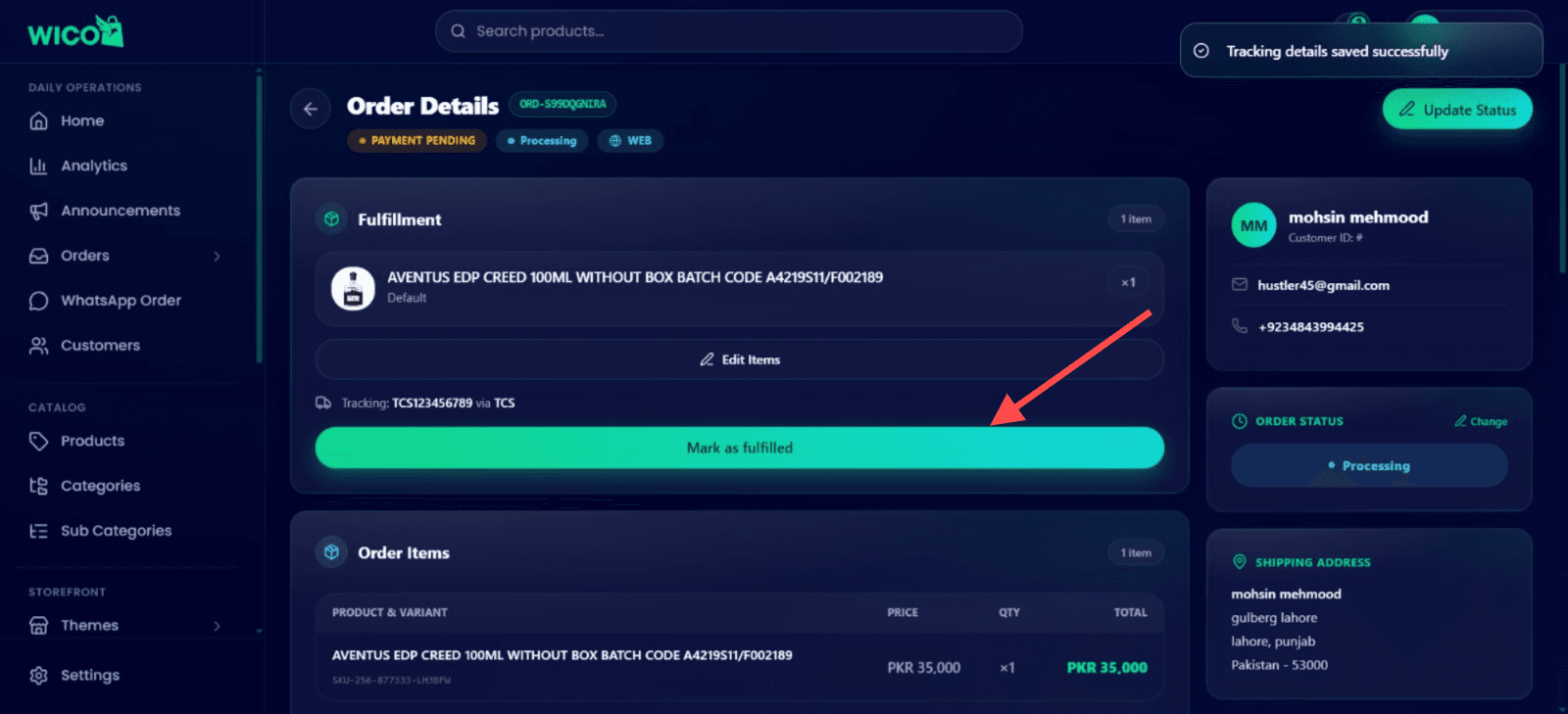
In the Order Details page, scroll to the Fulfillment section. Enter the Tracking Number (e.g. TCS123456789) and Shipping Carrier (e.g. TCS, Leopards) in the two input fields. Click "Save tracking" to save the tracking info.
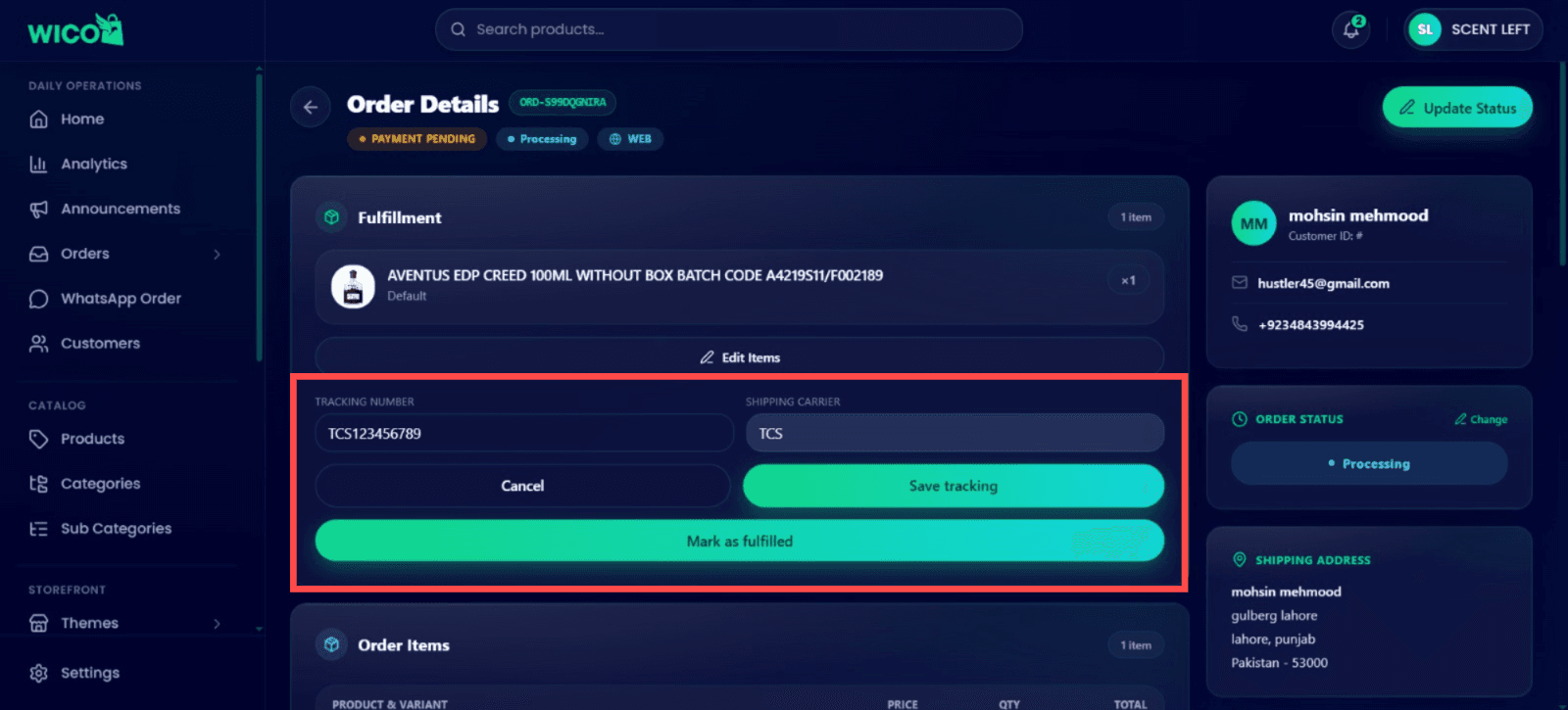
Click "Mark as fulfilled" to confirm shipment.
After saving the tracking number, click the green "Mark as fulfilled" button below it. This confirms the order has been shipped. The customer will be notified automatically with the tracking details.
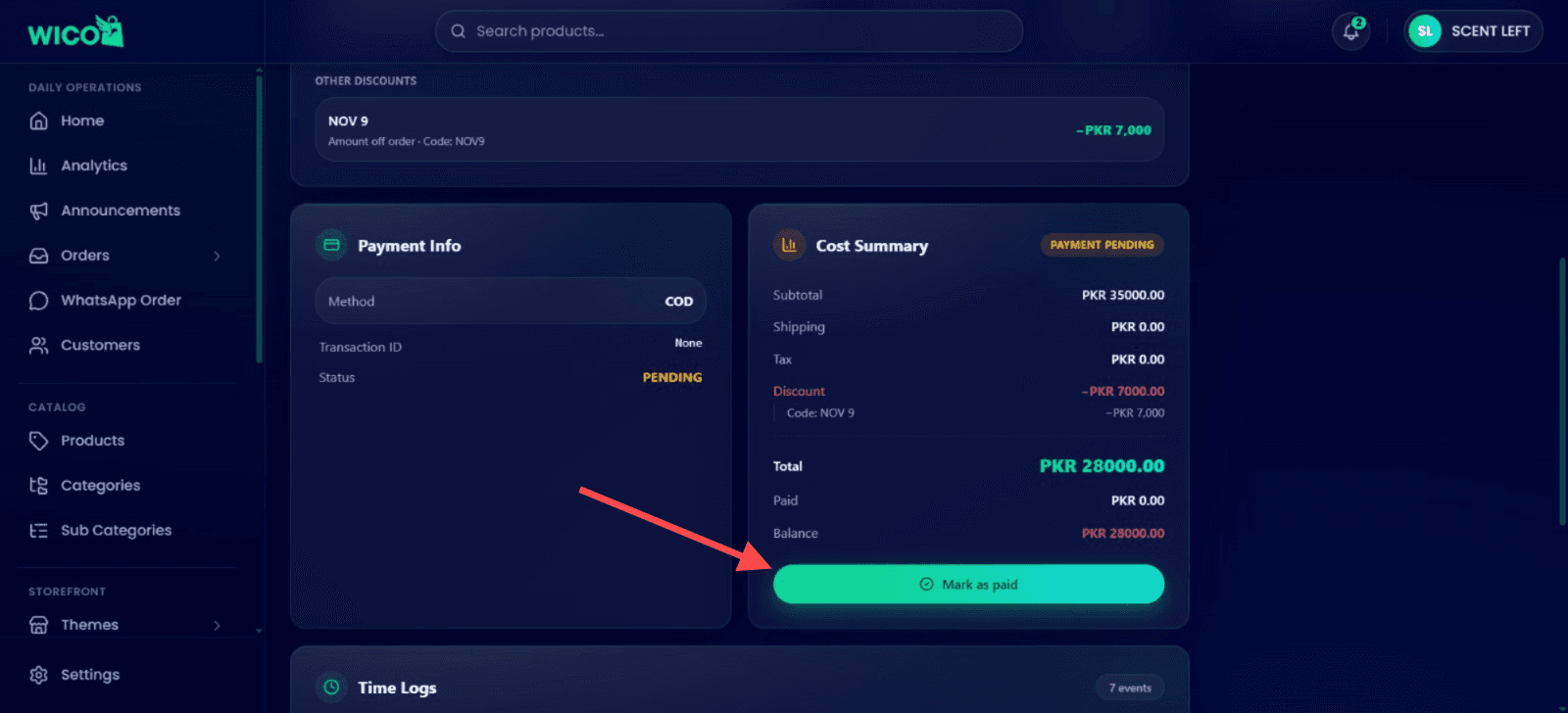
Mark as paid if payment is received.
In the Cost Summary section, if the balance shows an unpaid amount (e.g. PKR 28,000.00), click "Mark as paid" to confirm you have received the payment. This updates the Payment status from Pending to Paid.
That's it!
Your update order status task has been configured successfully. Your Wicofly store is updated.
Related Helps
View Orders
Browse all incoming orders, filter by status, and view order details.
Manage Order Details
View items, verify customer details, manage payment, add tracking, and fulfill orders.
Track Customer Orders
Customers can track their orders in real time at tracking.wicofly.com.
Verify Invoice Payments
Review customer payment proofs, approve or reject invoice payments, and auto-update order status.