
Orders 2 min read·4 Steps
Manage Customers
View customer contact details, order history, and lifetime spending.
0 of 4 steps completed
1
Step 1Sidebar > Daily Operations > Customers
Click on "Customers" from the left sidebar under Daily Operations.
This opens the customer directory showing all registered customers and guest buyers.
accounts.wicofly.com/dashboard
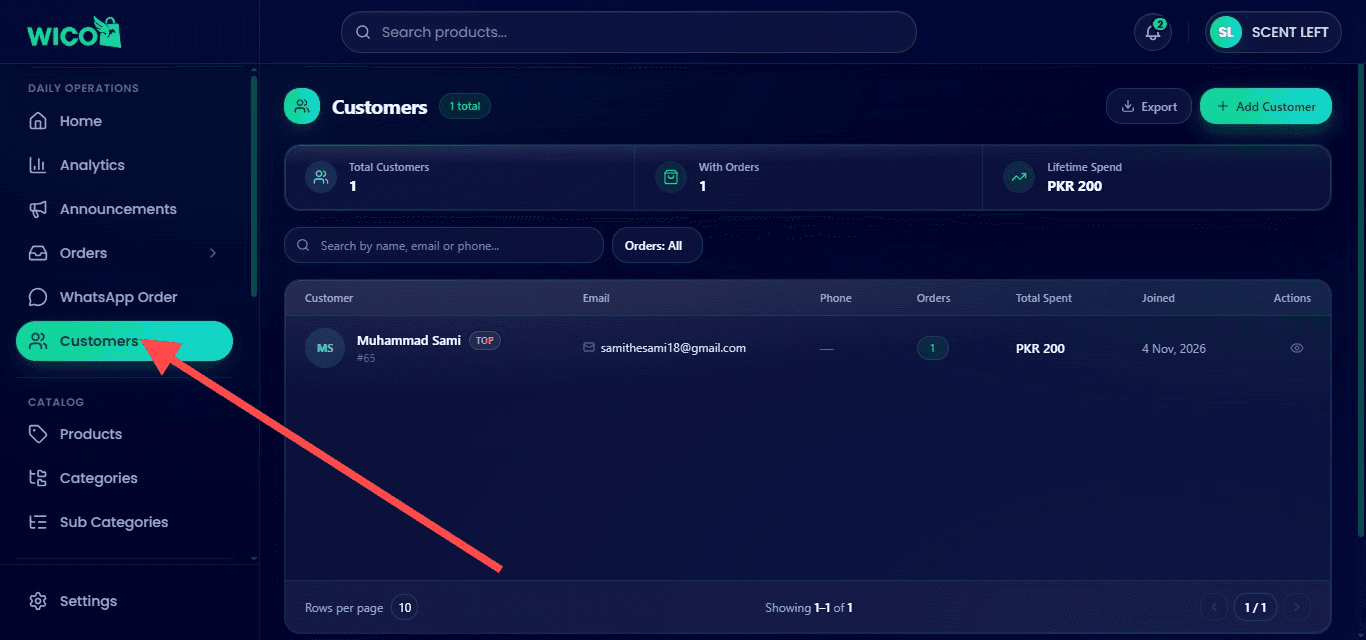
Click Customers
2
Step 2Customer Directory
Search or browse the customer list.
Use the search bar to filter by name, email, or phone number. The table shows each customer's name, contact info, total orders placed, and total amount spent.
accounts.wicofly.com/dashboard
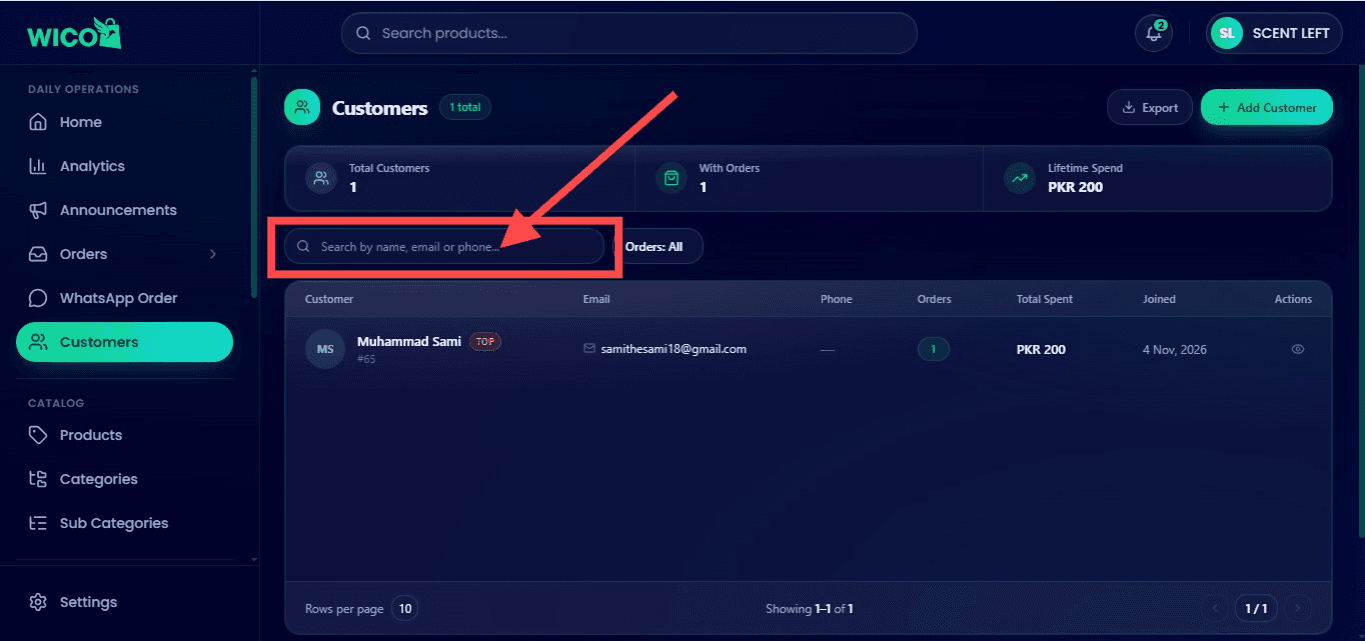
Search customers
3
Step 3Actions > Eye Icon
Click the eye icon to view a customer's profile.
Opens the customer profile showing all past orders, shipping addresses, contact details (email, phone), and spending history in one place.
accounts.wicofly.com/dashboard
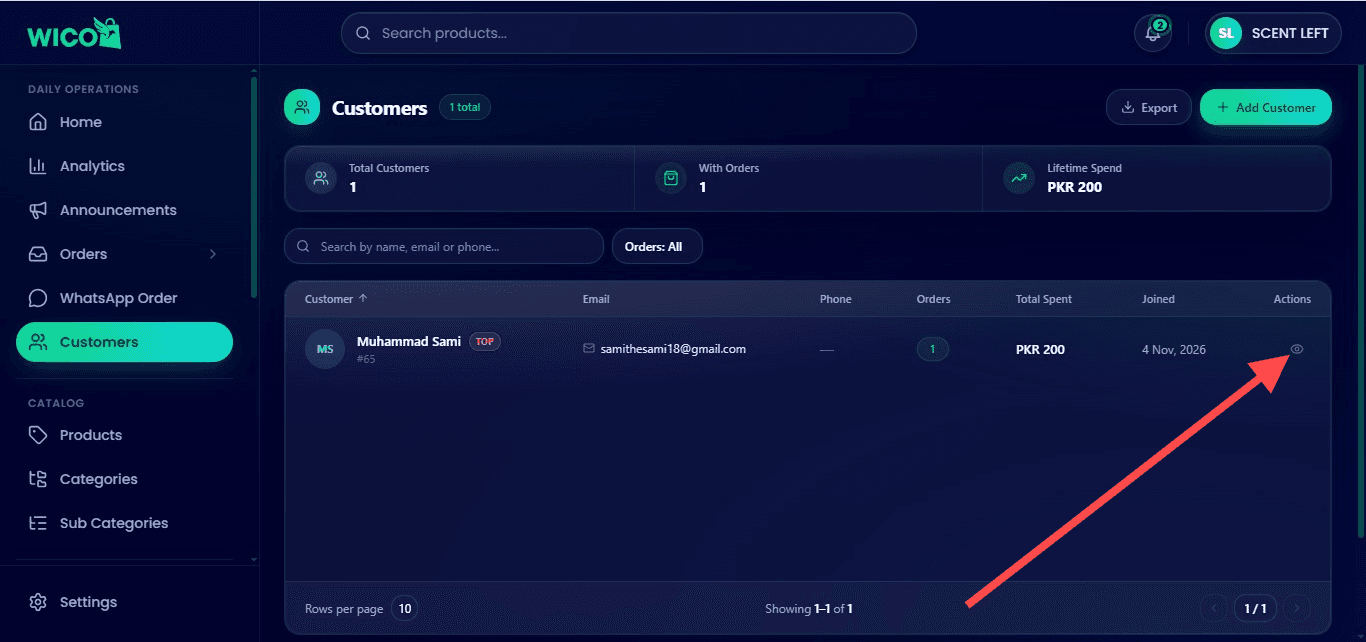
View customer profile
4
Step 4Customer Order History
Review order history and spending pattern.
See every order the customer has placed with dates, amounts, and statuses. Use this data to identify your best customers and plan targeted promotions.
accounts.wicofly.com/dashboard
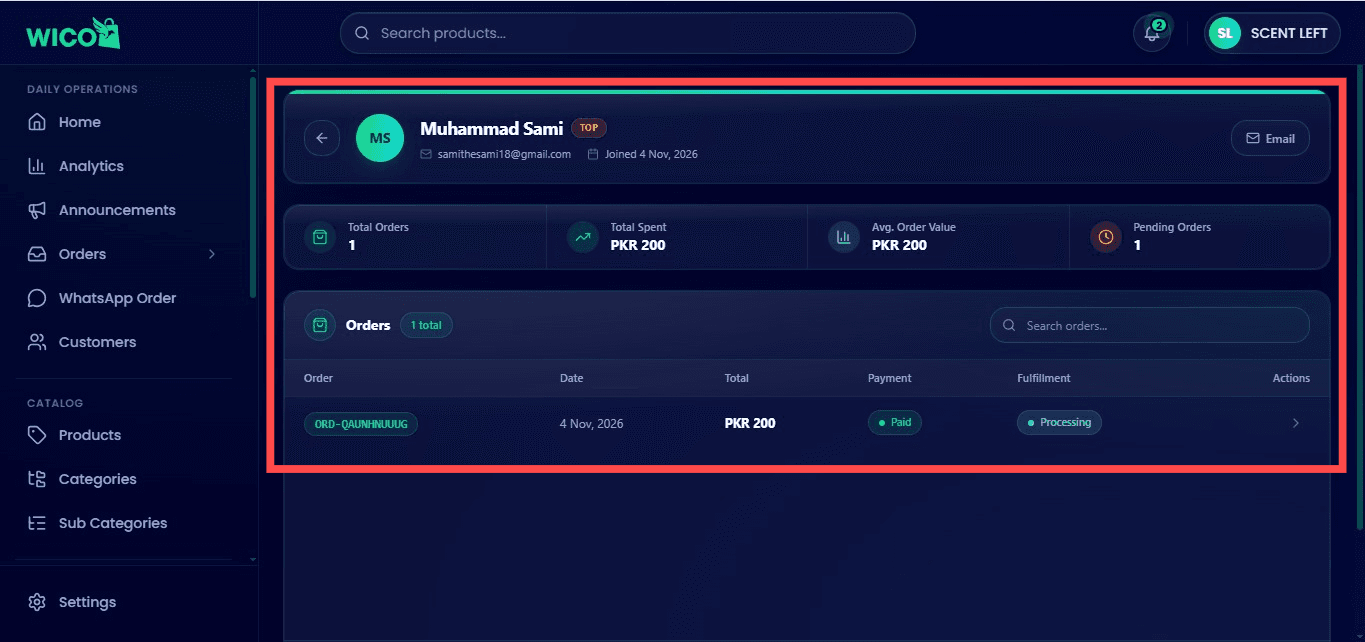
Review order history
That's it!
Your manage customers task has been configured successfully. Your Wicofly store is updated.