
Store Setup
Create your first store to unlock all Wicofly dashboard features.
#Store Setup
After your email is verified, you need to create your first store. Your store must be created before you can use all Wicofly dashboard features.
Information
Creating a store only takes a few minutes.
1
Step 1
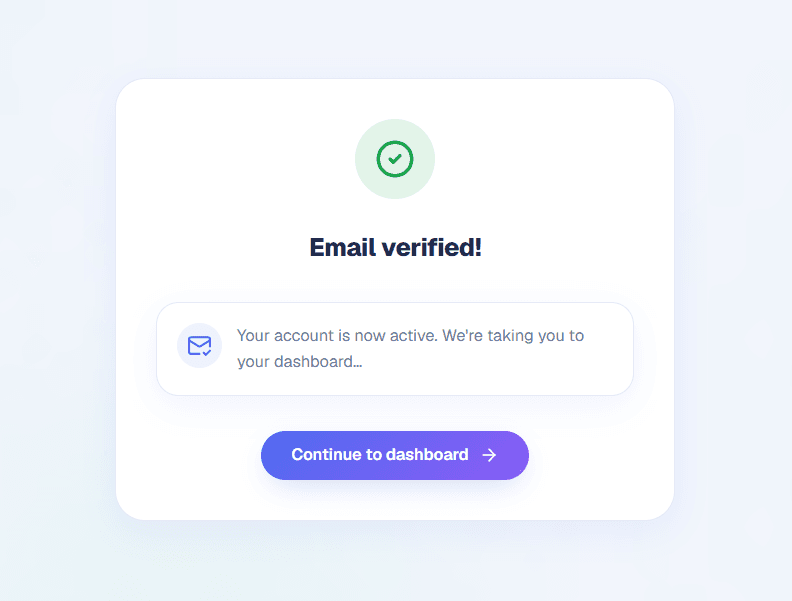
Email Verified Successfully
After verifying your email, you will see a success message with a Continue to Dashboard button.
Click this button to open the Store Setup page.
2
Step 2
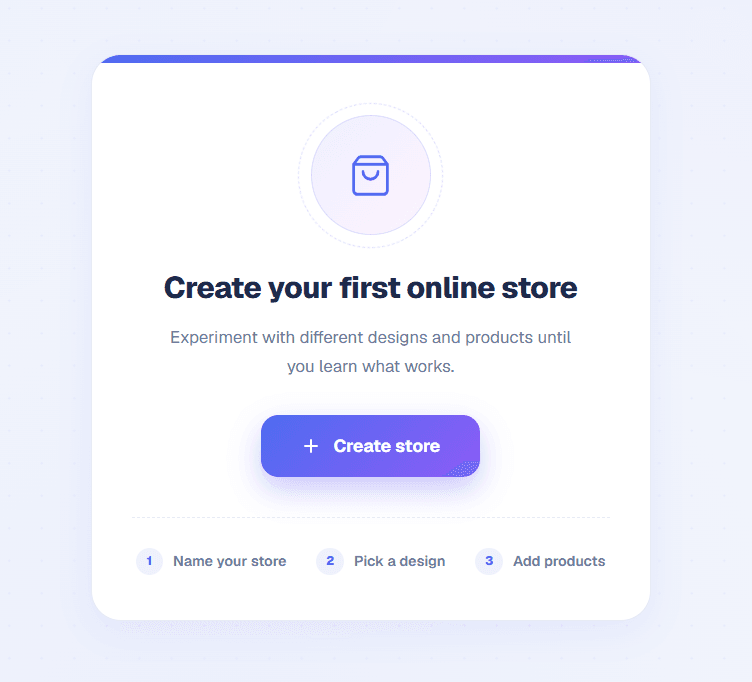
Click Create Store
On the Store Setup page, you will see a card with a Create Store button.
Click this button to open the store creation form.
3
Step 3
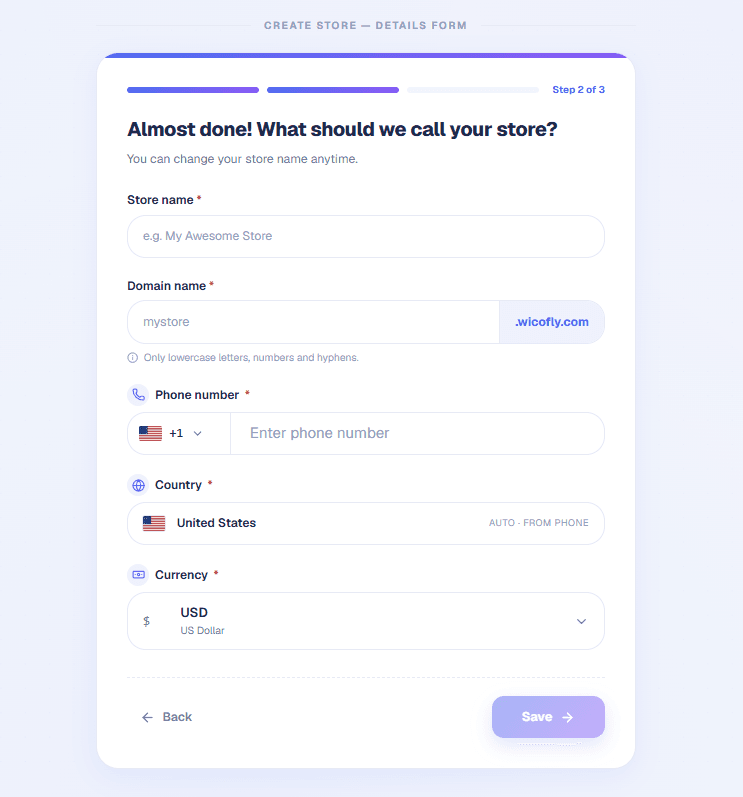
Fill in the Store Information
Complete all required fields before creating your store.
#Required Fields
Store Name
Domain Name
Phone Number
Country
Currency
Tip
The Country is selected automatically based on your phone number.
Warning
Your Domain Name must be unique. If the domain is already in use, an error message will appear. Choose another domain name and try again.
4
Step 4
Create Your Store
After filling in all the information, click the Save button.
Your store will be created successfully, and all dashboard features will be unlocked.
Store created successfully
Dashboard unlocked
Products can be added
Orders can be managed
Store settings are available
Success
Your Wicofly store is now ready. You can start adding products, customizing your store, and growing your business.