
Wicofly LogoWICO.

Custom Domain

Connect your own domain to your Wicofly store.

#Use Your Own Domain

When you create your store, Wicofly automatically gives you a free domain like:

mystore.wicofly.com

If you already own a custom domain such as mybusiness.com, you can connect it to your Wicofly store.

Information

Connecting a custom domain is optional. You can continue using your free .wicofly.com domain if you don't have your own domain.
1

Step 1

Open the Custom Domain Card

Done

Scroll down on your dashboard until you find the Customize Domain card.

Click the Connect Your Domain button.
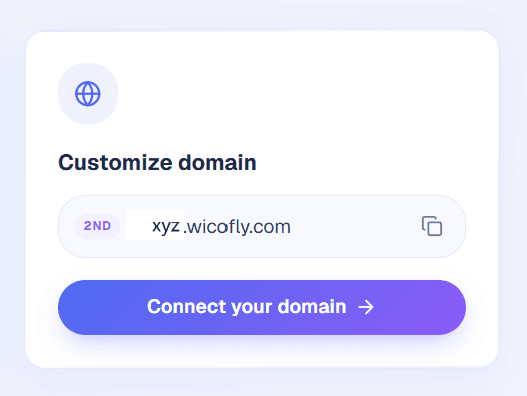
Wicofly Connect your domain
Click the Connect Your Domain button.
2

Step 2

Enter Your Domain

Done

A new page will open with a domain input field.

Enter your domain name, for example:

mybusiness.com

After entering your domain, click the Connect button.
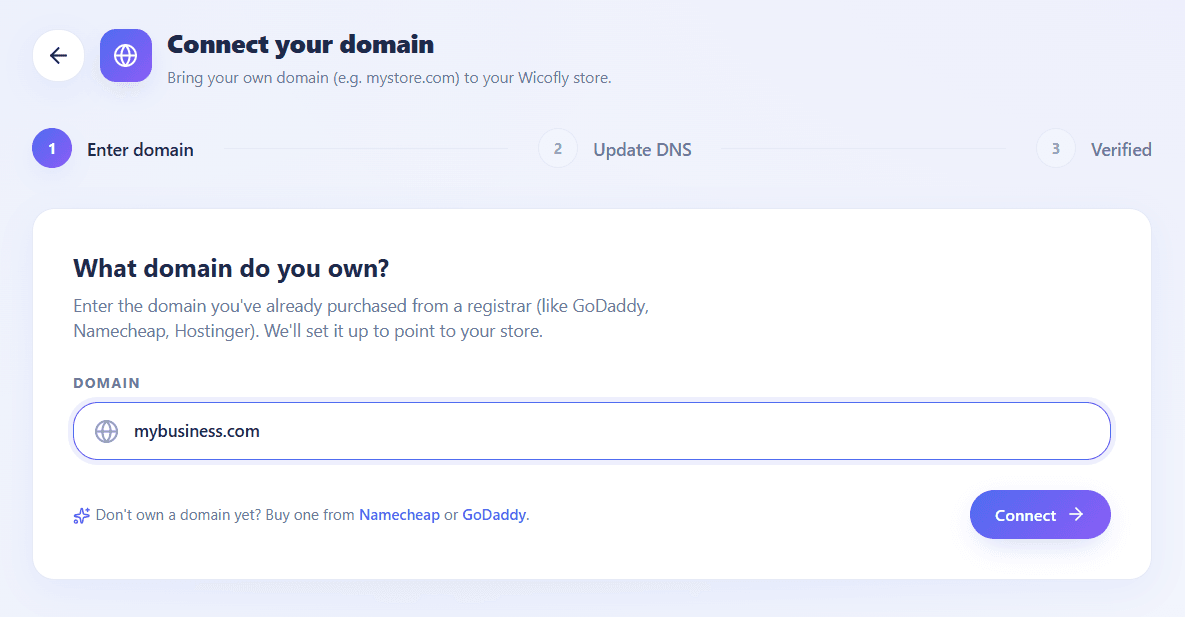
Wicofly Domain input
Enter your domain and click Connect.
3

Step 3

Update Your DNS Records

Done

If your domain is not connected anywhere else, Wicofly will display the DNS records you need to add.
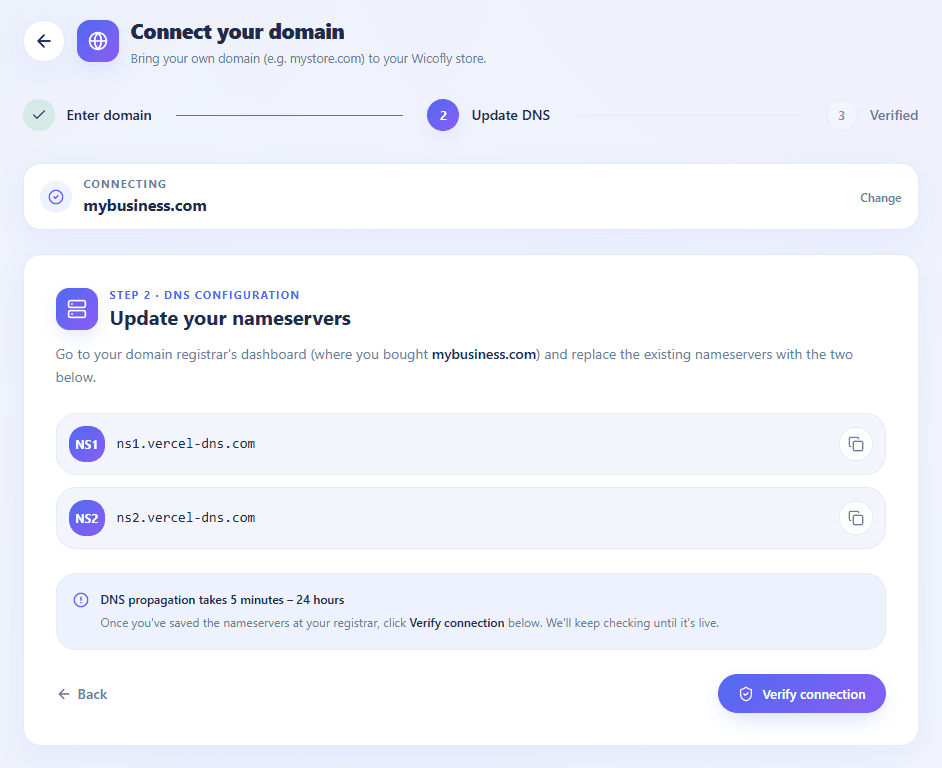
Wicofly DNS Records
Copy these DNS records.

#DNS Records

ns1.vercel-dns.com
ns2.vercel-dns.com

#How to Add DNS Records

Log in to your domain provider (GoDaddy, Hostinger, Namecheap, etc.).
Open your domain management page.
Go to DNS Settings or Nameservers.
Replace the current nameservers with the DNS records provided by Wicofly.
Save your changes.
Wait for the DNS changes to update.

Tip

DNS changes are not instant. They may take a few minutes or up to 48 hours to update worldwide.
4

Step 4

Verify Your Domain

Done

After updating your DNS records, return to the Wicofly dashboard.

Click the Verify Connection button to check your domain configuration.

Wicofly Verify Connection
Click Verify Connection after updating your DNS settings.

If everything is configured correctly, Wicofly will verify your domain and show a success screen.
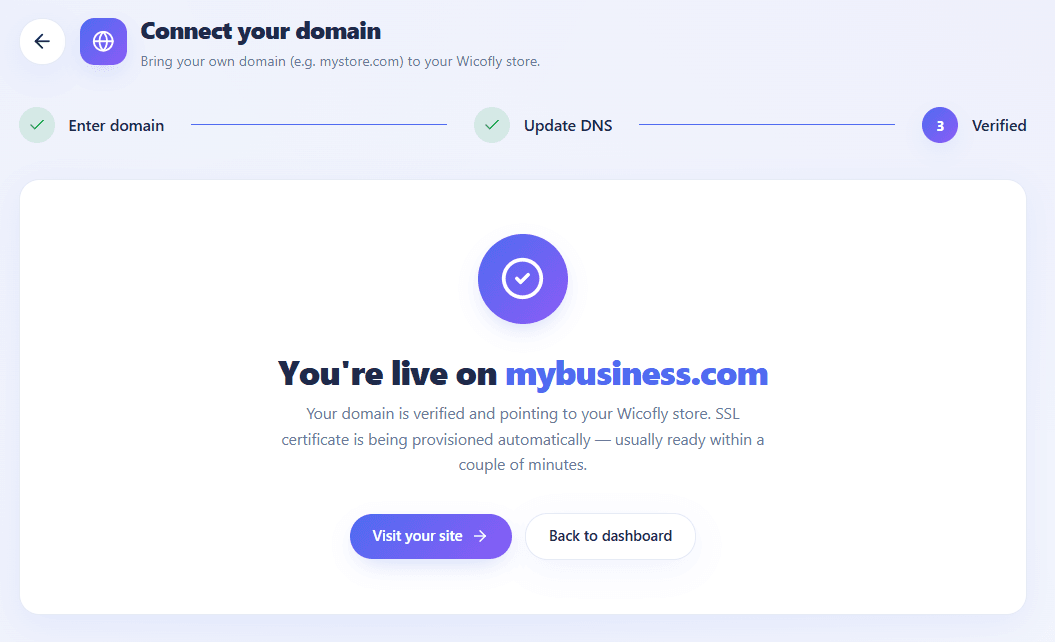
Wicofly Domain Connected Successfully
Your custom domain has been connected successfully.

Success

Congratulations! Your custom domain has been connected successfully. Your store is now live and customers can visit it using your own domain.
Domain verified successfully
SSL certificate activated automatically
Your store is now live on your custom domain
Customers can visit your website using your own domain

Tip

DNS changes can sometimes take up to 48 hours to fully update worldwide. If verification does not work immediately, wait a little while and click Verify Connection again.