
Shipping & Delivery
Create delivery zones and shipping options for your store.
#Shipping & Delivery
Shipping & Delivery lets you choose where you want to deliver your products and how much shipping will cost.
Information
You can create multiple delivery zones and add different shipping options for each zone.
1
Step 1
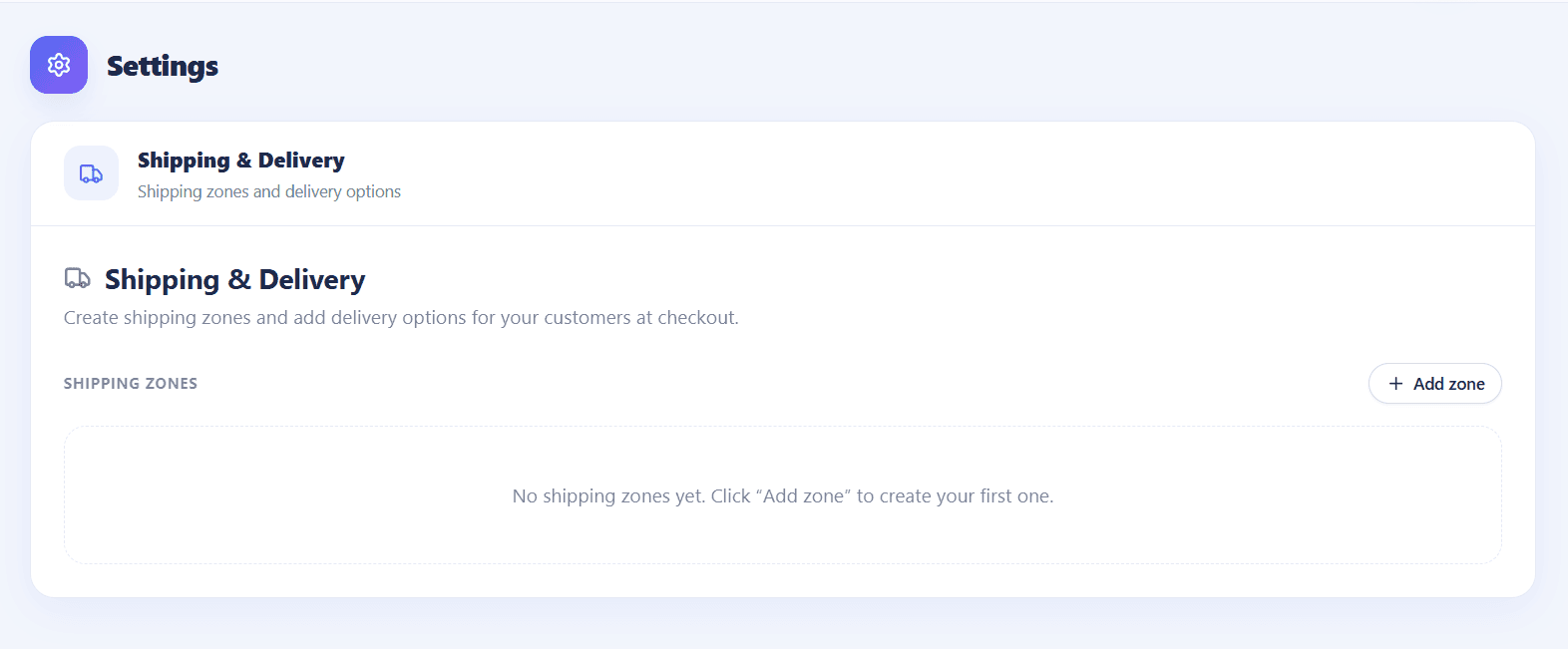
Open Shipping & Delivery
Open your dashboard and scroll to the bottom of the left sidebar.
Click Settings, then open Shipping & Delivery.
2
Step 2
Create a Delivery Zone
Click the Add Zone button to create a new delivery zone.
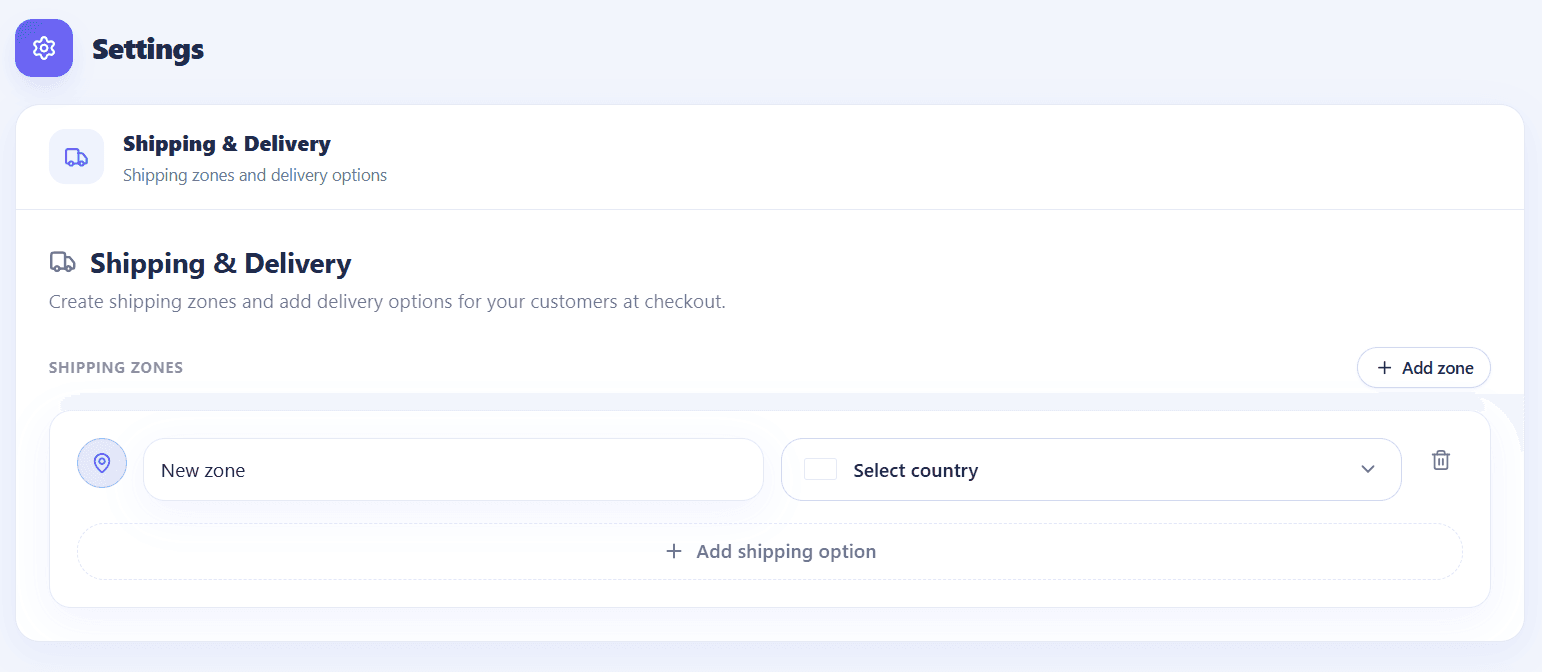
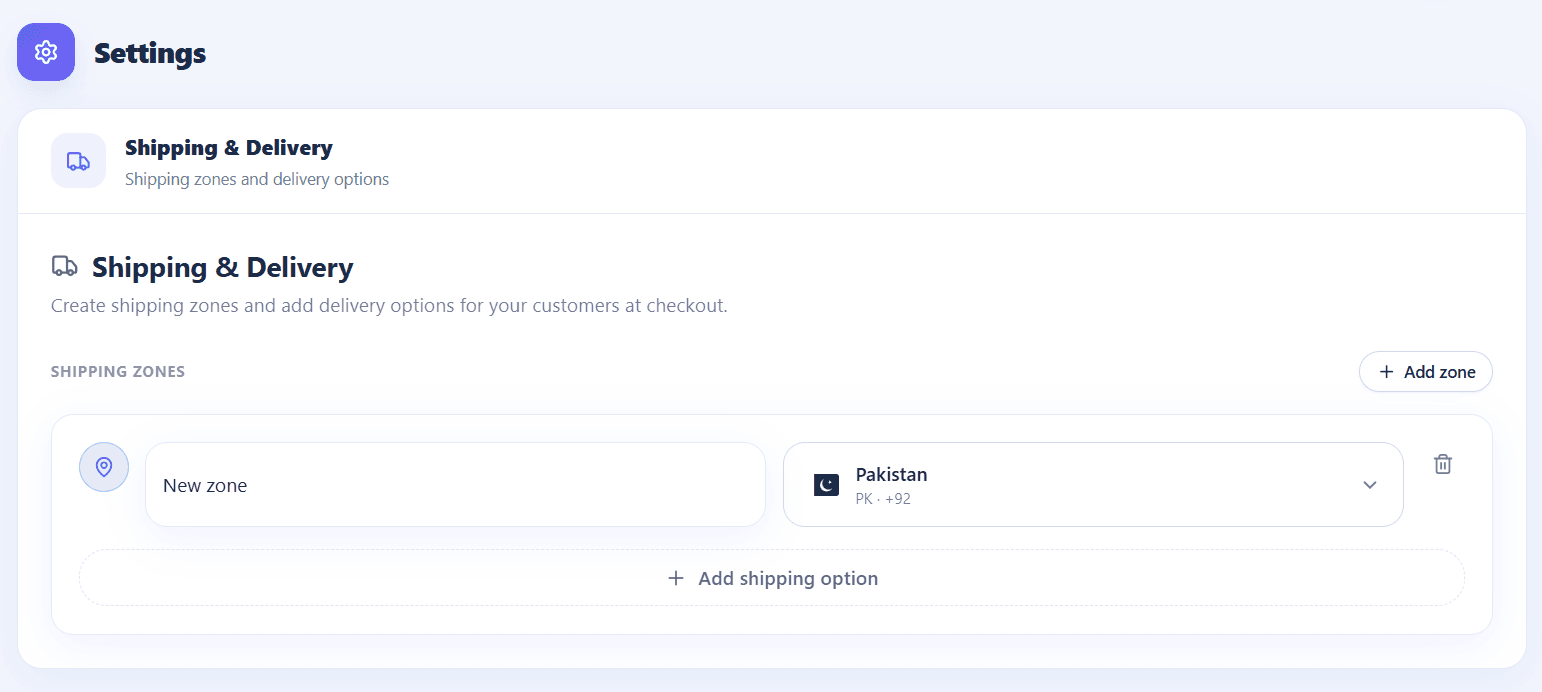
Enter the basic information for your delivery zone.
Zone Name
Country
After that, click Add Shipping Option.
3
Step 3
Add a Shipping Option
A popup will open where you can create a shipping option for this delivery zone.
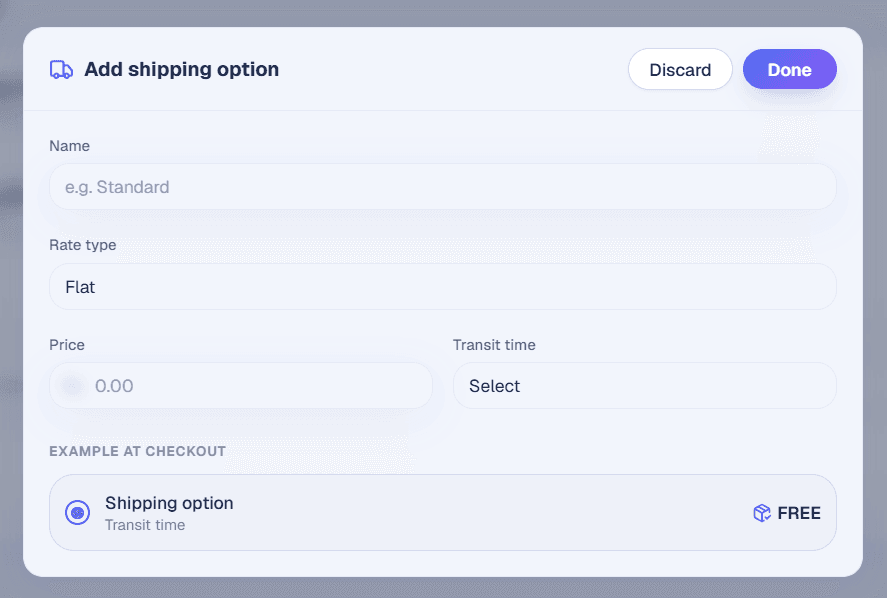
Shipping Option Name
Rate Type
Transit Time
Shipping Amount
Choose the rate type that best fits your business.
Flat Rate
Order Amount
Order Weight
Order Quantity
Tip
You can add multiple shipping options to the same delivery zone and edit them anytime.
Success
After saving your shipping options, customers will automatically see the correct shipping charges during checkout.