
Configure WhatsApp Ordering
Enable WhatsApp ordering on your storefront by adding your WhatsApp business number.
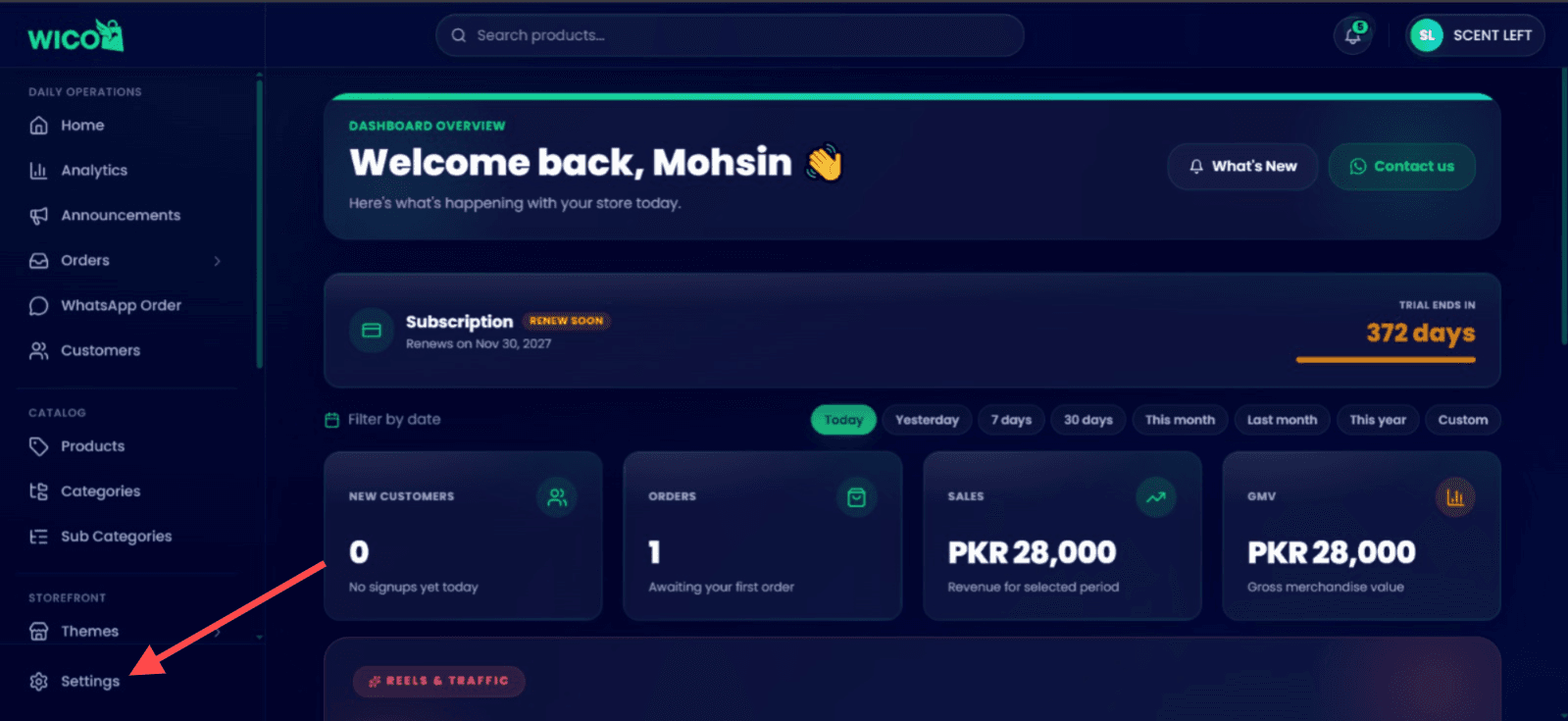
Click "Settings" from the left sidebar on your dashboard.
Open your store dashboard and click Settings from the left navigation menu to access your store configuration options.
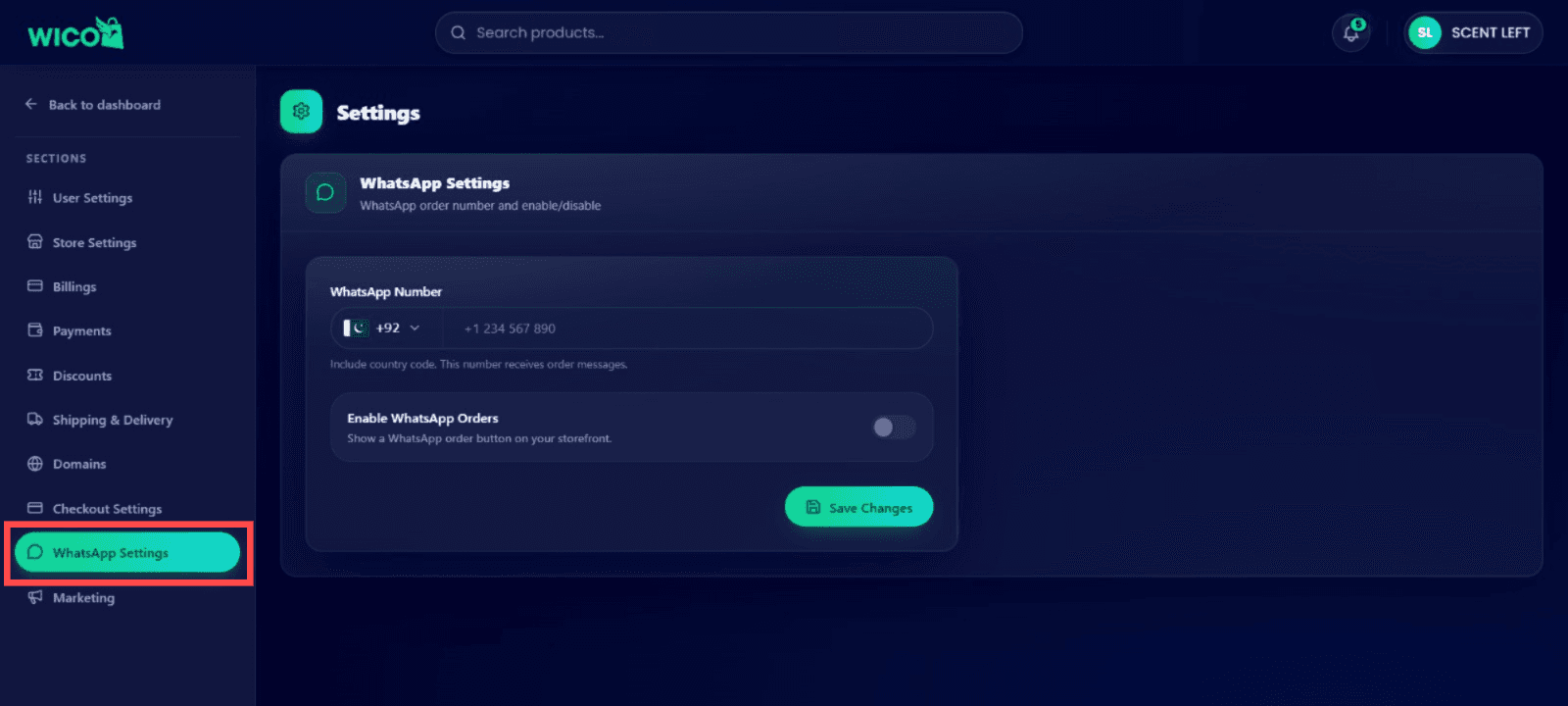
Select "WhatsApp Settings" from the settings sidebar.
On the Settings page, click WhatsApp Settings to open the WhatsApp ordering configuration panel.
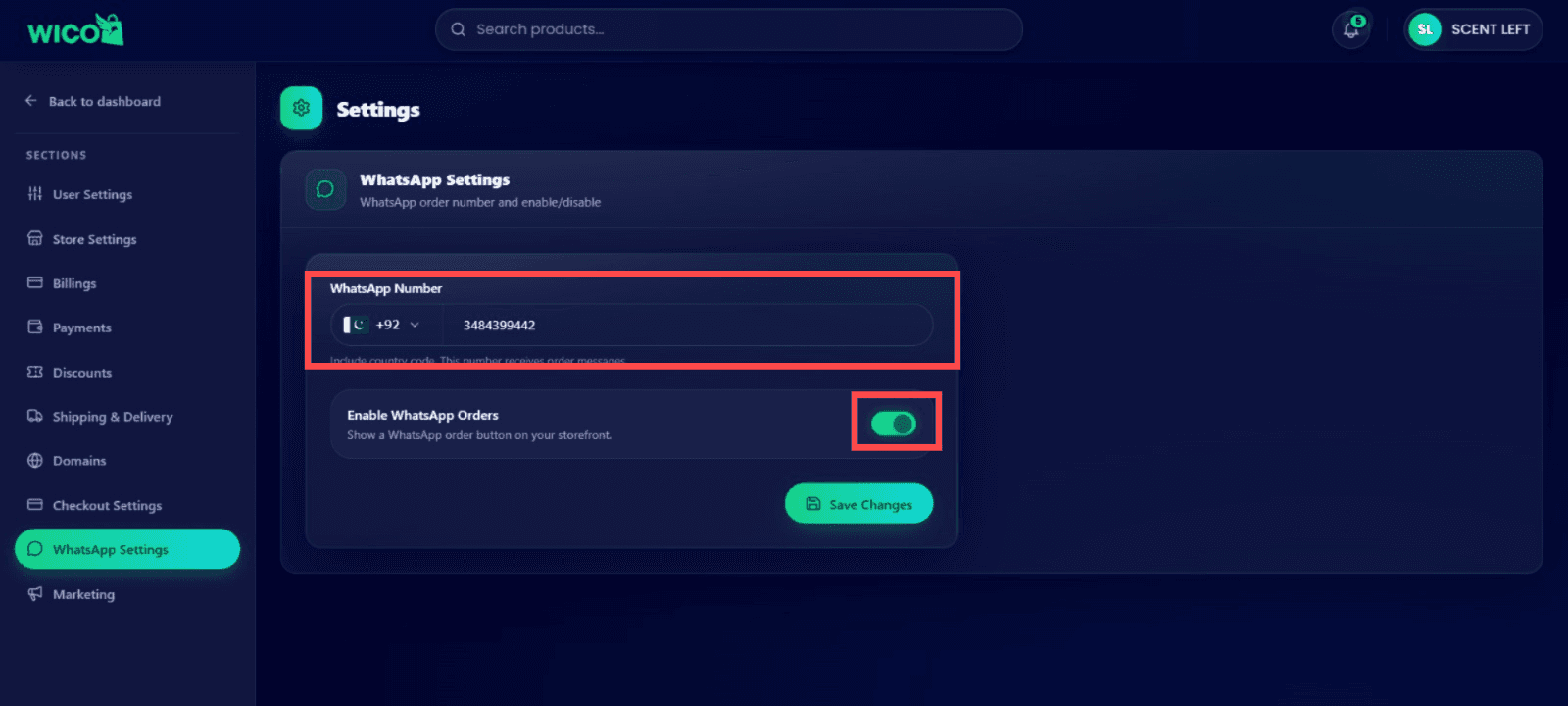
Enter your WhatsApp number and enable WhatsApp Orders.
Select your country code and enter your WhatsApp business phone number. Turn on the Enable WhatsApp Orders toggle to display the WhatsApp ordering button on your storefront.
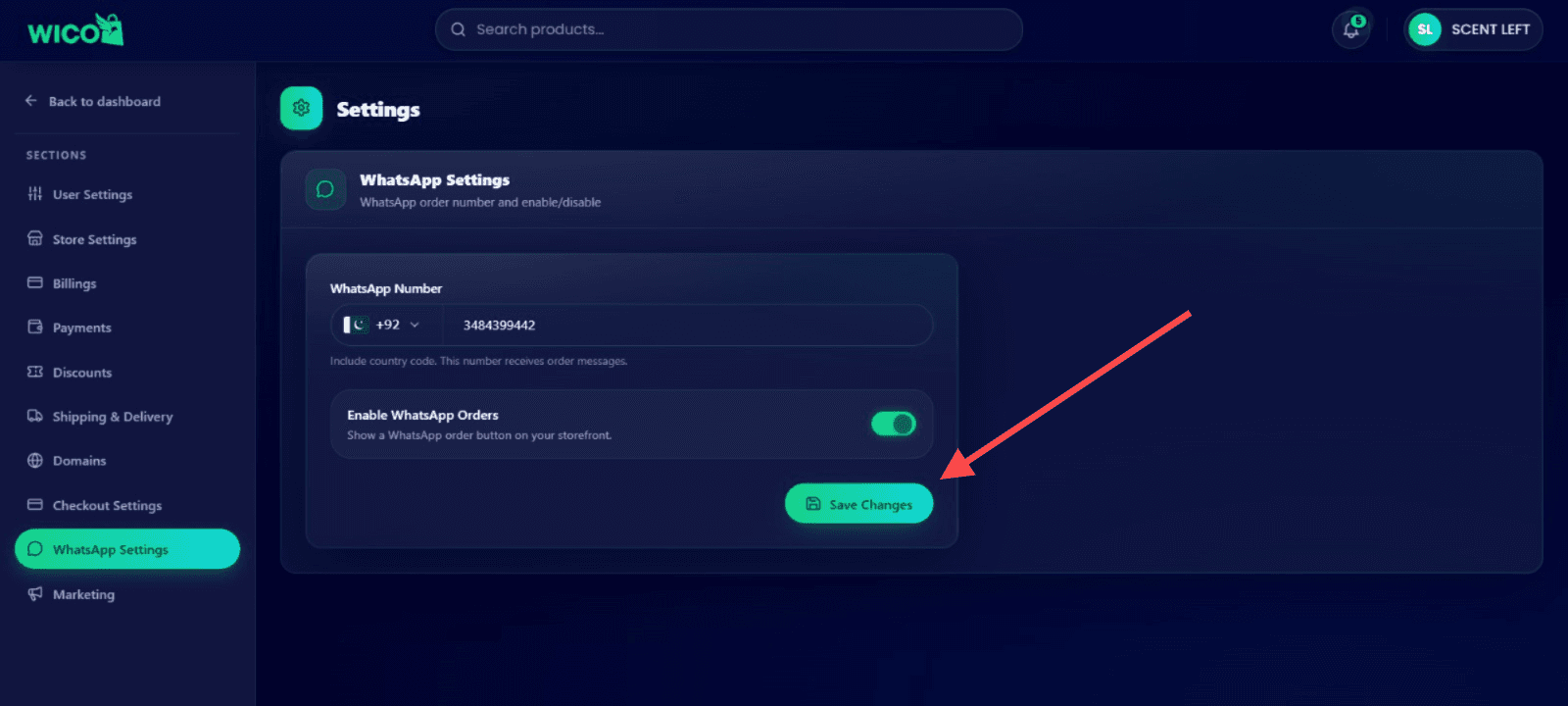
Click "Save Changes" to apply your settings.
Save your changes to activate WhatsApp ordering. Your storefront will display the WhatsApp order button when the feature is enabled.
That's it!
Your configure whatsapp ordering task has been configured successfully. Your Wicofly store is updated.
Related Helps
View Orders
Browse all incoming orders, filter by status, and view order details.
WhatsApp Orders
View and manage orders that came through the WhatsApp ordering channel.
Configure Payment Methods
Enable Cash on Delivery, add invoice payment methods (EasyPaisa, JazzCash, SadaPay, Bank), and manage checkout options.