
Select a Theme
Browse the Wicofly theme library and switch to a different storefront design.
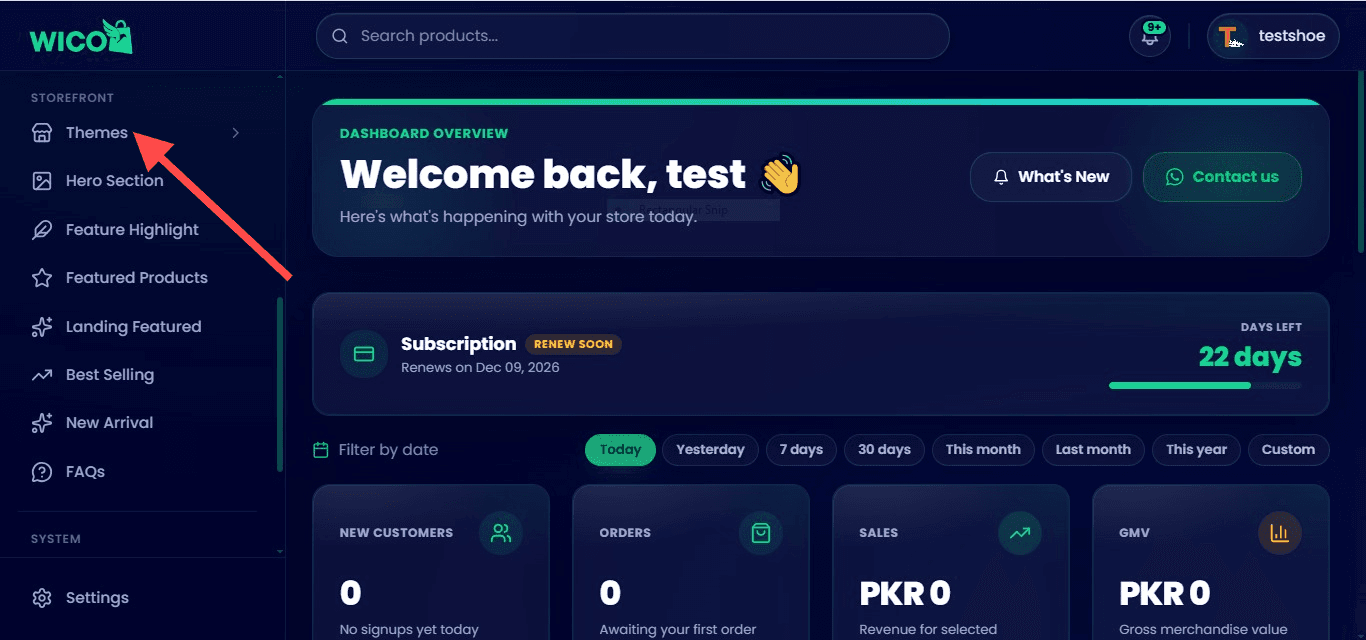
Click on "Themes" from the left sidebar under Storefront.
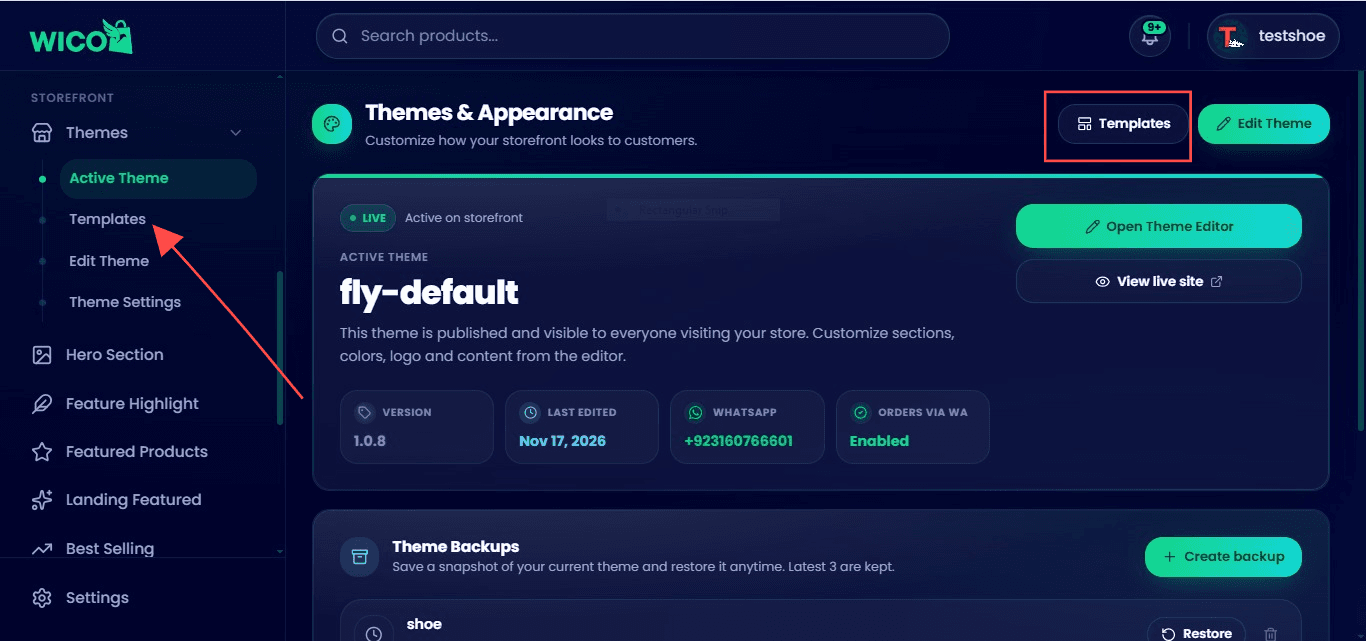
This opens the Themes & Appearance page. Your store starts with the "fly-default" theme already active — you can see it marked as "LIVE" with a green badge.
Click "Templates" in the top right to browse other themes.
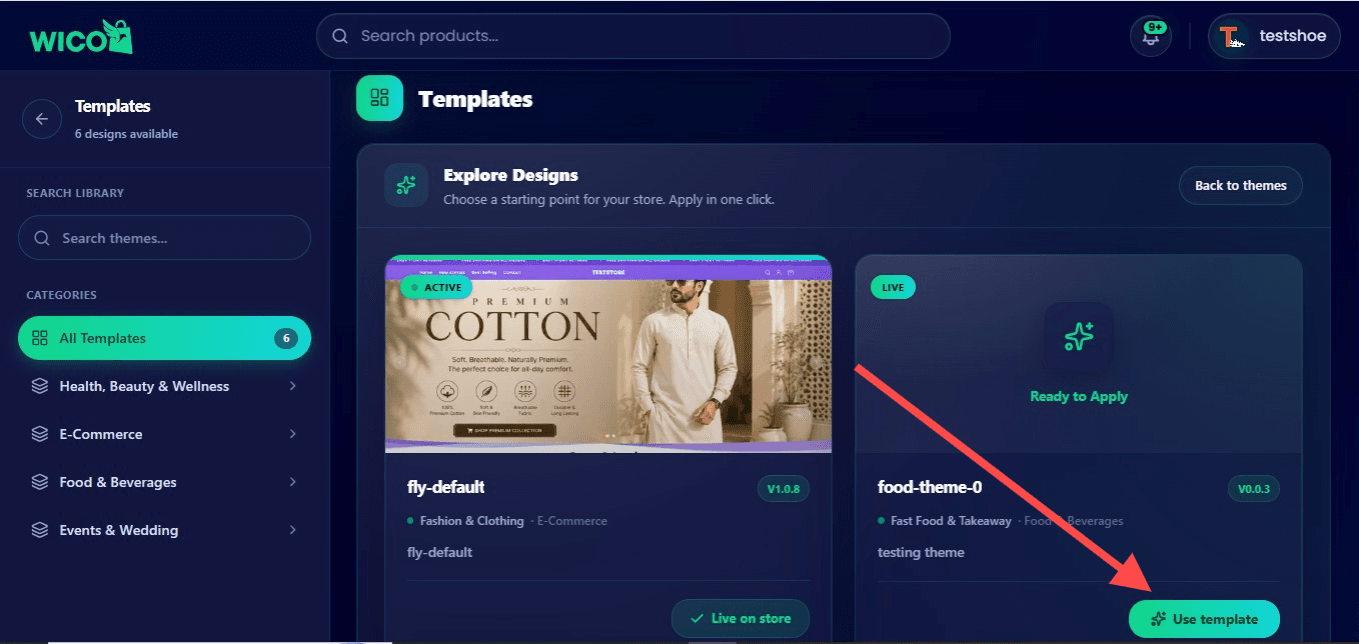
This opens the template library showing all available designs — fly-default, fly-fashion-1, fly-fashion-3, etc. Each card shows a preview thumbnail and version number.
Click "Use Template" on the theme you want to switch to.
Browse the available templates and click "Use Template" on any design you like. The theme is applied instantly — all your products, categories, and settings are preserved. Only the visual design changes.
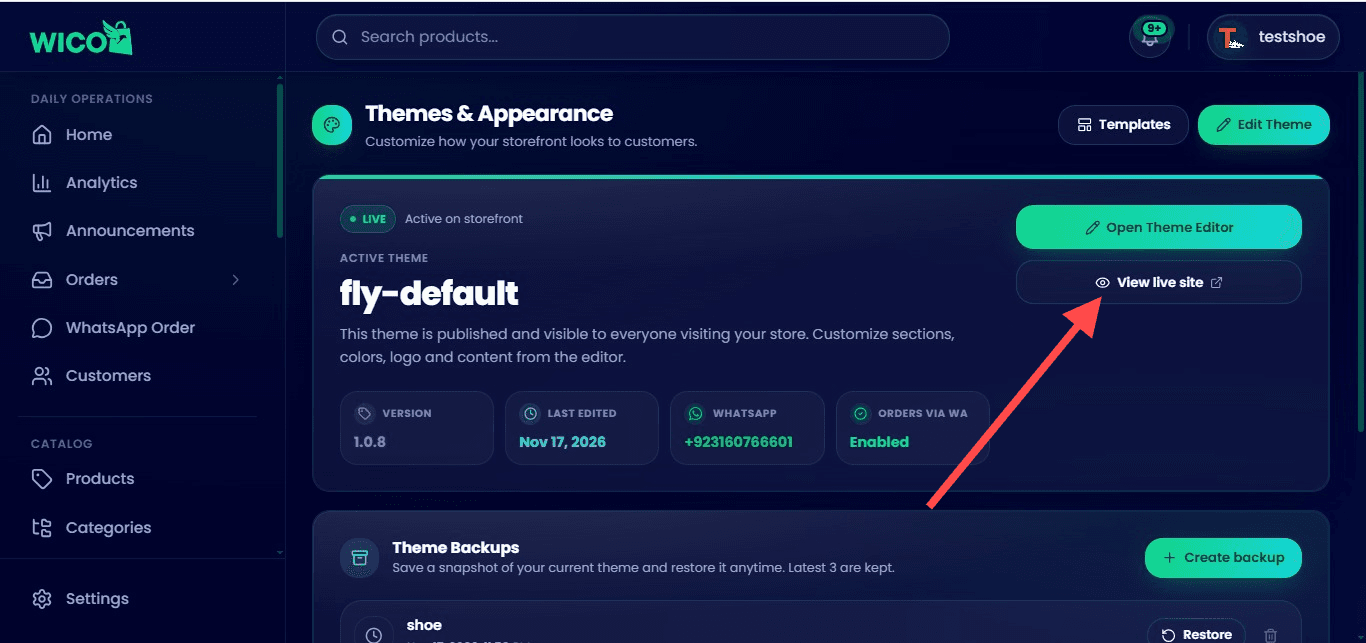
Click "View Live Site" to see your store with the new theme.
Go back to the Themes page and click "View Live Site" to open your storefront in a new tab. Verify everything looks correct with the new design.
That's it!
Your select a theme task has been configured successfully. Your Wicofly store is updated.
Related Helps
Create Your Online Store
Fill in your store details and launch your free Wicofly storefront instantly.
Customize Your Store
Fine-tune brand colors, layout, button styles, and fonts from the theme editor.
Change Store Logo & Favicon
Upload your brand logo and favicon from Theme Settings.
Edit Homepage Sections
Rearrange sections, change section designs, add new sections, and customize your homepage layout.