
Customize Your Store
Fine-tune brand colors, layout, button styles, and fonts from the theme editor.
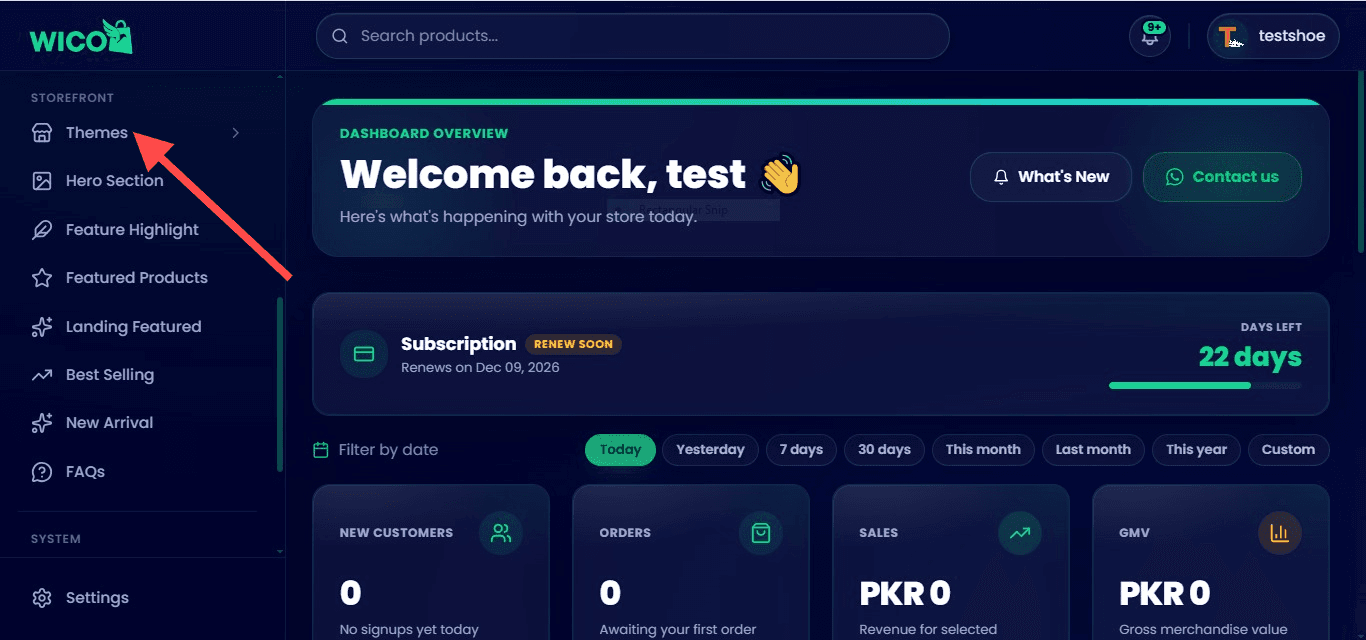
Click on "Themes" from the left sidebar under Storefront.
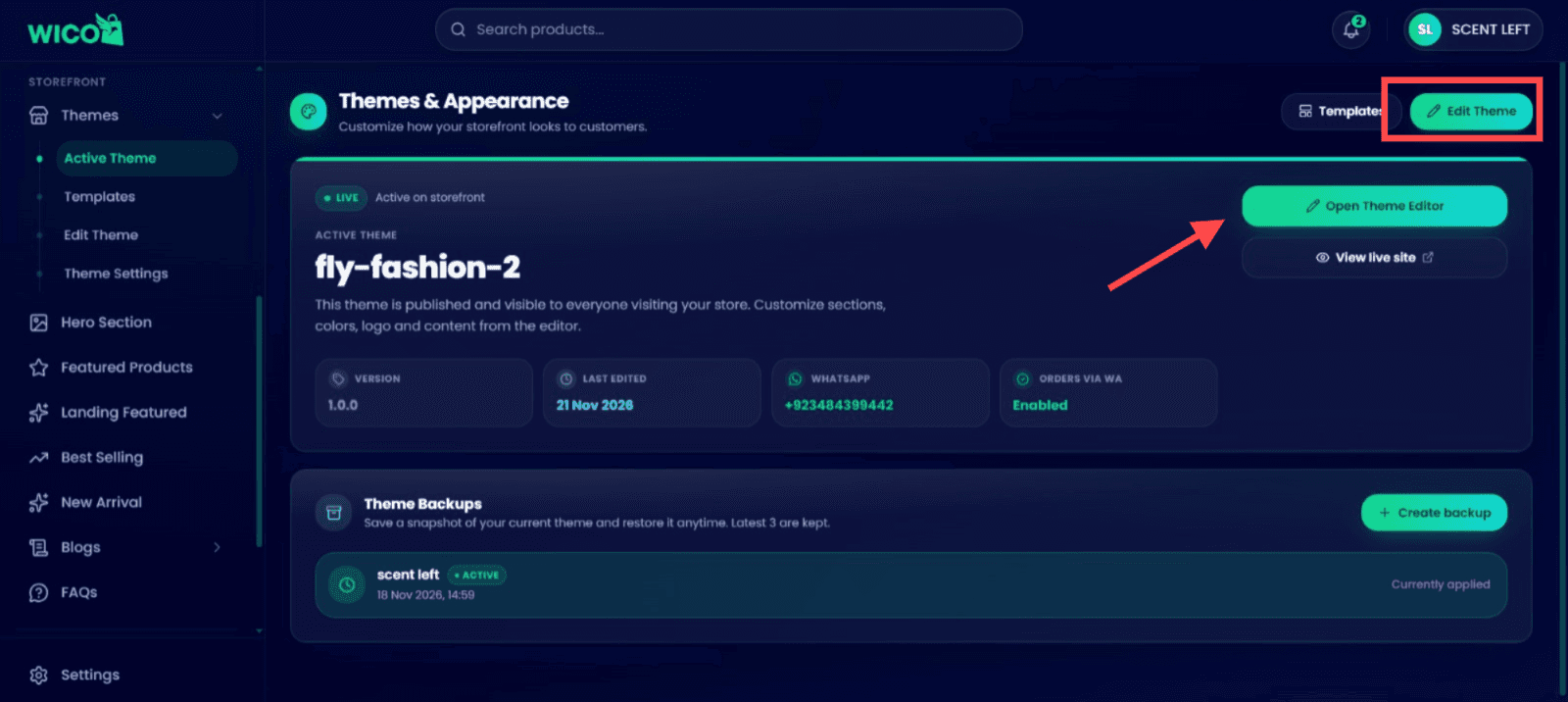
This opens the Themes & Appearance page showing your active theme.
Click "Open Theme Editor" or "Edit Theme".
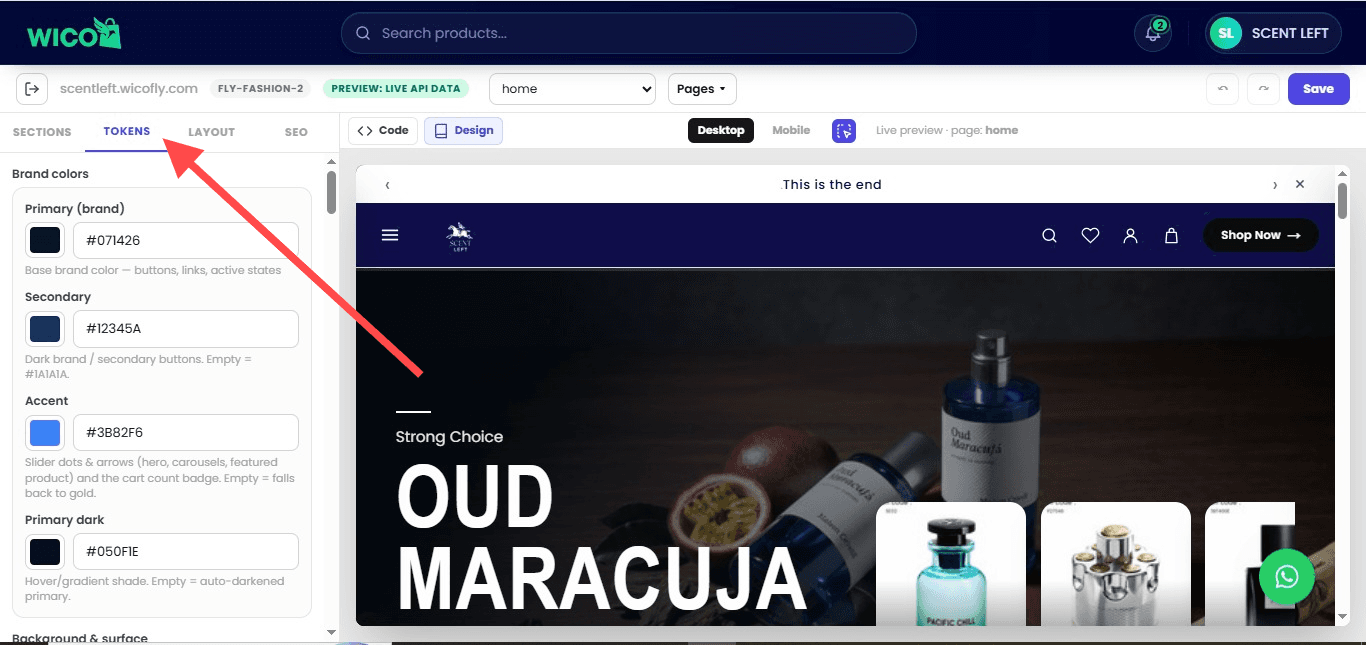
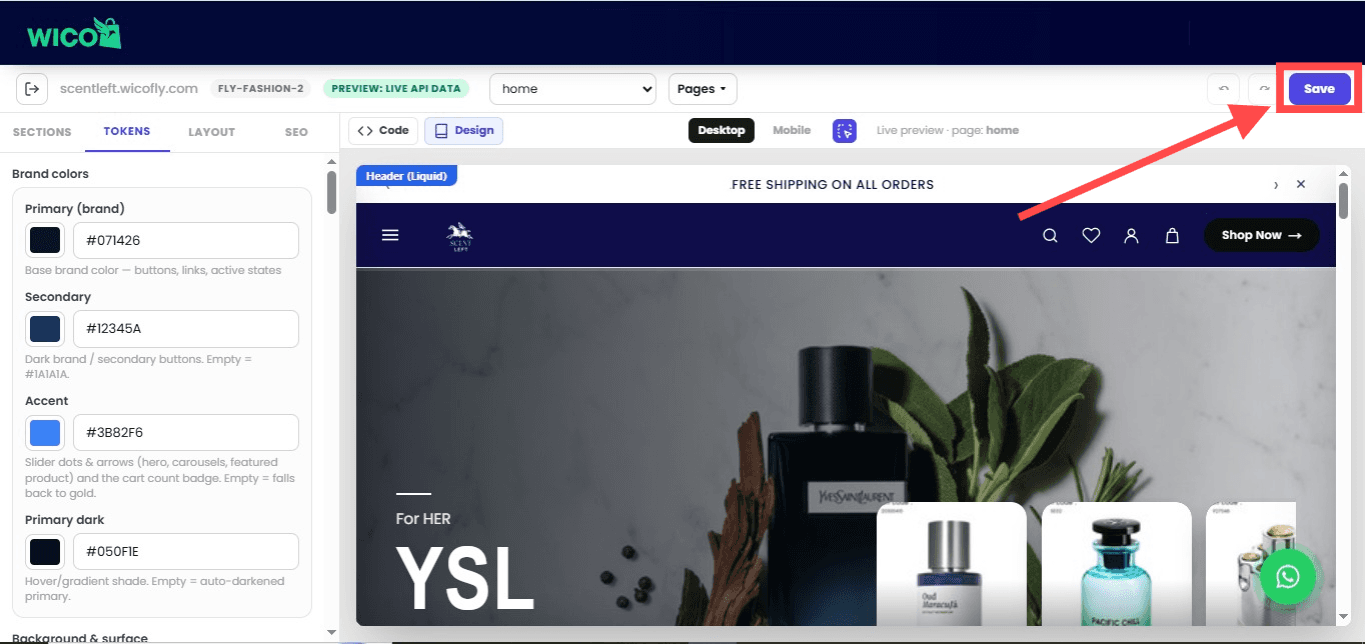
This launches the visual theme editor with a live preview of your storefront. You will see tabs at the top: SECTIONS, TOKENS, LAYOUT, SEO.
Click the "TOKENS" tab to customize colors and fonts.
Tokens control your store's visual identity — primary brand color, accent color, background colors, text colors, button styles, border radius, and typography fonts. Changes update in the live preview instantly.
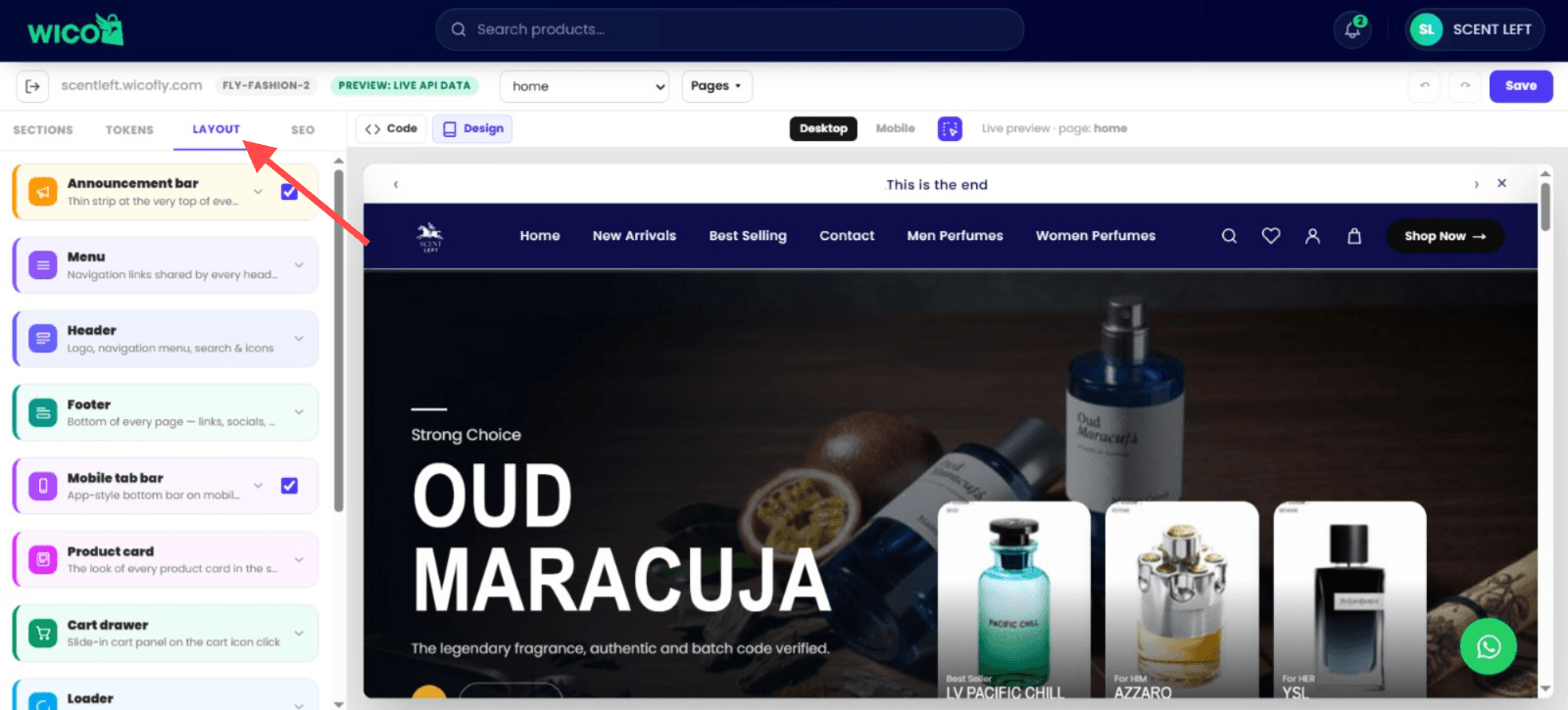
Click the "LAYOUT" tab to customize global components.
Layout lets you configure shared components across your entire store — Announcement Bar (top strip), Menu (navigation links), Header (logo & icons), Footer (links & socials), Mobile Tab Bar (bottom nav on mobile), Product Card (how products look in grids), Cart Drawer (slide-in cart panel), Loader (loading animation), Search (search overlay), Mobile Menu (hamburger menu), and Card Design (product card style). Click any item to expand its settings. Toggle checkboxes to enable/disable components like Announcement Bar or Mobile Tab Bar.
Click "Save" in the top right corner.
All your token and layout changes are published instantly. Visitors will see the updated design immediately.
That's it!
Your customize your store task has been configured successfully. Your Wicofly store is updated.
Related Helps
Select a Theme
Browse the Wicofly theme library and switch to a different storefront design.
Change Store Logo & Favicon
Upload your brand logo and favicon from Theme Settings.
Edit Homepage Sections
Rearrange sections, change section designs, add new sections, and customize your homepage layout.