
Edit Homepage Sections
Rearrange sections, change section designs, add new sections, and customize your homepage layout.
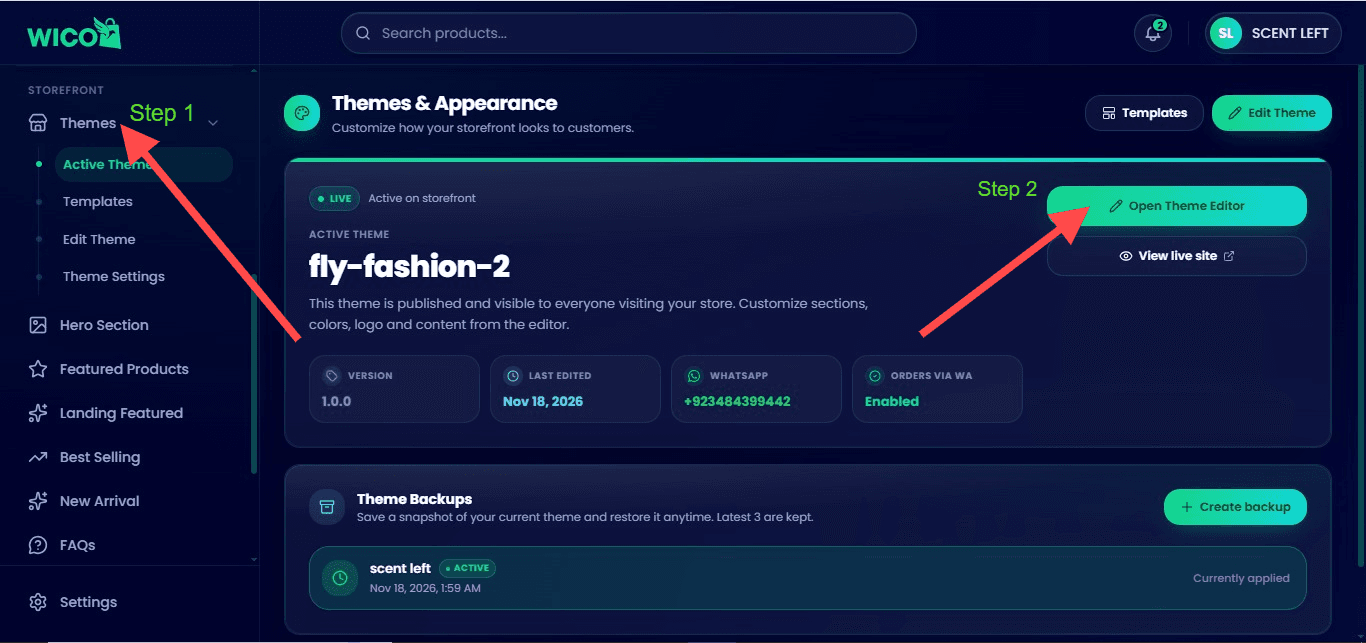
Click on "Themes" from the left sidebar, then click "Edit Theme".
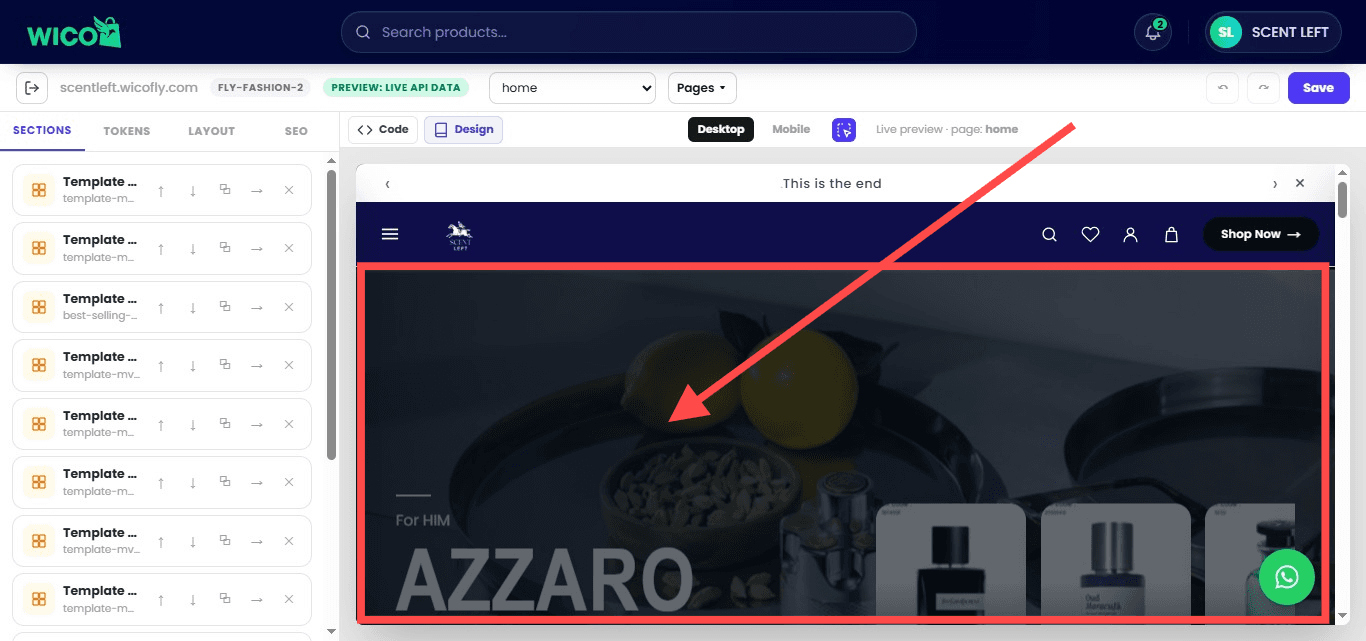
This opens the visual theme editor. The SECTIONS tab on the left shows all homepage sections — Hero slider, Categories, Product grid, Best Selling, Featured Products, FAQs, etc.
Click any section to edit its settings.
Click on a section (e.g. Hero slider, Product grid) to expand its settings panel. You can change the products source (All products, Best Selling, New Arrivals, Featured, or a specific category), set the products limit, toggle full width, and set an anchor ID for scroll targeting.
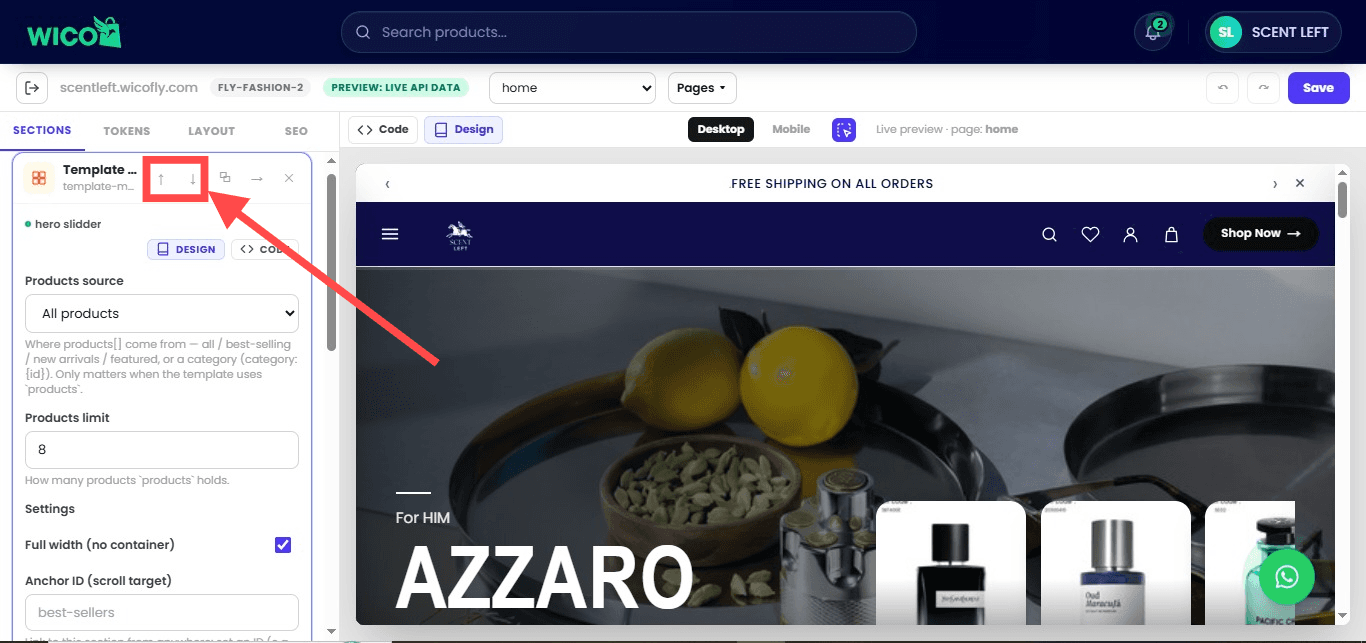
Use the up/down arrows to rearrange sections.
Each section has arrow buttons (↑ ↓) to move it up or down in the page order. You can also duplicate a section with the copy icon, or remove it with the X button.
Click the "Design" button on any section to open the design library.
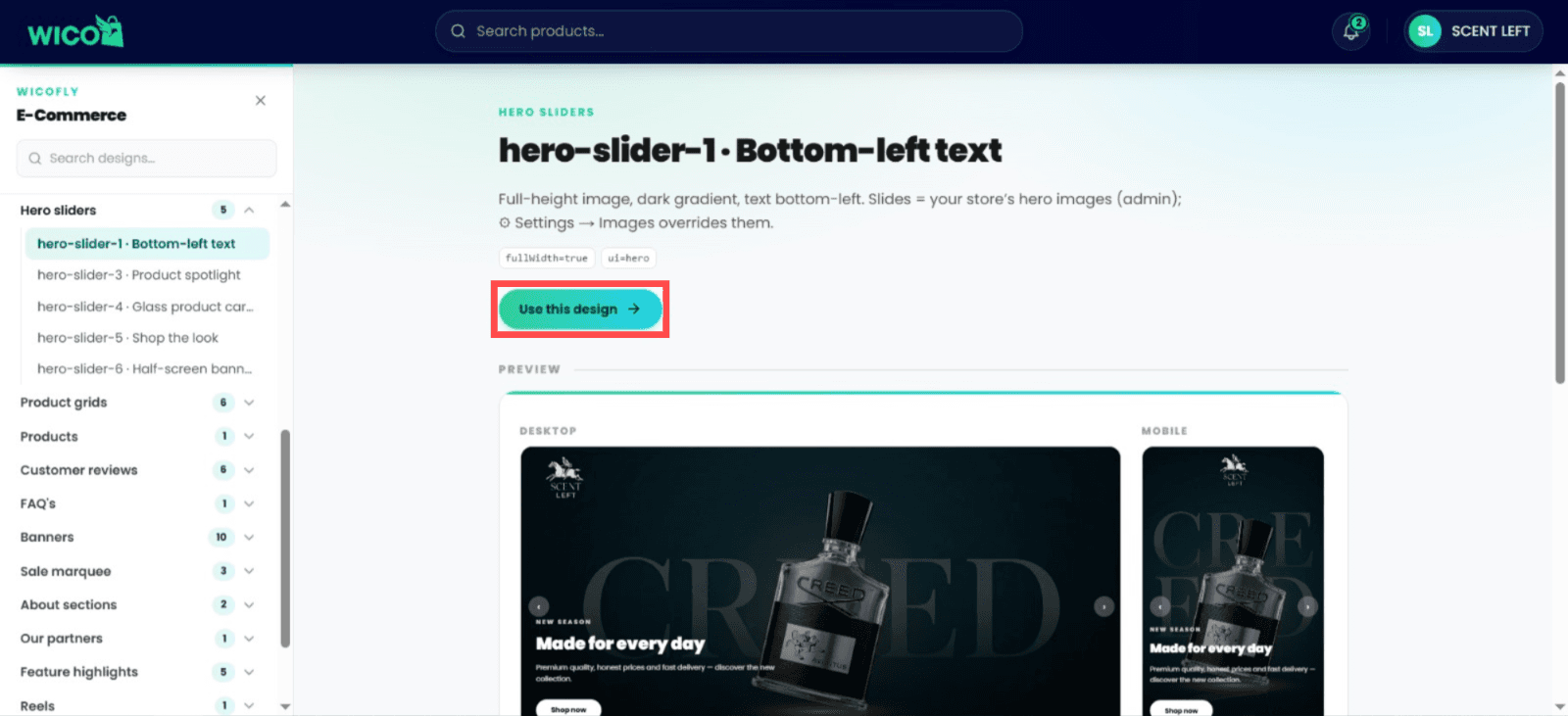
Next to the reorder arrows, each section has a "Design" button. Clicking it opens the E-Commerce Design Library — a full catalog of ready-made designs organized by category: Announcement bars (11), Headers (8), Categories (21), Hero sliders (5), Product grids (6), Customer reviews (6), Banners (10), Footers (8), Cart drawers (7), and more.
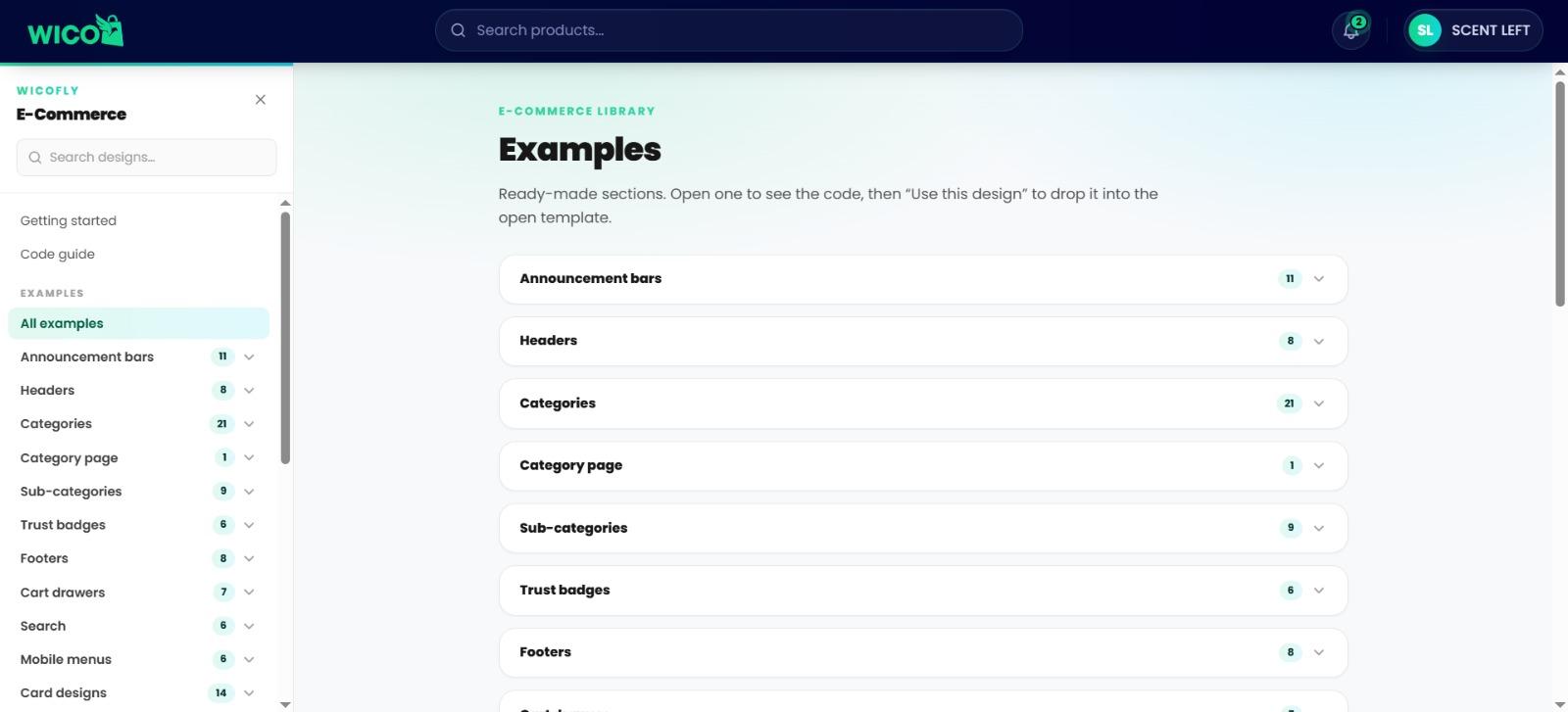
Browse designs and click "Use this design" to apply.
Each category shows multiple design options with desktop + mobile previews. Click any design to see its full preview. When you find one you like, click "Use this design" — the section instantly swaps to the new design. No coding needed.
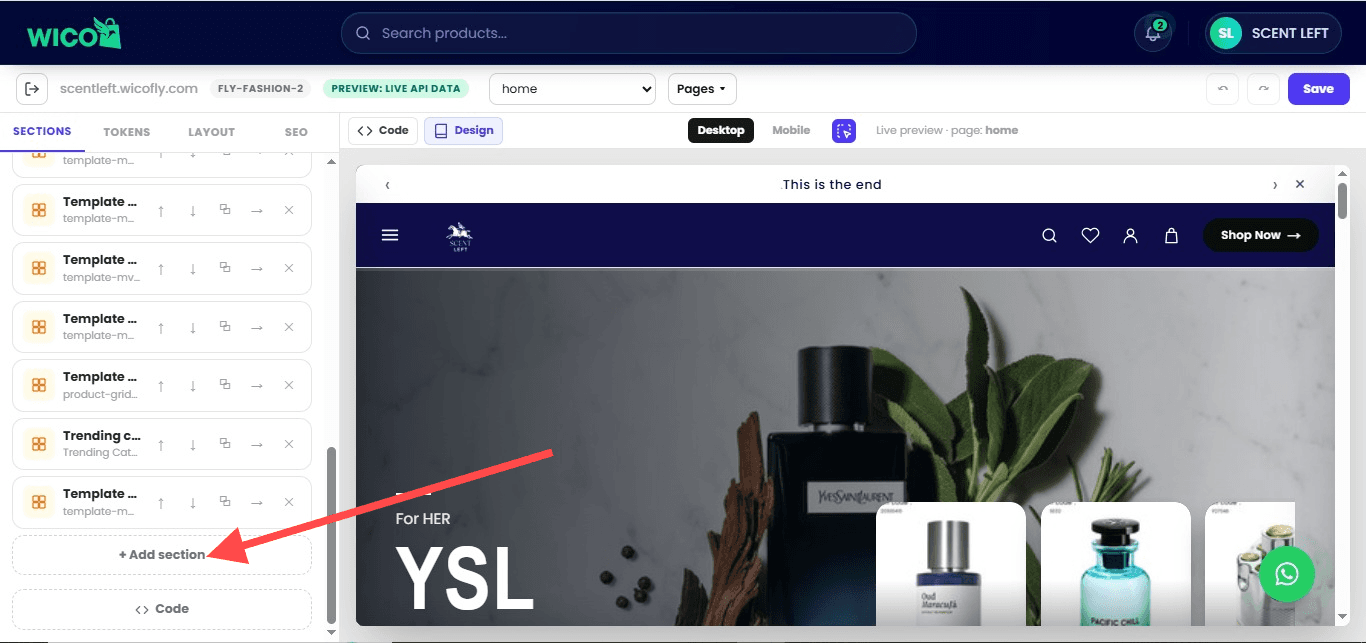
Click "+ Add Section" to insert a new section.
Scroll to the bottom of the sections list and click "+ Add Section". Choose from available section types — Hero slider, Product grid, Categories, Banner, FAQ, Customer reviews, Reels, and more. The new section is added to your homepage and can be configured and reordered just like existing ones.
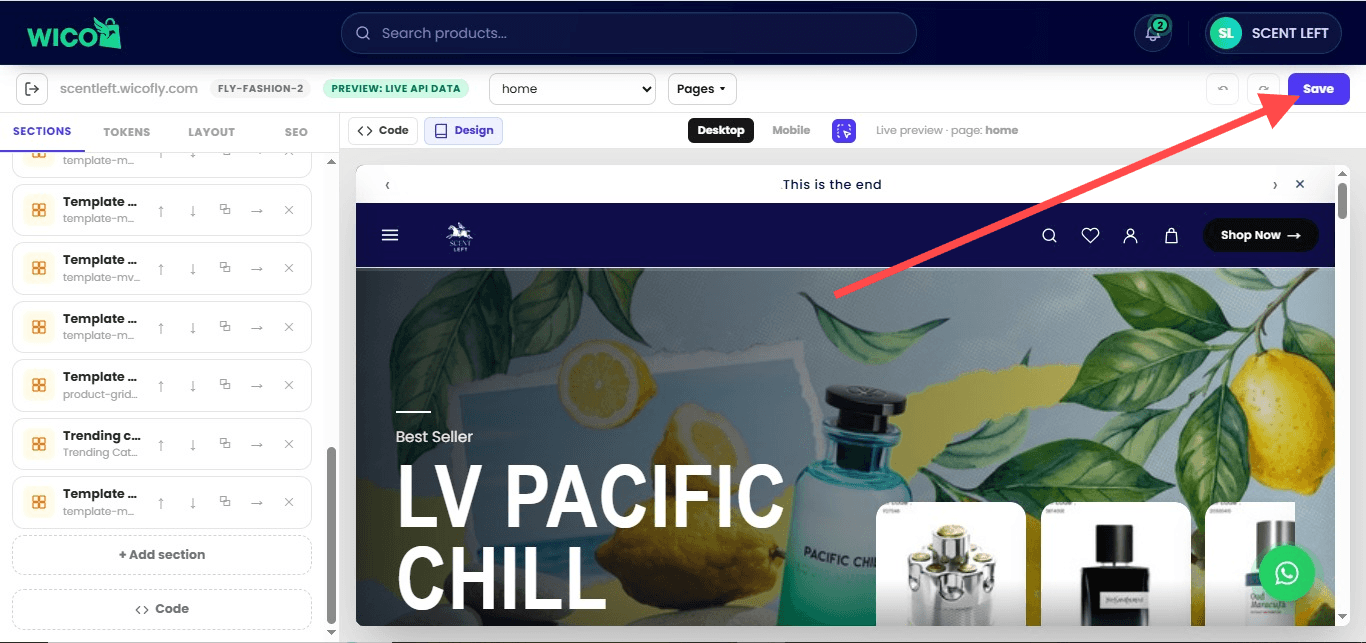
Click "Save" in the top right corner.
All your section changes — reordering, settings, design swaps, and new sections — are published instantly. Visitors see the updated homepage immediately.
That's it!
Your edit homepage sections task has been configured successfully. Your Wicofly store is updated.
Related Helps
Select a Theme
Browse the Wicofly theme library and switch to a different storefront design.
Customize Your Store
Fine-tune brand colors, layout, button styles, and fonts from the theme editor.
Create Custom Pages
Add About Us, Contact Us, Return Policy, and FAQ pages to your store.