
Configure Payment Methods
Enable Cash on Delivery, add invoice payment methods (EasyPaisa, JazzCash, SadaPay, Bank), and manage checkout options.
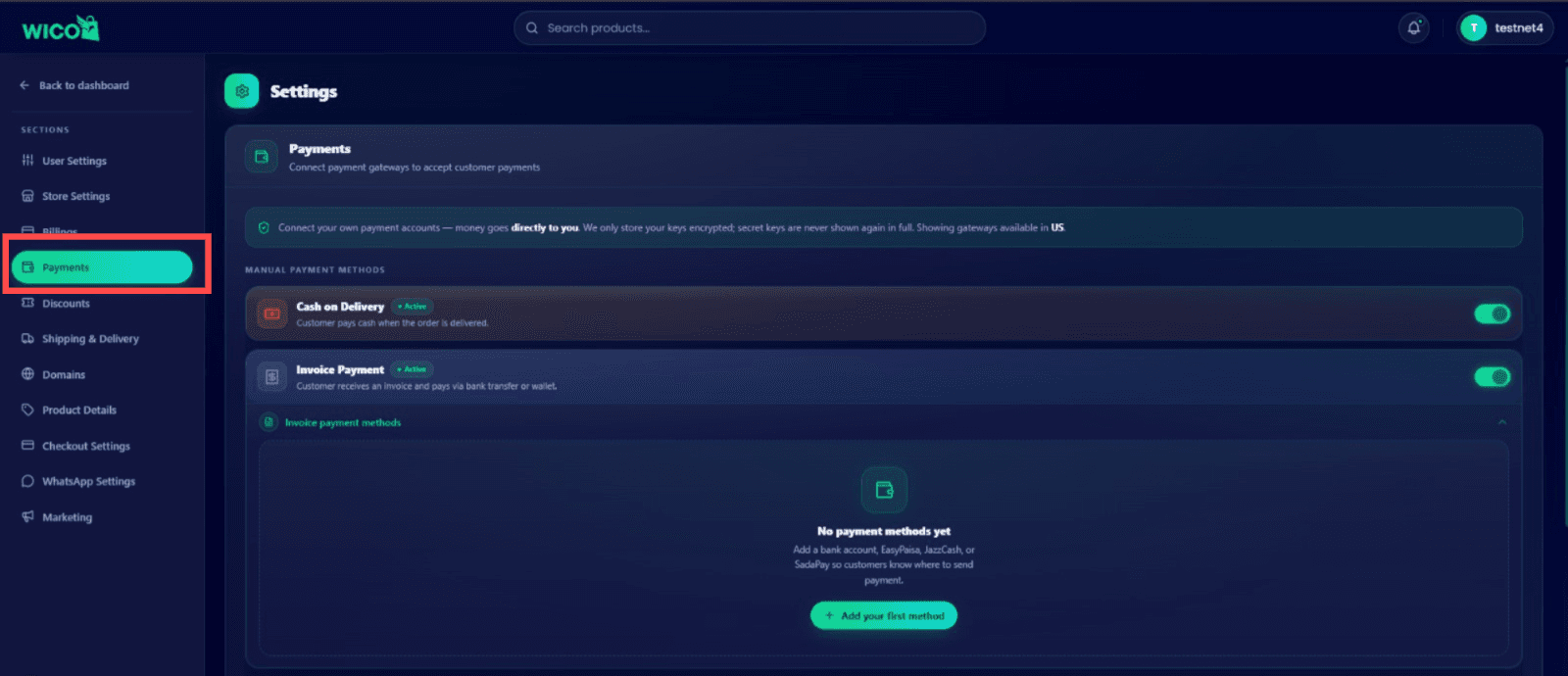
Go to Settings > Payments.
Click "Settings" from the bottom of the left sidebar. In the Settings page, click "Payments" from the sections list. This opens the Payments page showing all available payment methods.
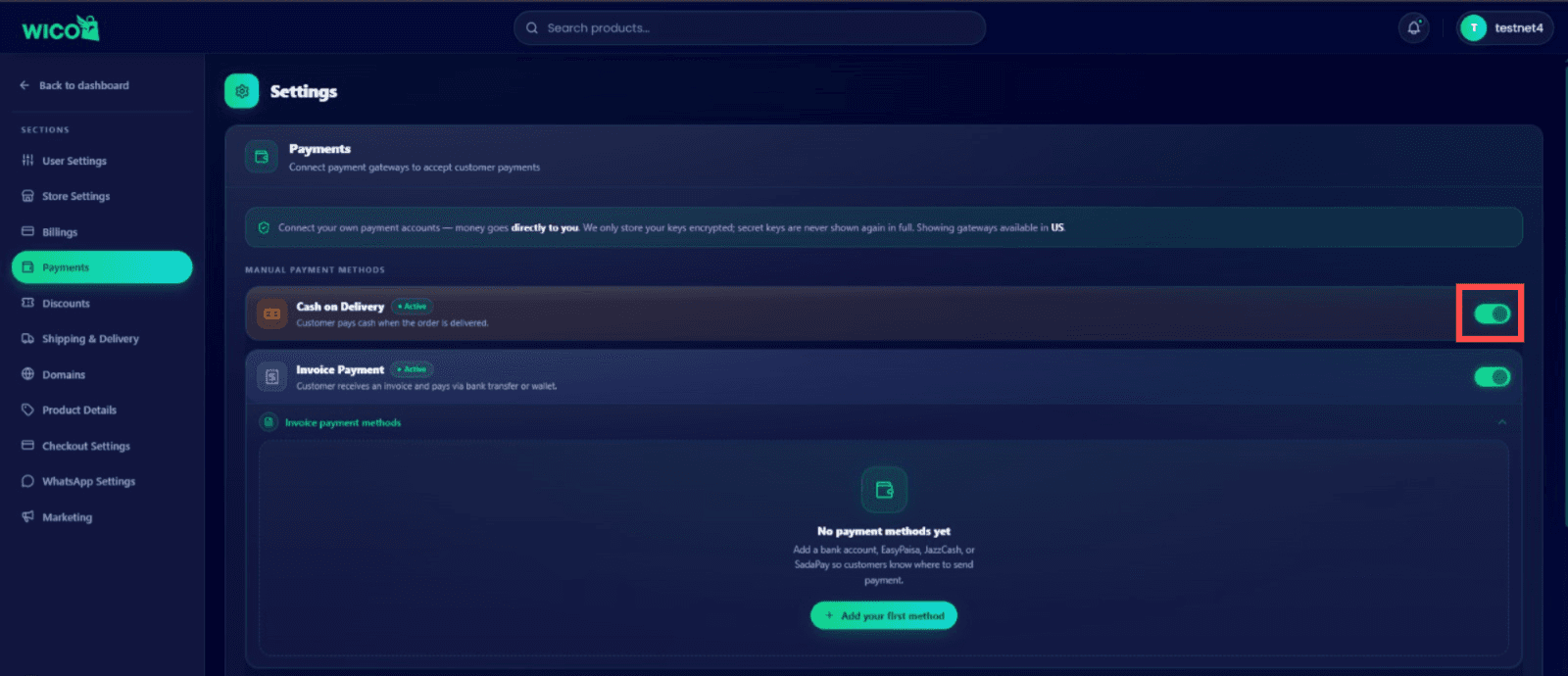
Toggle "Cash on Delivery" to enable or disable COD.
Cash on Delivery is shown as the first method under Manual Payment Methods. Toggle the switch to Active — customers can then select COD at checkout and pay cash when the courier delivers. COD is the most popular payment method in Pakistan, UAE, and Saudi Arabia.
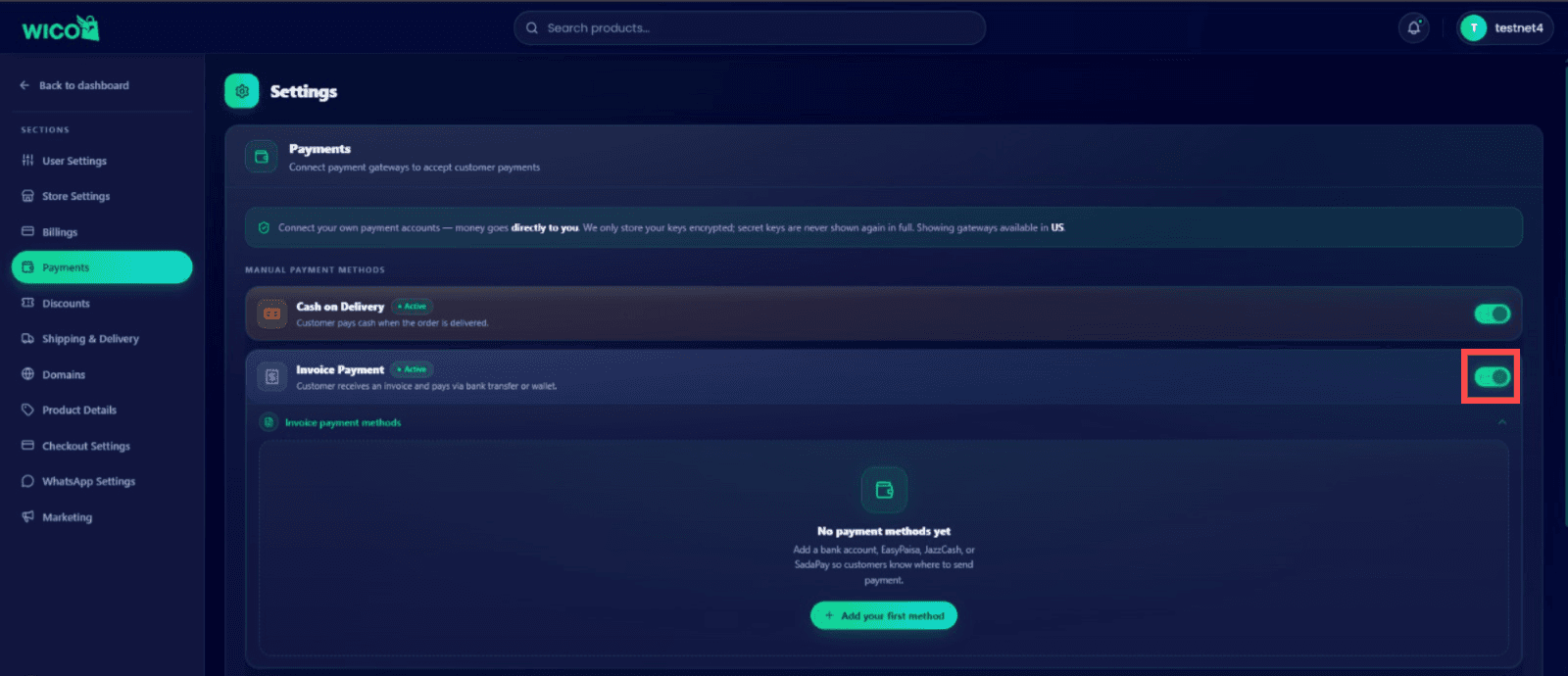
Toggle "Invoice Payment" to enable bank/wallet payments.
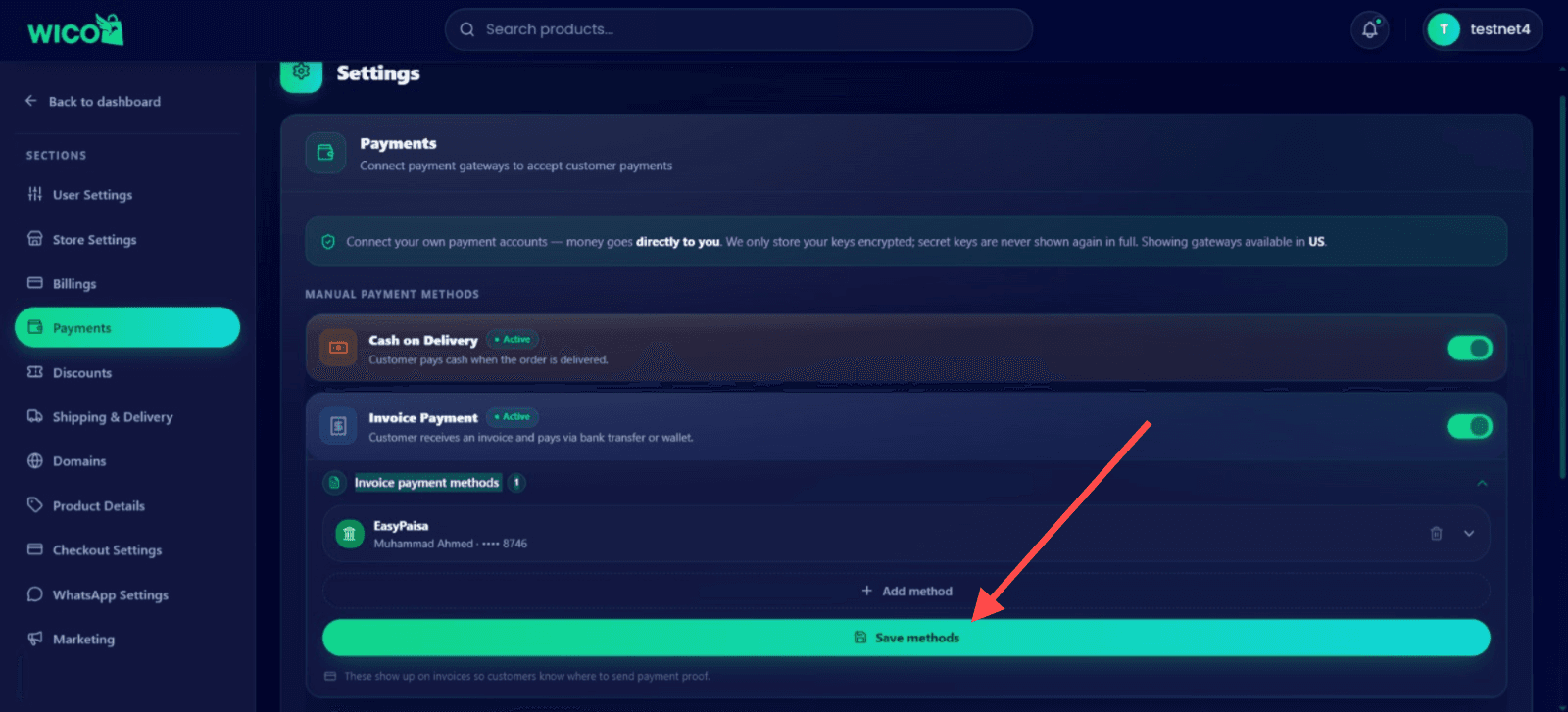
Invoice Payment lets customers pay via bank transfer or mobile wallet. Toggle the switch to Active — this expands the "Invoice payment methods" section below where you can add your accounts.
Click "+ Add your first method" to add a payment account.
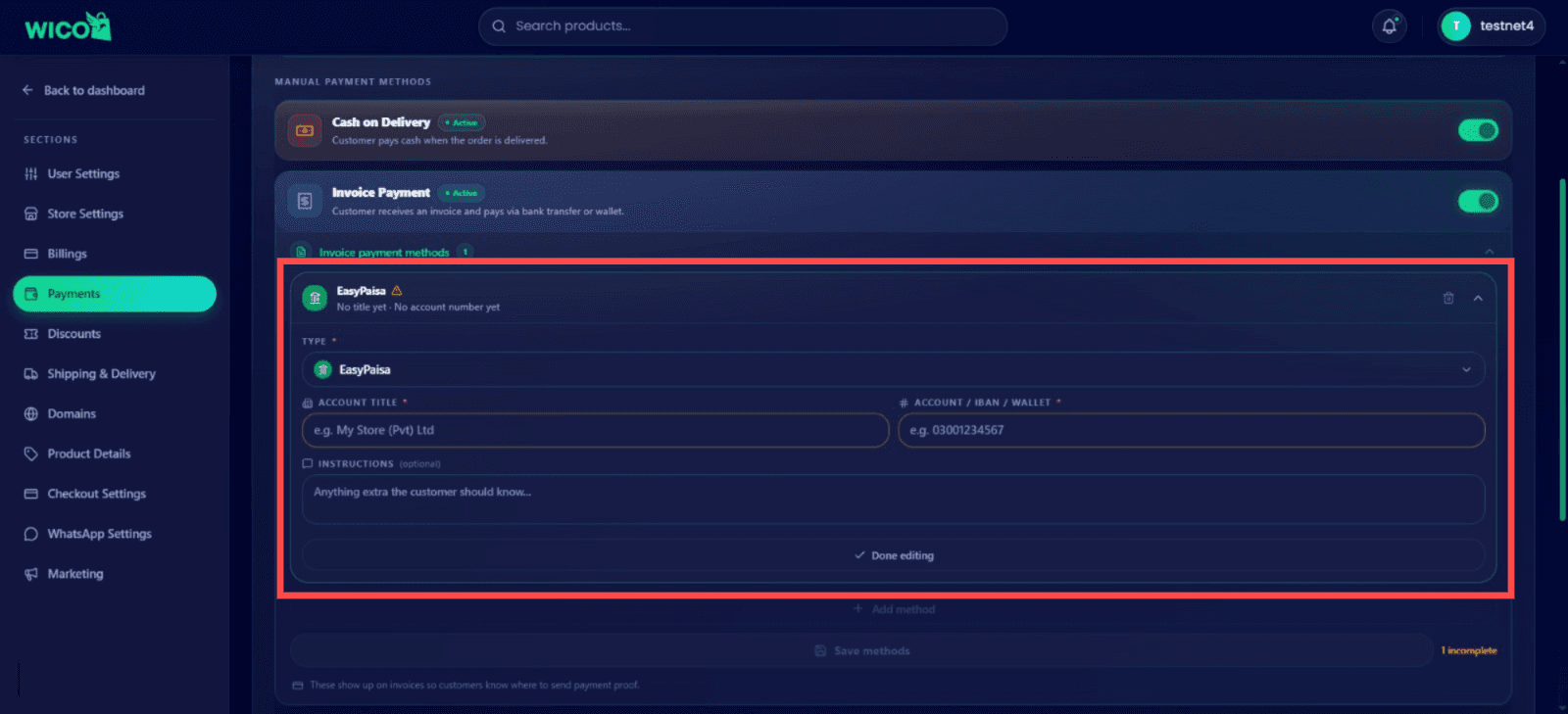
A form card appears. Select the Type from the dropdown: EasyPaisa, JazzCash, SadaPay, or Bank Account. For EasyPaisa/JazzCash/SadaPay, the label auto-fills — just enter the Account Title (e.g. your name or business name) and Account Number (e.g. 03001234567). For Bank Account, also enter the Bank Name (e.g. HBL, Meezan Bank). Optionally add Instructions for the customer. You can add multiple methods — click "+ Add method" for each one.
Click "Save methods" to save all invoice payment methods.
Once all fields are filled, the green "Save methods" button becomes active. Click it to save. If any method has incomplete fields, a warning shows how many are incomplete. After saving, each method appears as a collapsed row showing the type icon, label, account title, and masked account number (e.g. •••• 4567). Click any row to expand and edit, or click the trash icon to remove it (with confirmation).
Verify on your storefront checkout page.
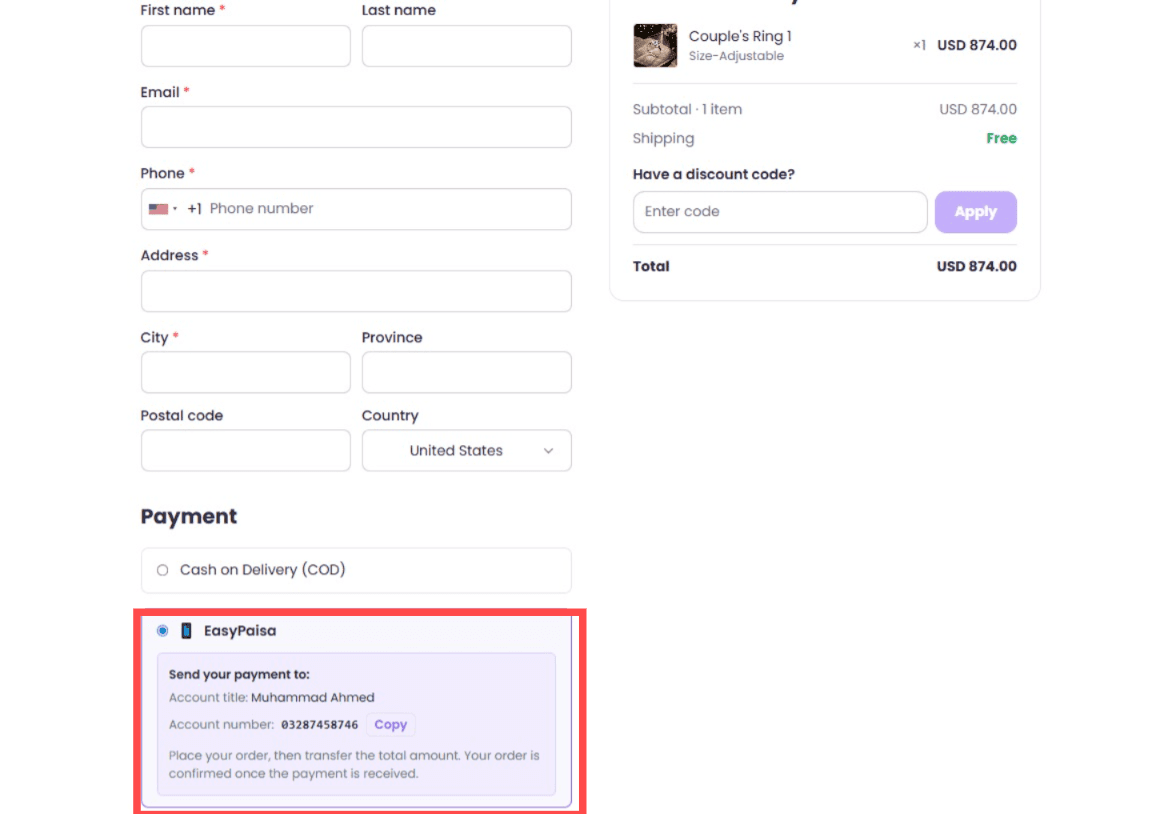
When a customer goes to checkout, both enabled payment methods appear — Cash on Delivery and Invoice Payment with all your added accounts (EasyPaisa, JazzCash, SadaPay, Bank). The customer picks one and completes the order. All changes take effect immediately — no extra save needed.
That's it!
Your configure payment methods task has been configured successfully. Your Wicofly store is updated.
Related Helps
View Orders
Browse all incoming orders, filter by status, and view order details.
Configure WhatsApp Ordering
Enable WhatsApp ordering on your storefront by adding your WhatsApp business number.
Configure Shipping & Delivery
Set up shipping zones, add delivery options with rates, and configure transit times.
Verify Invoice Payments
Review customer payment proofs, approve or reject invoice payments, and auto-update order status.
Configure Checkout Page
Customize checkout form fields by changing labels, setting required fields, controlling visibility, and arranging their order.