
Configure Shipping & Delivery
Set up shipping zones, add delivery options with rates, and configure transit times.
Go to Settings > Shipping & Delivery.
Click "Settings" from the bottom of the left sidebar. In the Settings page, click "Shipping & Delivery" from the sections list on the left. This opens the Shipping & Delivery page showing your shipping zones.
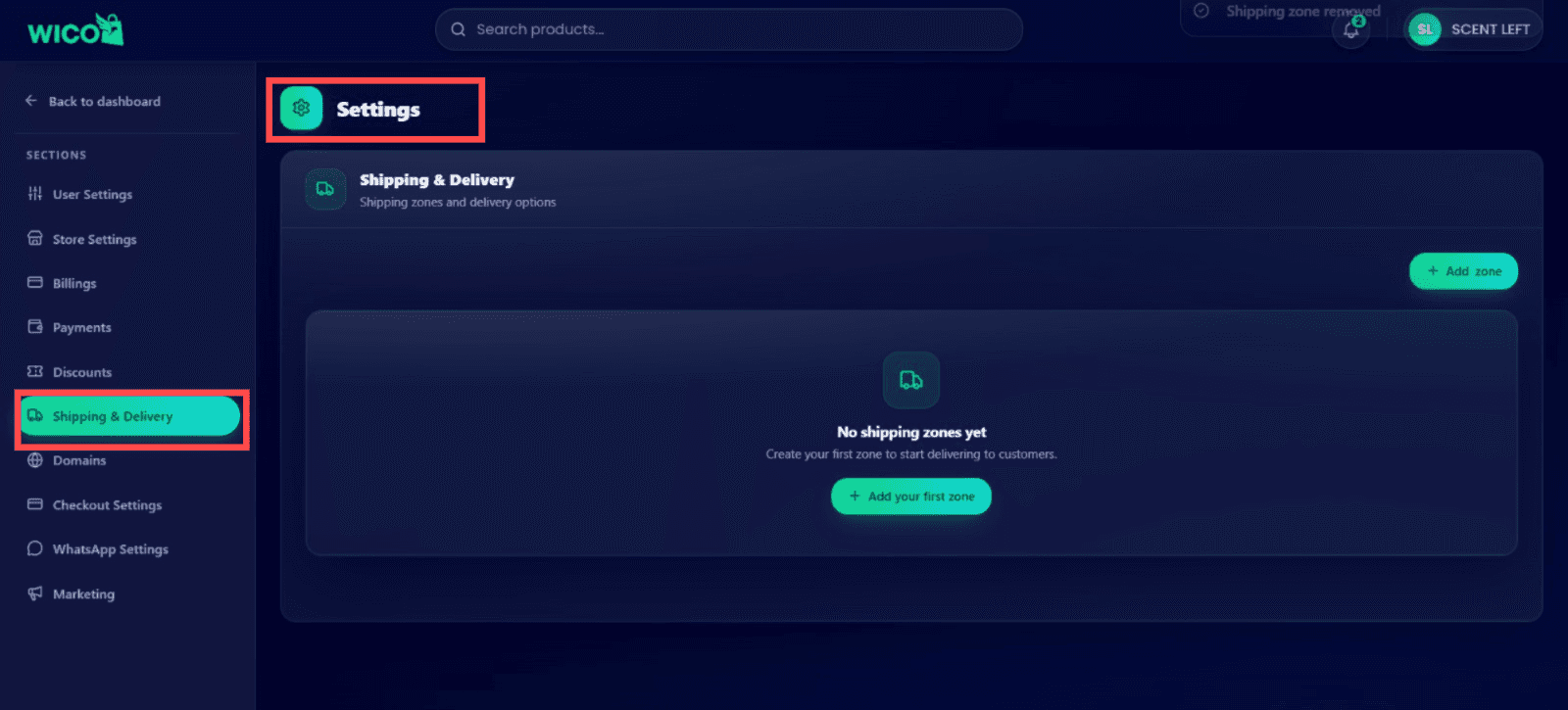
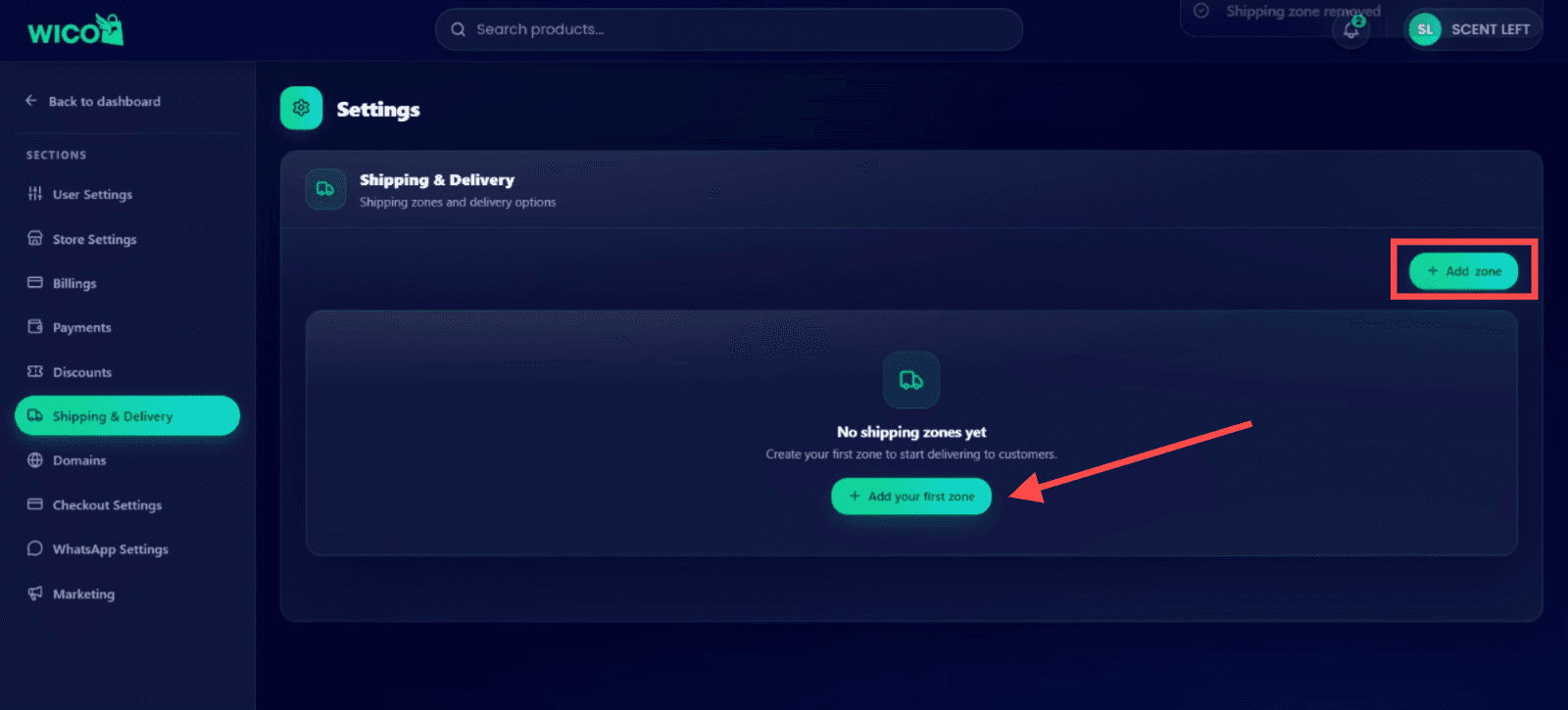
Click "+ Add zone" to create a new shipping zone.
A new zone card appears below with empty fields ready to fill in.
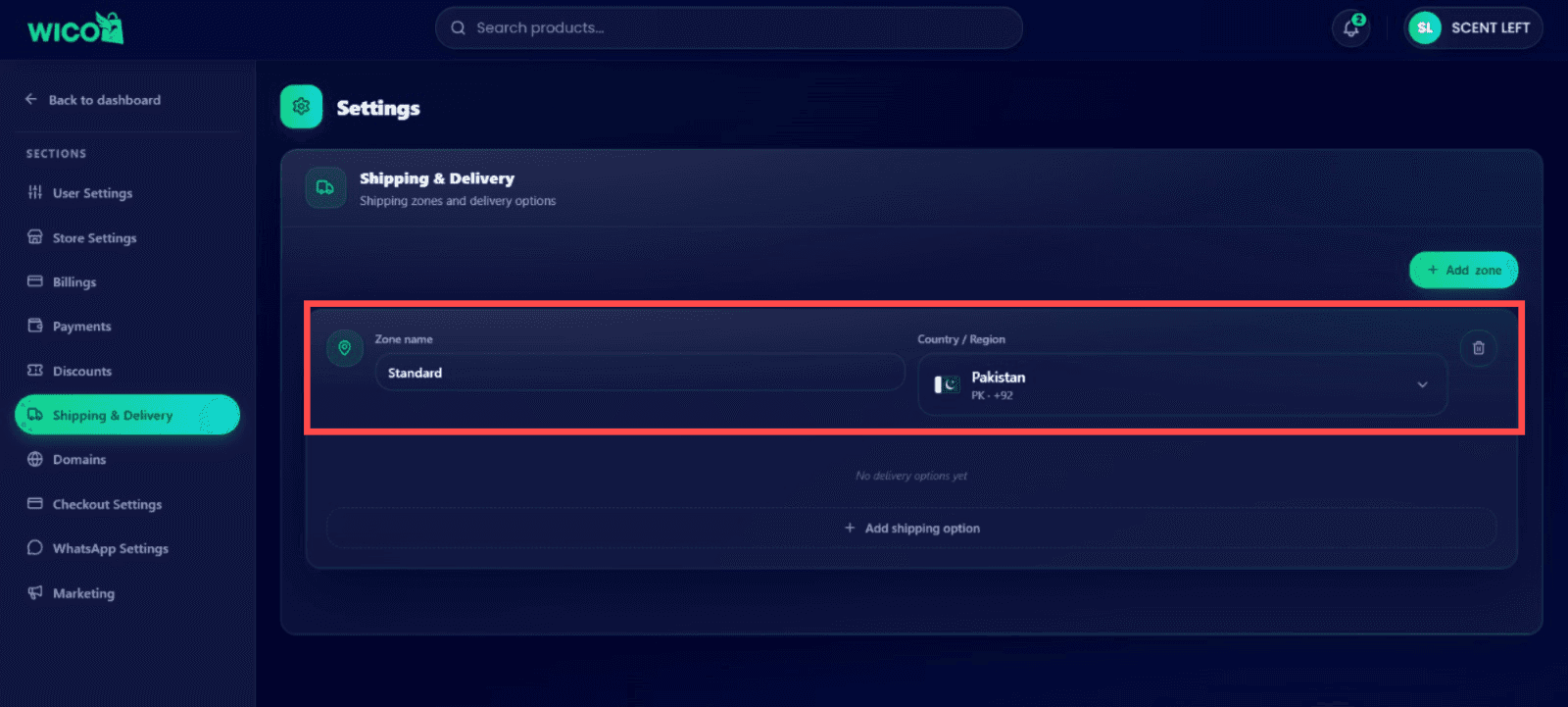
Fill in the Zone name and select Country / Region.
Enter a Zone name (e.g. "Standard", "Local Lahore", "Nationwide"). Then select your country from the Country / Region dropdown (e.g. Pakistan — PK · +92). You can create multiple zones for different regions. Click the trash icon to delete a zone.
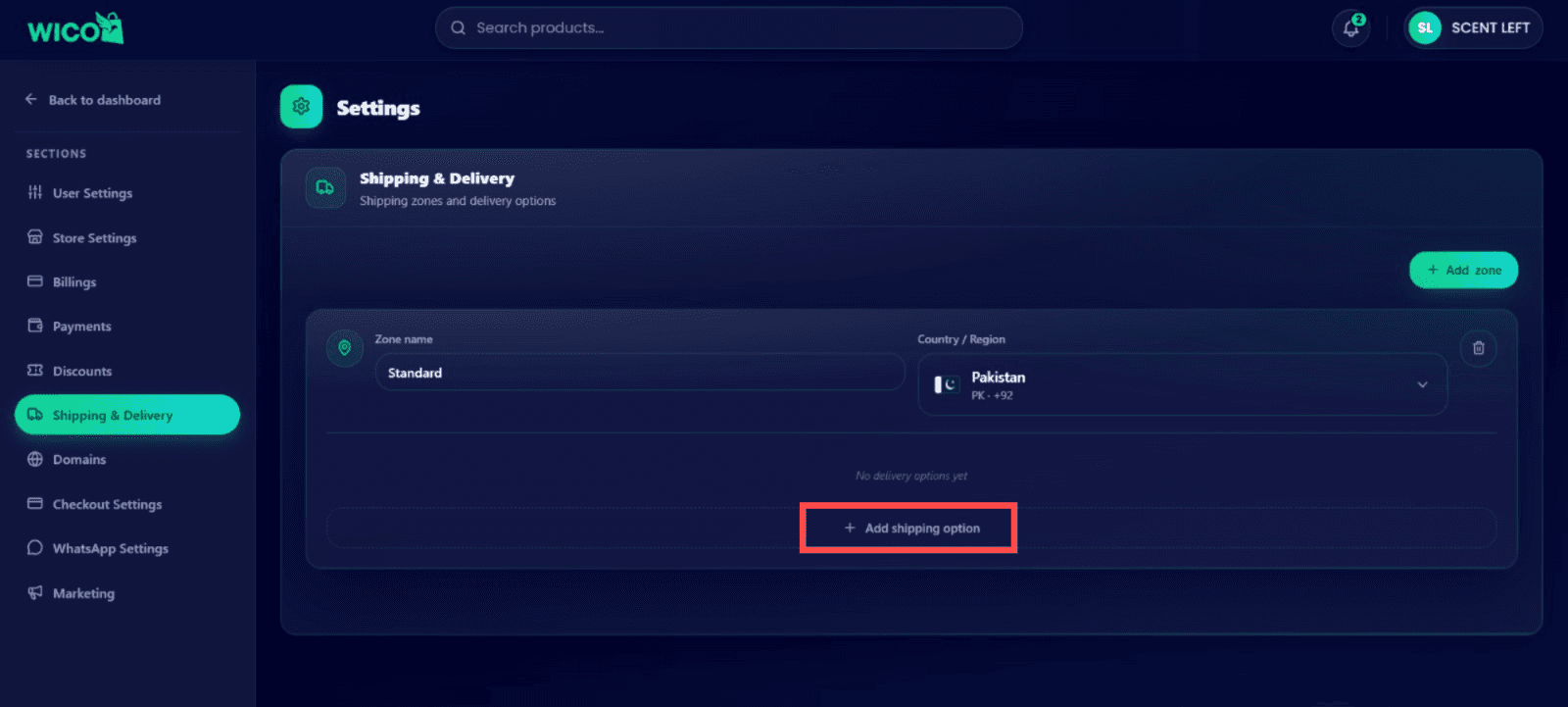
Click "+ Add shipping option" inside the zone.
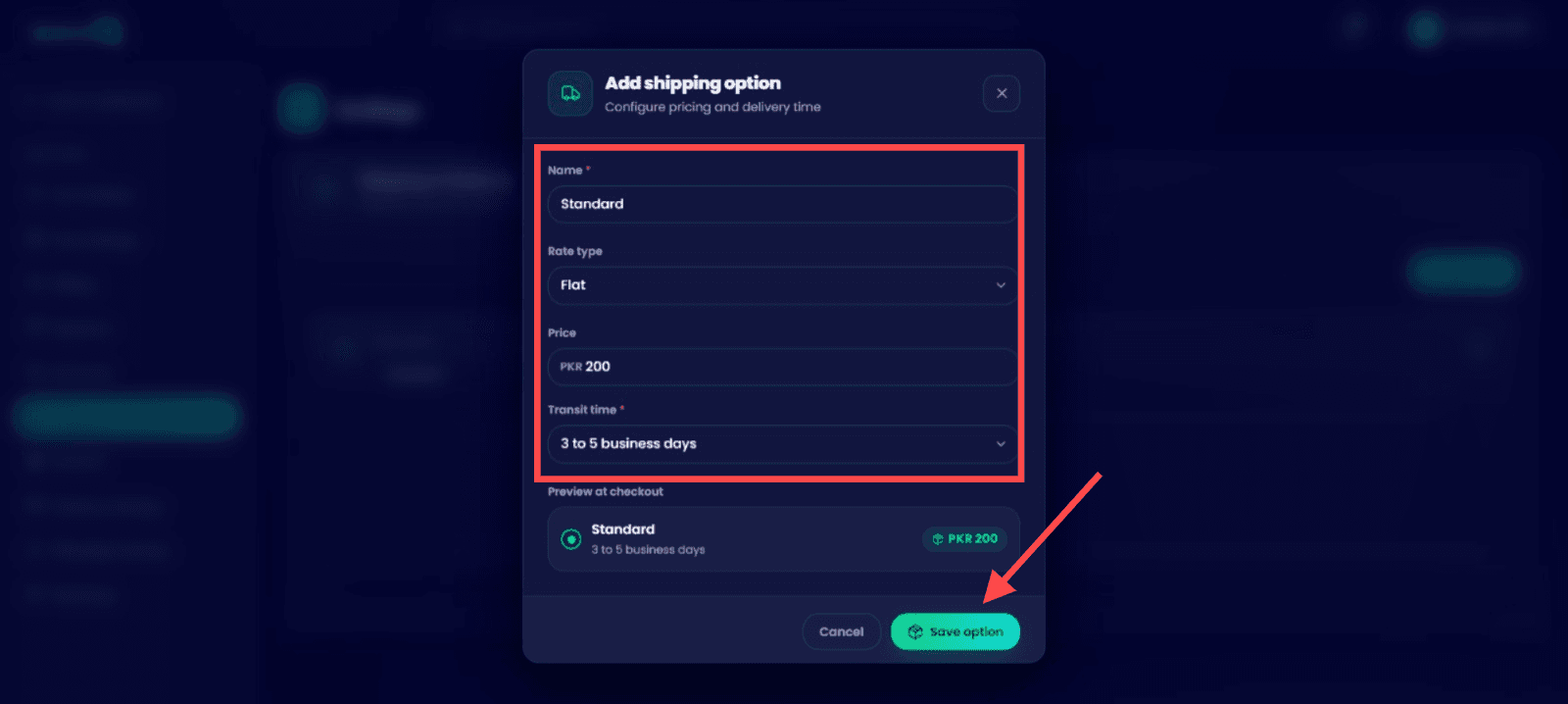
This opens the "Add shipping option" modal where you configure pricing and delivery time for this zone.
Fill in the shipping option details.
Enter the following: • Name* — e.g. "Standard", "Express", "Free Shipping" • Rate type — choose from: Flat (fixed price), Carrier or app calculated, Order amount (based on order total), Weight (based on weight), Quantity (based on item count) • Price — enter the shipping charge in PKR (enter 0 for free shipping) • Transit time* — select from: 1 business day, 1 to 2 business days, 3 to 5 business days, 1 to 2 weeks, 2 to 4 weeks At the bottom, a "Preview at checkout" shows how it will look to customers — e.g. "Standard · 3 to 5 business days · PKR 200". Click "Save option" when done.
Verify on your storefront checkout page.
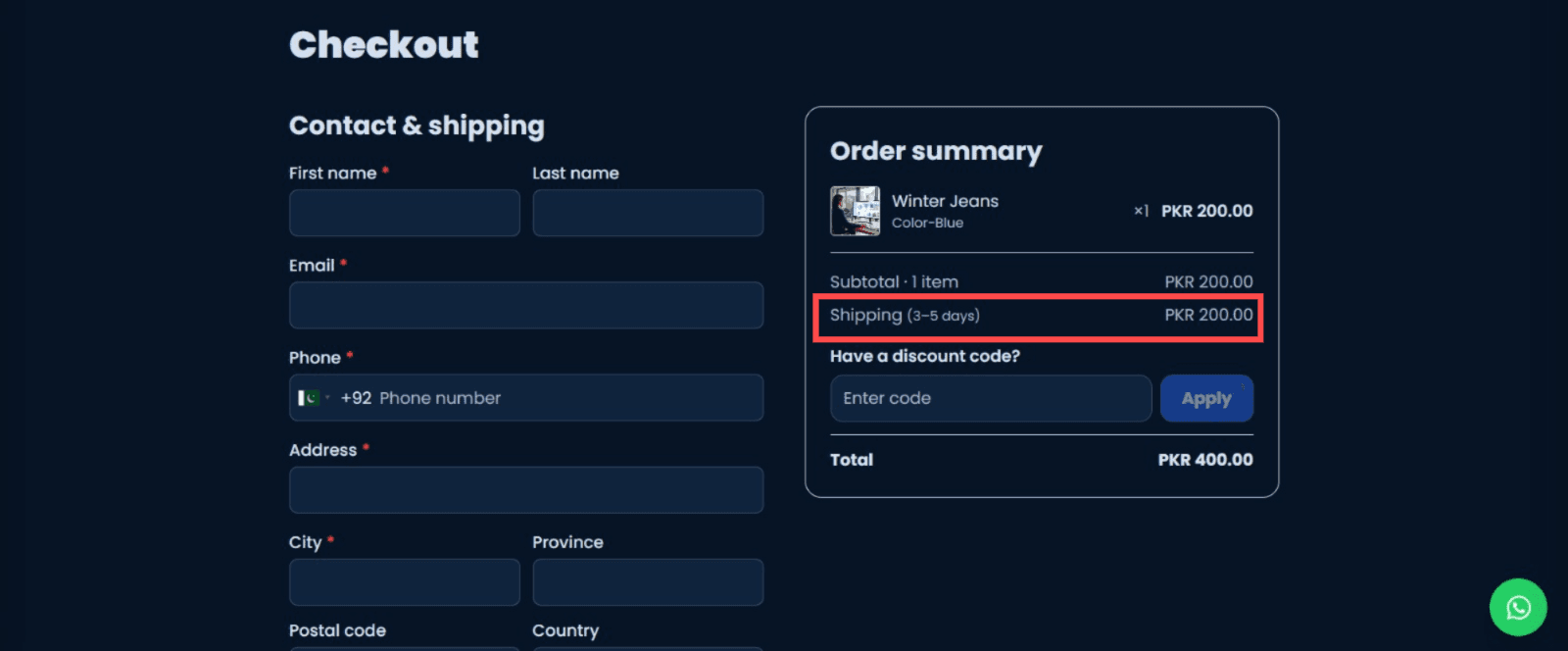
When a customer goes to checkout, the Order Summary shows the shipping line — e.g. "Shipping (3–5 days) PKR 200.00" — added to the subtotal. If price is PKR 0, it shows as "FREE". You can add multiple shipping options per zone (e.g. Standard + Express) and the customer picks one at checkout.
That's it!
Your configure shipping & delivery task has been configured successfully. Your Wicofly store is updated.
Related Helps
Configure Payment Methods
Enable Cash on Delivery, add invoice payment methods (EasyPaisa, JazzCash, SadaPay, Bank), and manage checkout options.
Free Shipping Rules
Offer free shipping to customers through discount codes or automatic discounts.
Configure Checkout Page
Customize checkout form fields by changing labels, setting required fields, controlling visibility, and arranging their order.