
Reset Your Password
Forgot your password? Verify via email OTP and set a new password securely.
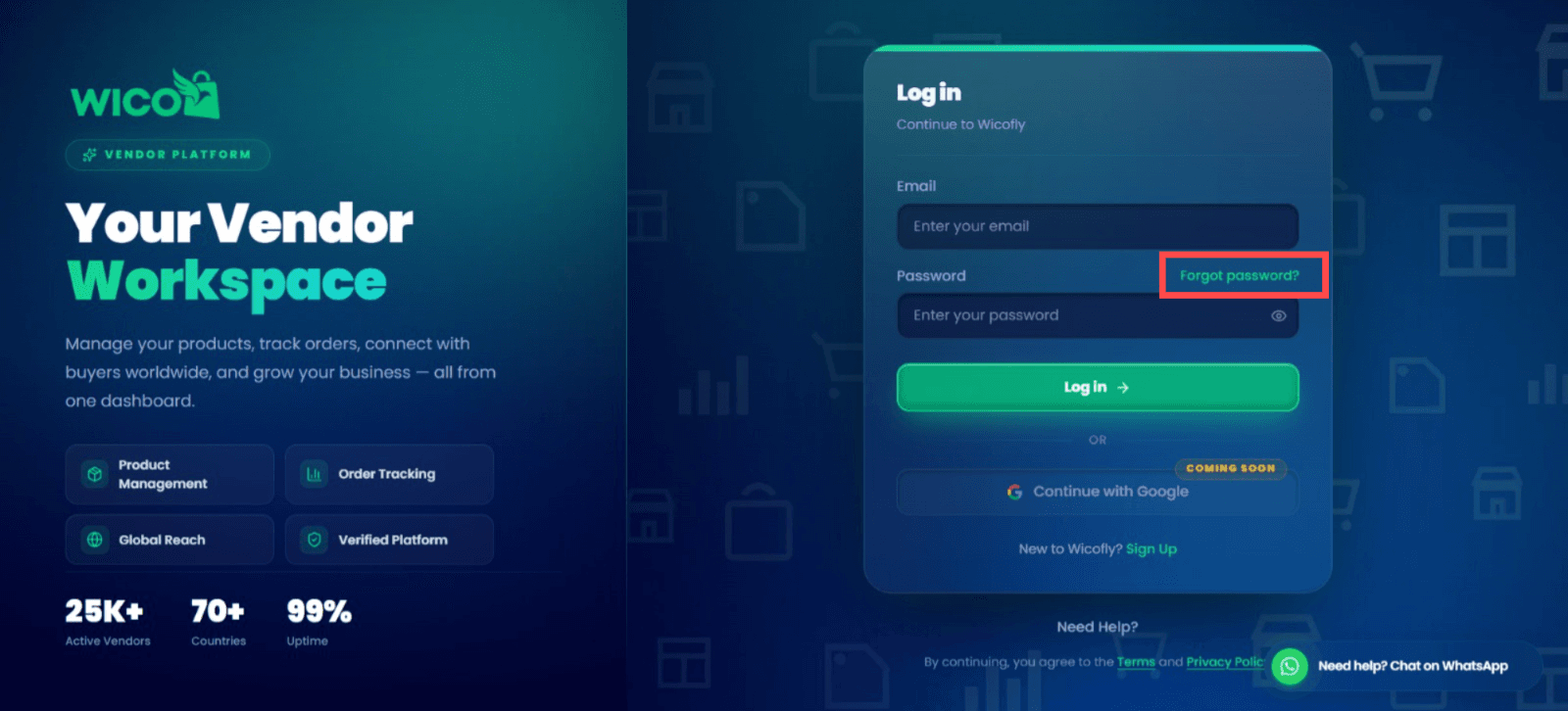
Go to accounts.wicofly.com/login.
Click the "Forgot Password?" link located right below the password field.
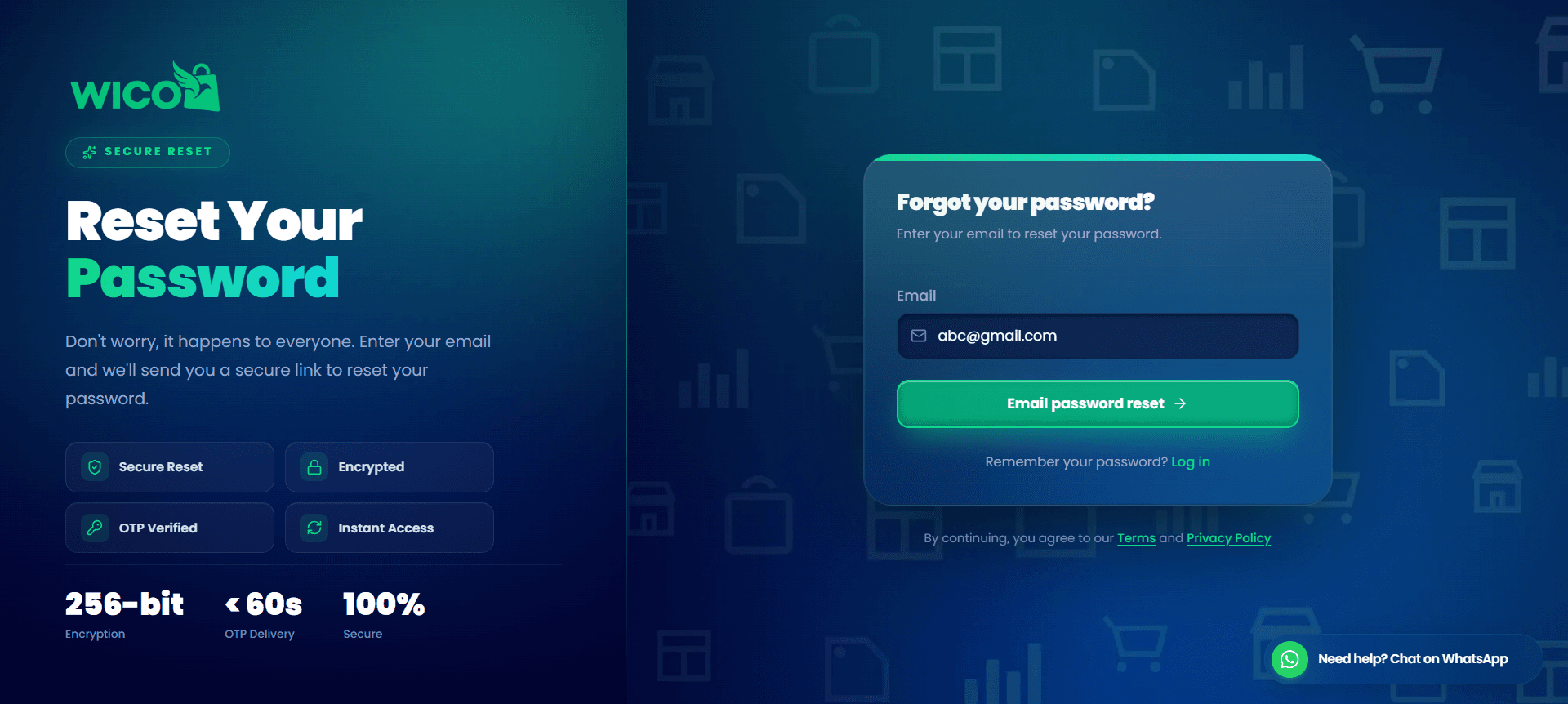
Enter your registered email address and click "Send OTP".
Use the same email you used when creating your Wicofly account. A 6-digit verification code will be sent to your inbox within 60 seconds.
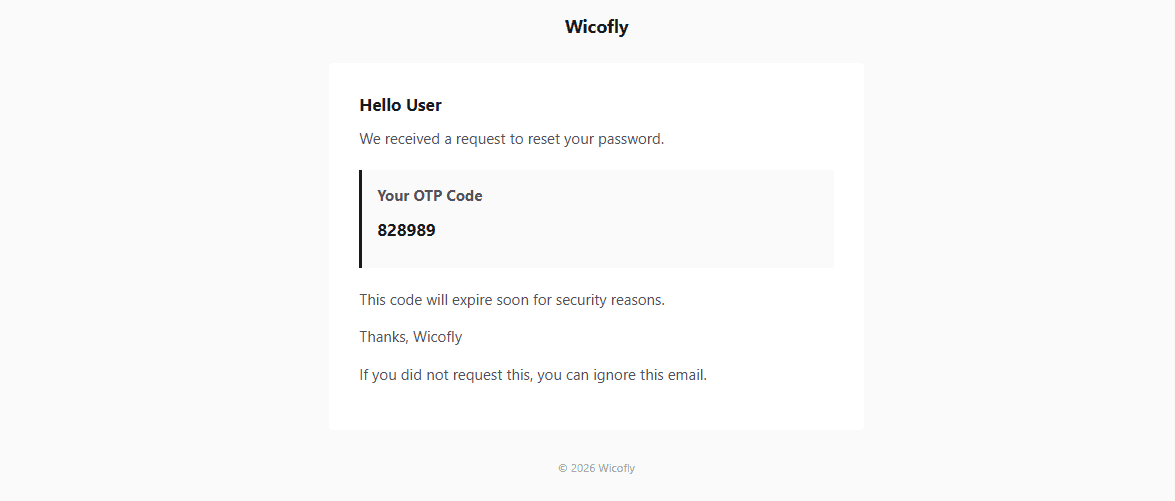
Check your email inbox for the 6-digit OTP code.
Check spam or promotions folder if not received. The code expires after 5 minutes — request a new one if expired.
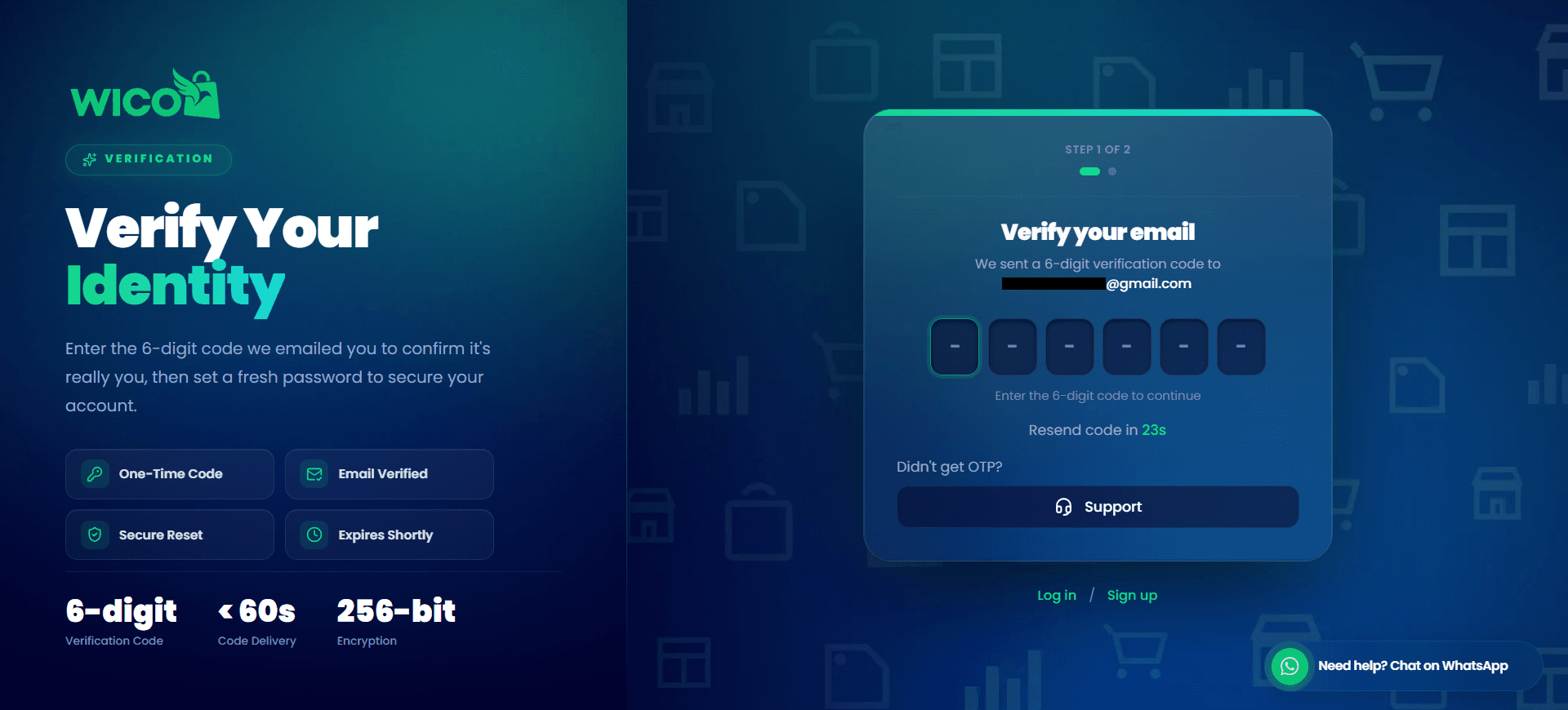
Enter the 6-digit OTP code on the verification screen.
Type the exact code from your email. Click "Resend OTP" if you did not receive it or the code expired.
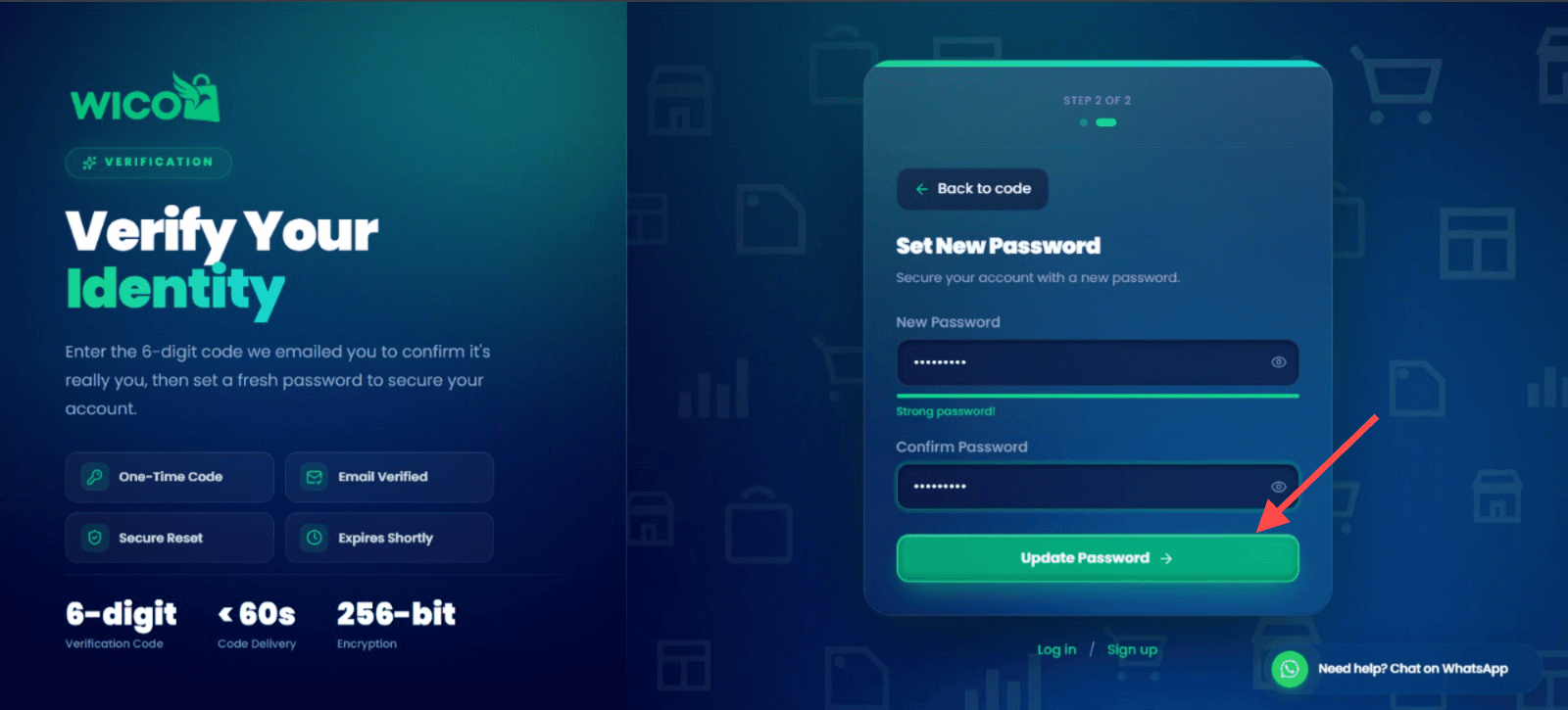
Enter your new password and confirm it.
Use at least 8 characters with numbers and symbols for a strong password. Both fields must match exactly.
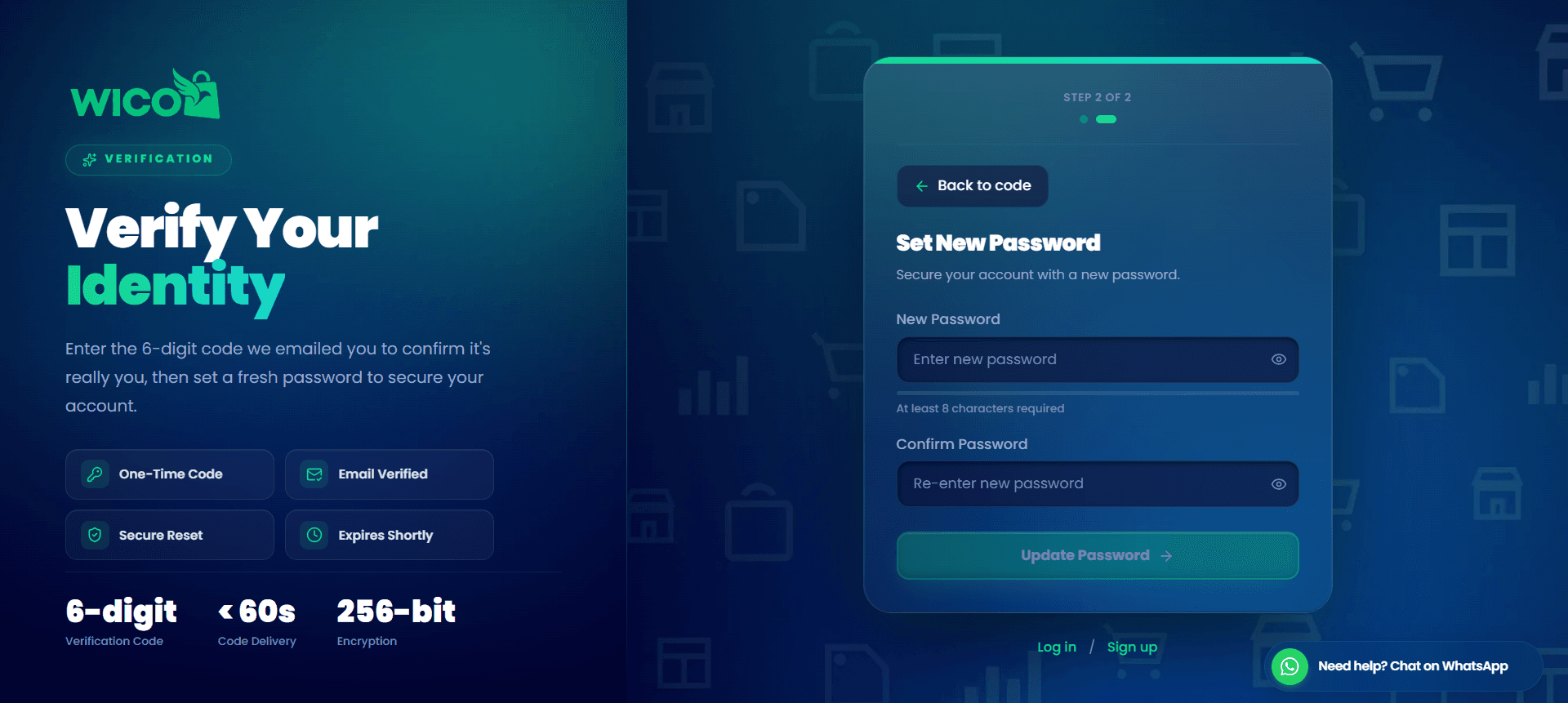
Click "Update Password" to complete.
Your password is updated instantly. You will be redirected to the login page — sign in with your new password.
That's it!
Your reset your password task has been configured successfully. Your Wicofly store is updated.
Related Helps
Create Your Account
Sign up for a new Wicofly vendor account using your email and password.
Login to Your Dashboard
Access your Wicofly merchant control center to manage your store.
Manage User Settings
Update your personal profile information, avatar, phone number, country, and account password.