
View Analytics Dashboard
Monitor your store visits, total views, visitor countries, and traffic insights from the Analytics dashboard.
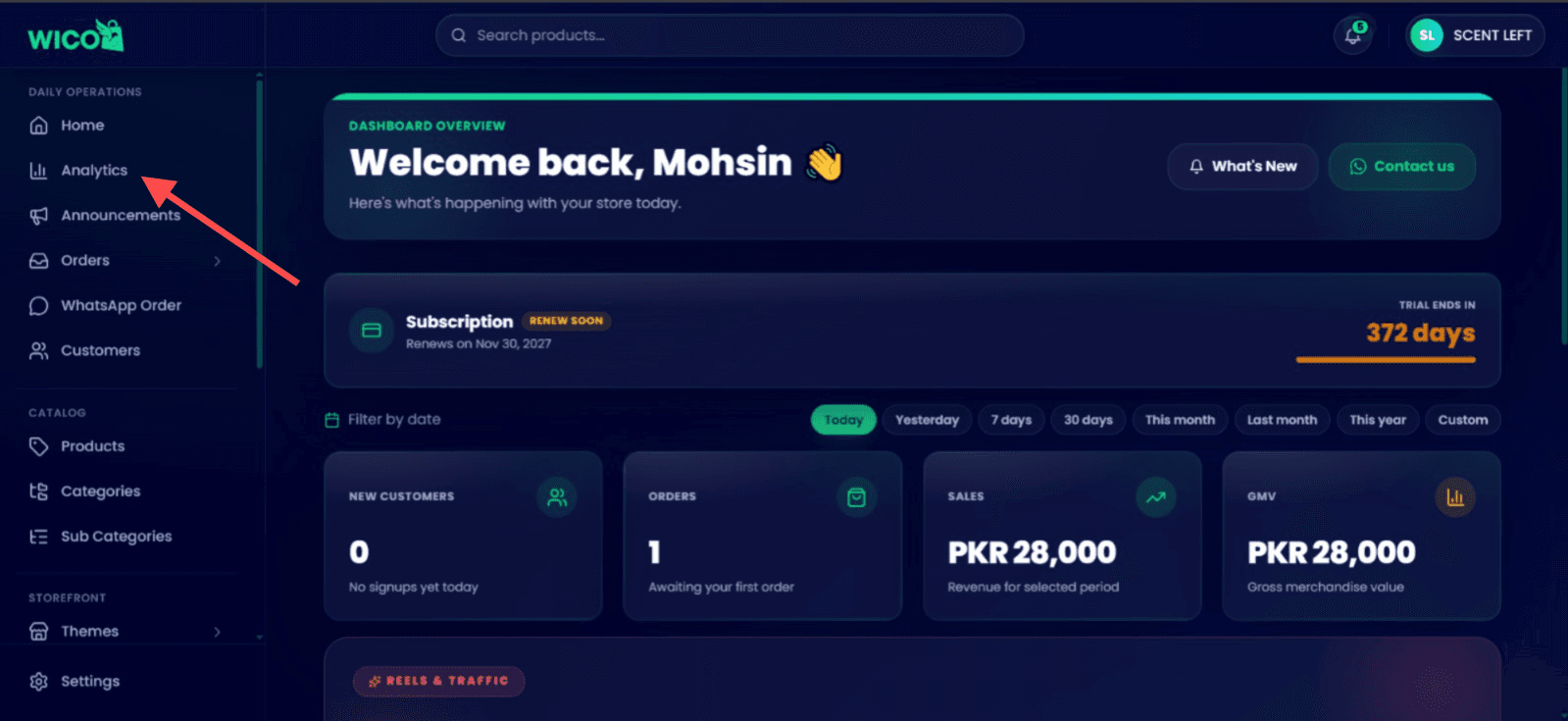
Click "Analytics" from the left sidebar.
Open your store dashboard and select Analytics under Daily Operations to access your store traffic overview.
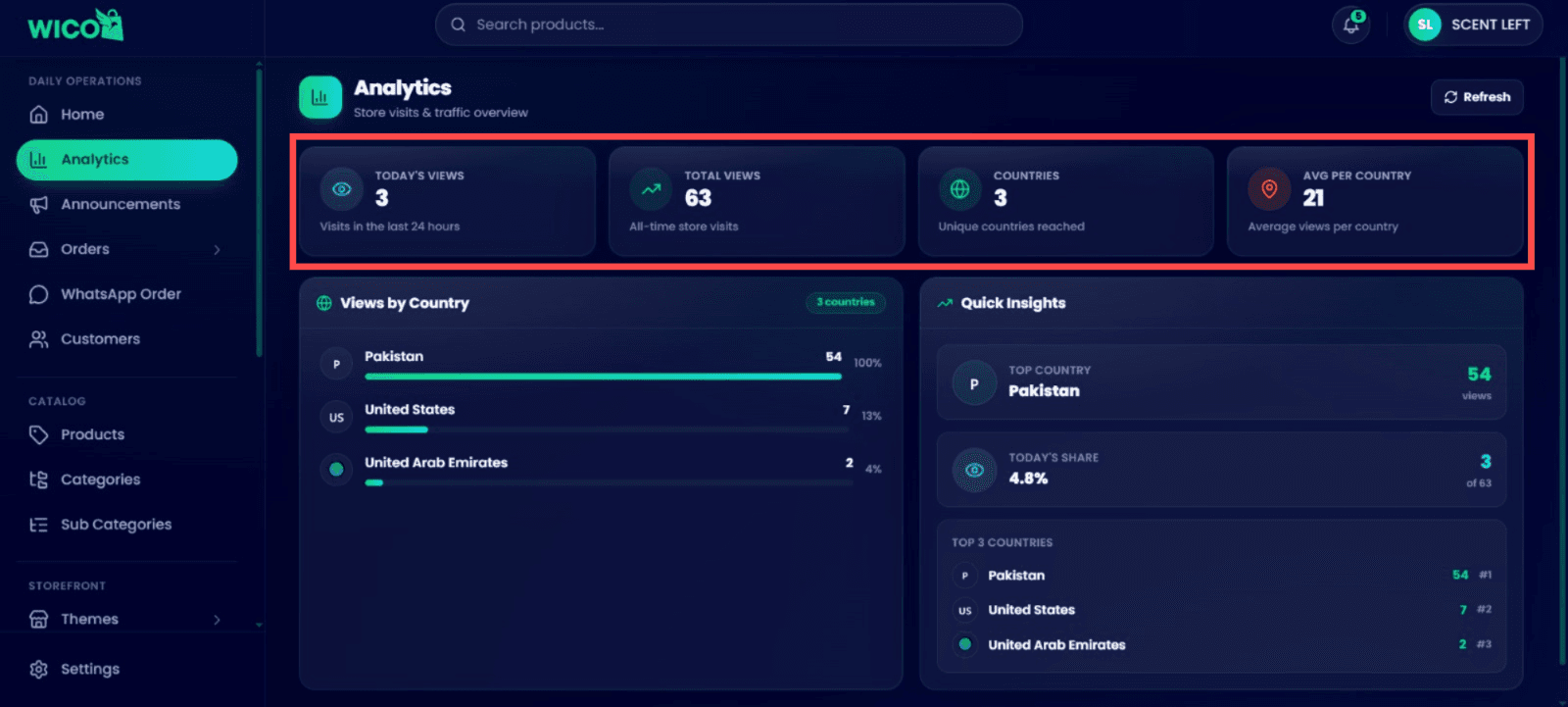
View your store traffic statistics.
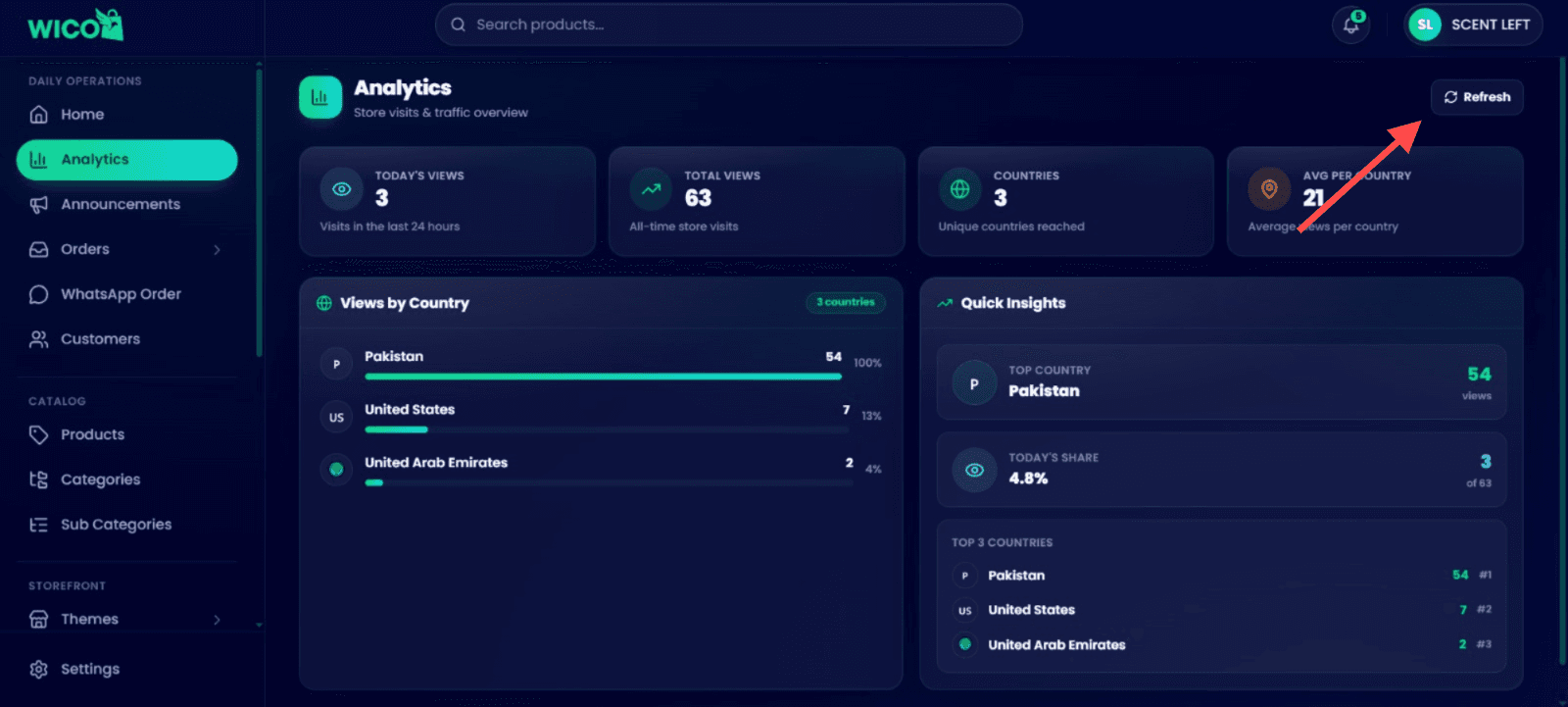
At the top of the Analytics page, you can see Today's Views, Total Views, Countries reached, and Average Views per Country.
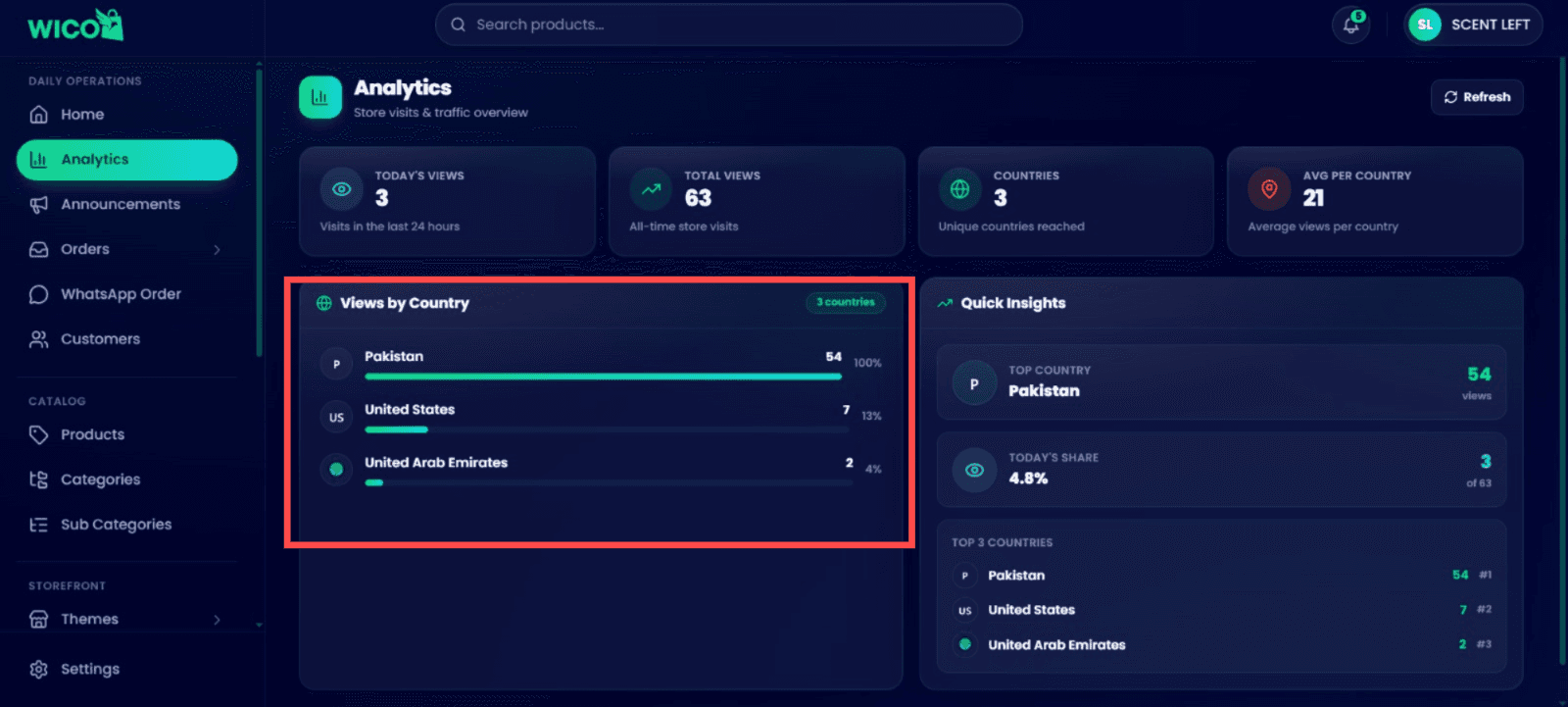
Check the Views by Country section.
See how many visits your store receives from different countries. The progress bars and percentages help you compare visitor distribution by country.
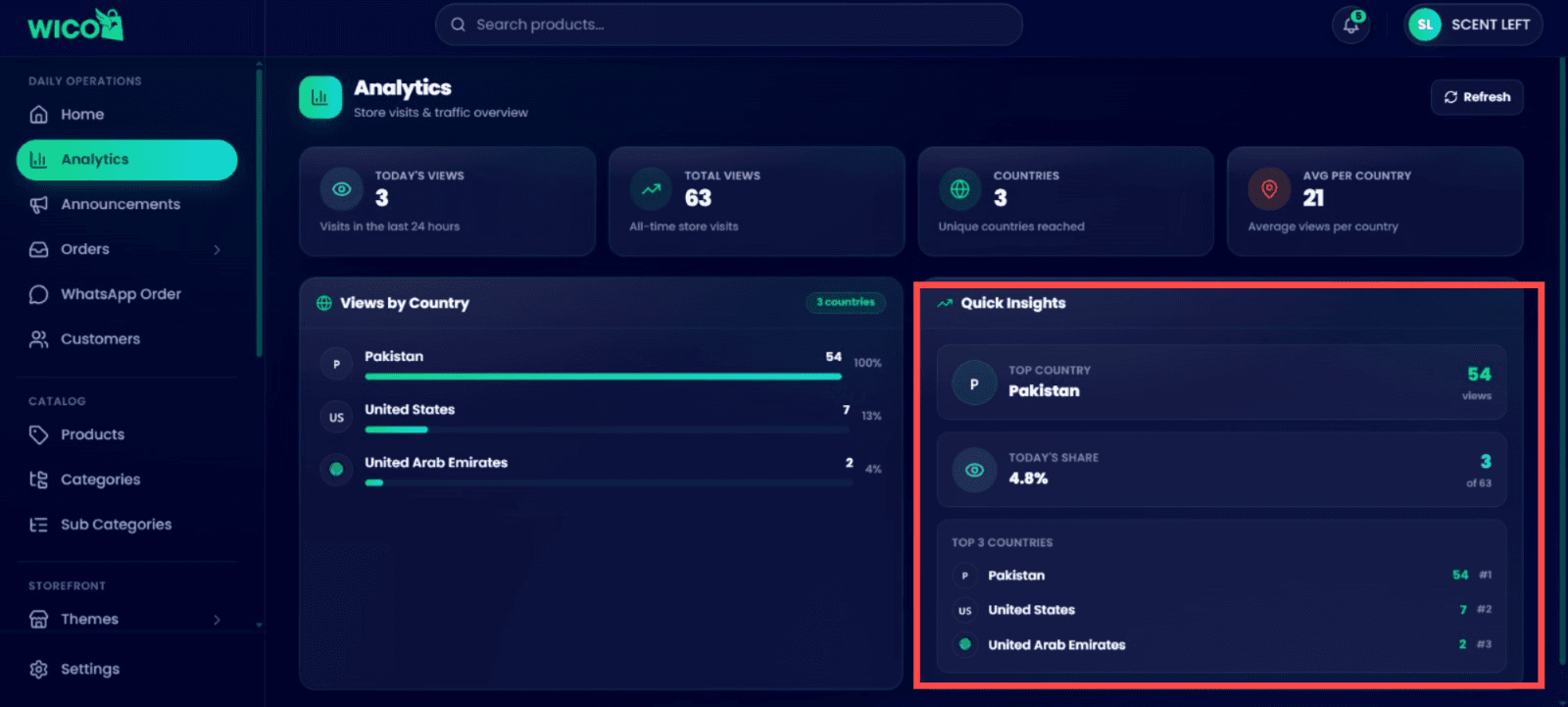
Explore the Quick Insights section.
View your Top Country, Today's Share, and Top 3 Countries to quickly understand where your store traffic is coming from.
Click "Refresh" to update your analytics.
Use the Refresh button at the top-right corner of the Analytics page to reload your store traffic statistics.
That's it!
Your view analytics dashboard task has been configured successfully. Your Wicofly store is updated.
Related Helps
Configure WhatsApp Ordering
Enable WhatsApp ordering on your storefront by adding your WhatsApp business number.
Connect Meta Pixel
Add your Facebook & Instagram Pixel ID to track page views, add-to-carts, and sales.
Run Facebook Ads That Bring Orders
Set up Facebook & Instagram ads that drive real sales to your Wicofly store.