
Products & Categories 1 min read·4 Steps
Edit a Category
Update category name, image, description, sort order, or toggle landing/trending status.
0 of 4 steps completed
1
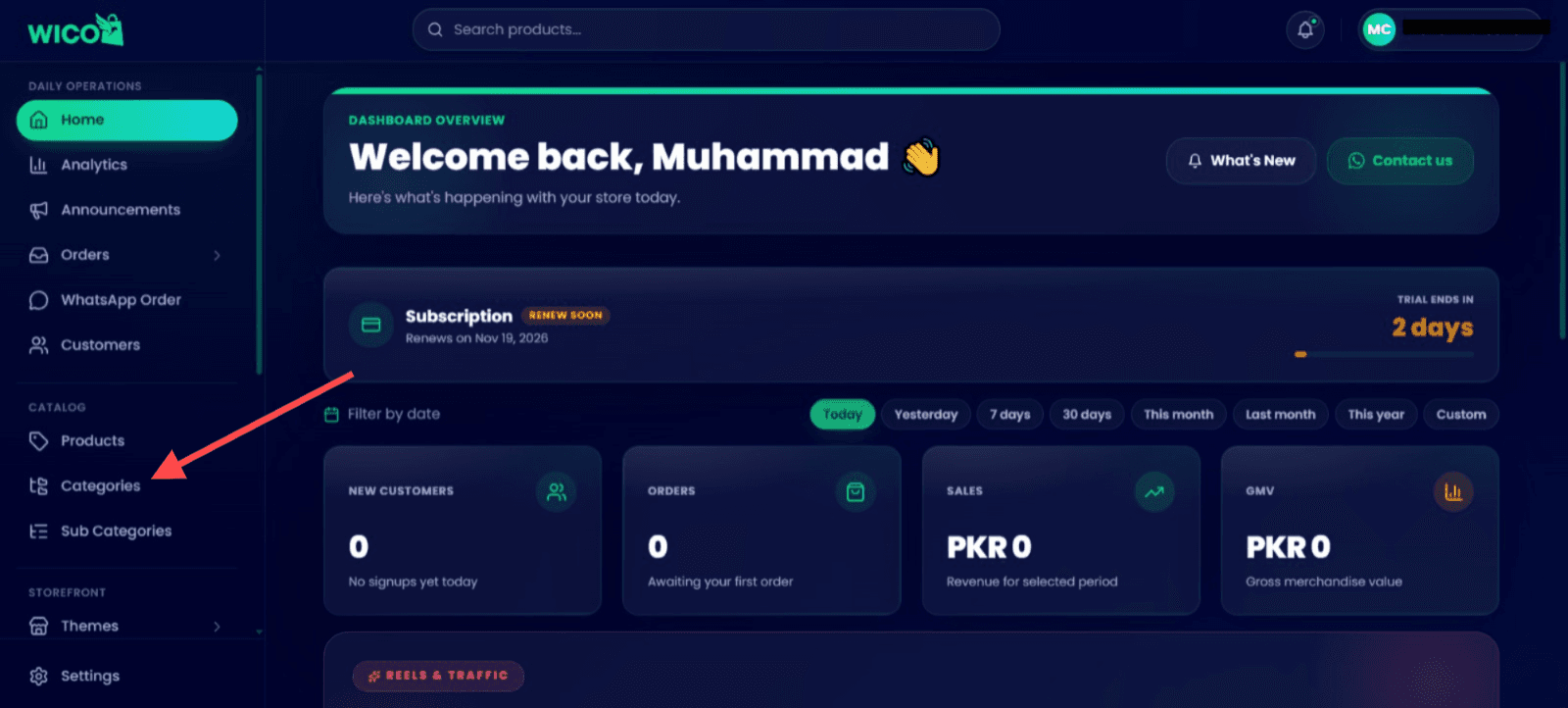
Step 1Sidebar > Categories
Click on "Categories" from the left sidebar.
View your categories list with total count, landing page, trending, and product stats.
accounts.wicofly.com/dashboard
Open Categories
2
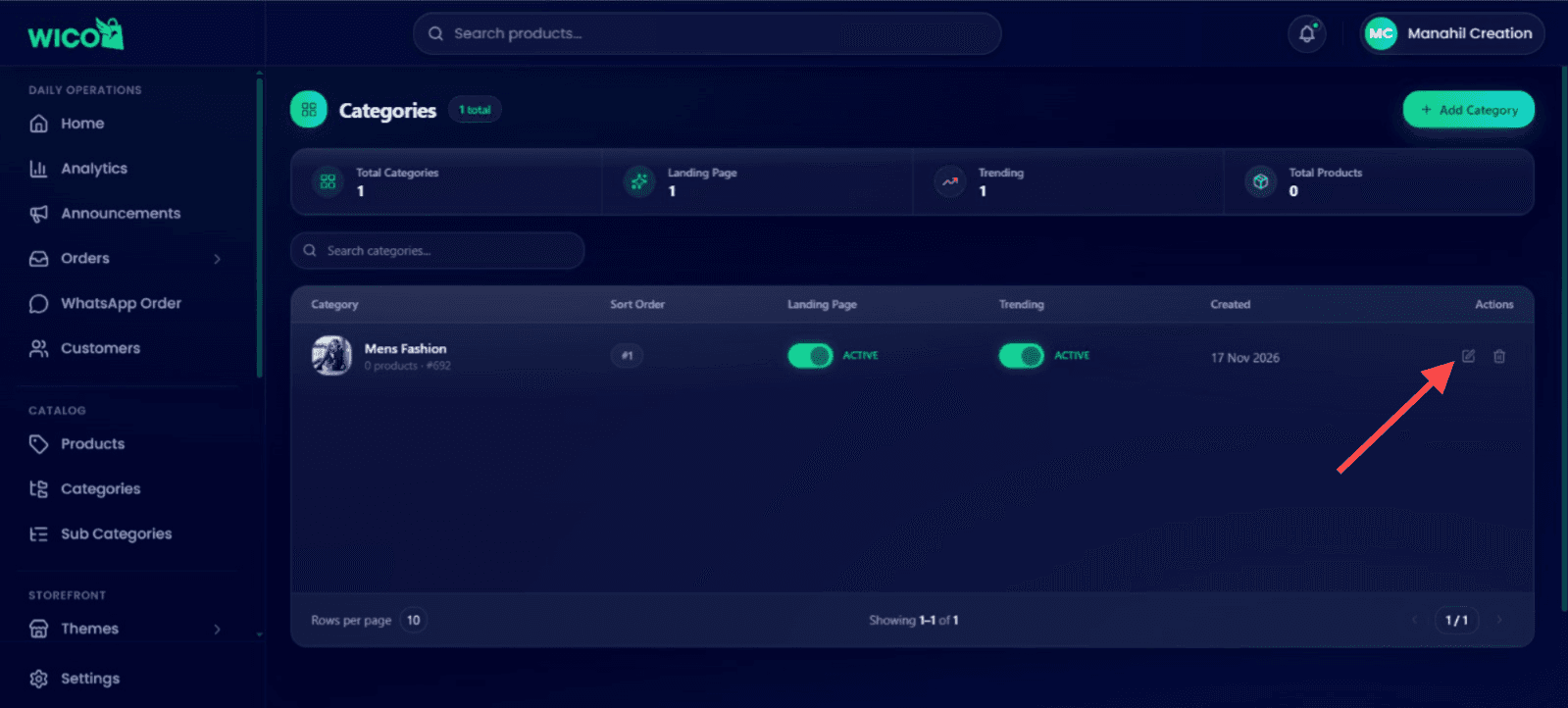
Step 2Actions Column > Edit Icon
Find the category you want to edit and click the Edit (pencil) icon in the Actions column.
You can also search categories using the search bar above the table.
accounts.wicofly.com/dashboard
Click Edit icon
3
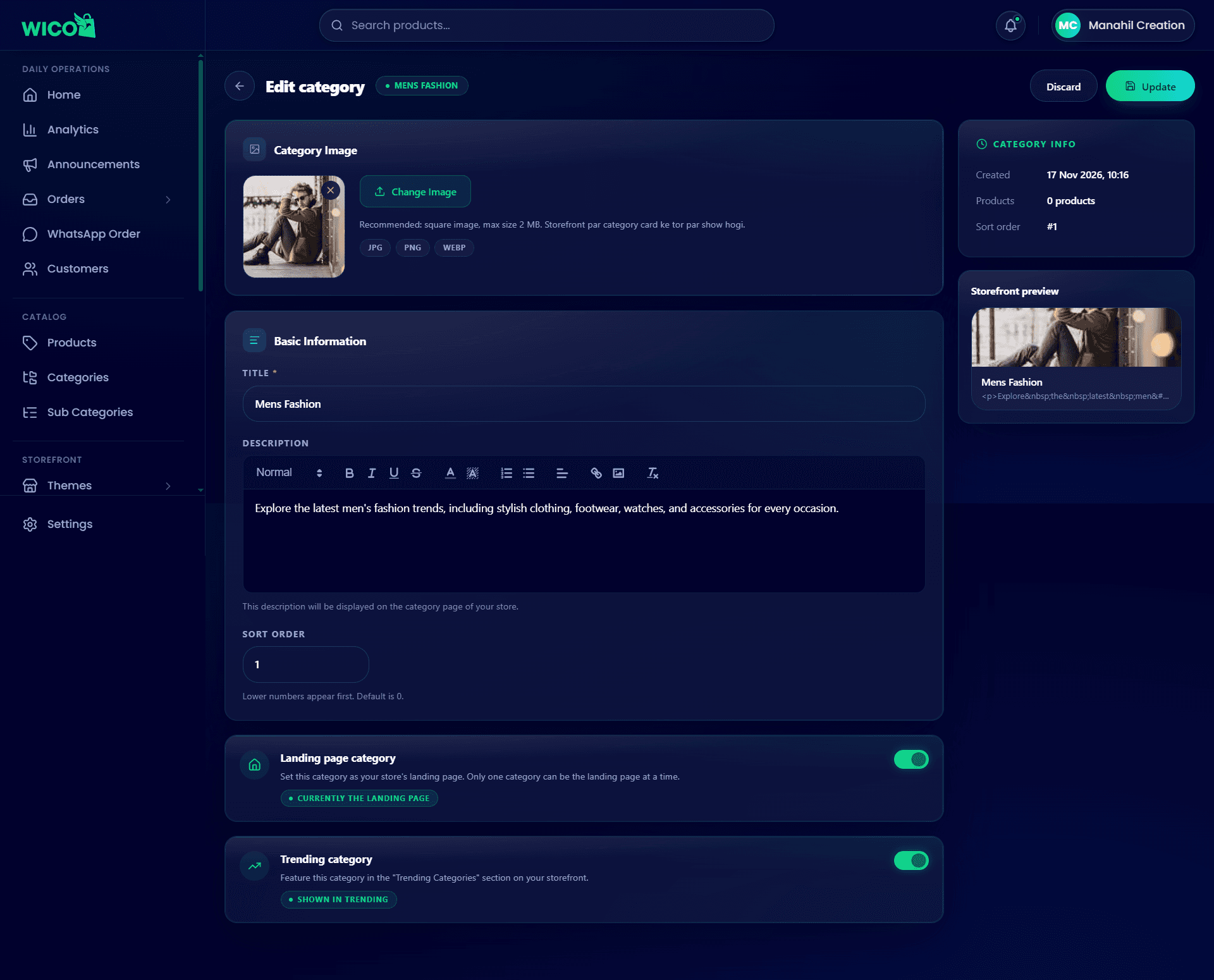
Step 3Category Edit Form
Make your changes — update title, description, image, sort order, or toggles.
All fields are editable. The storefront preview on the right updates in real-time.
accounts.wicofly.com/dashboard
Update fields
4
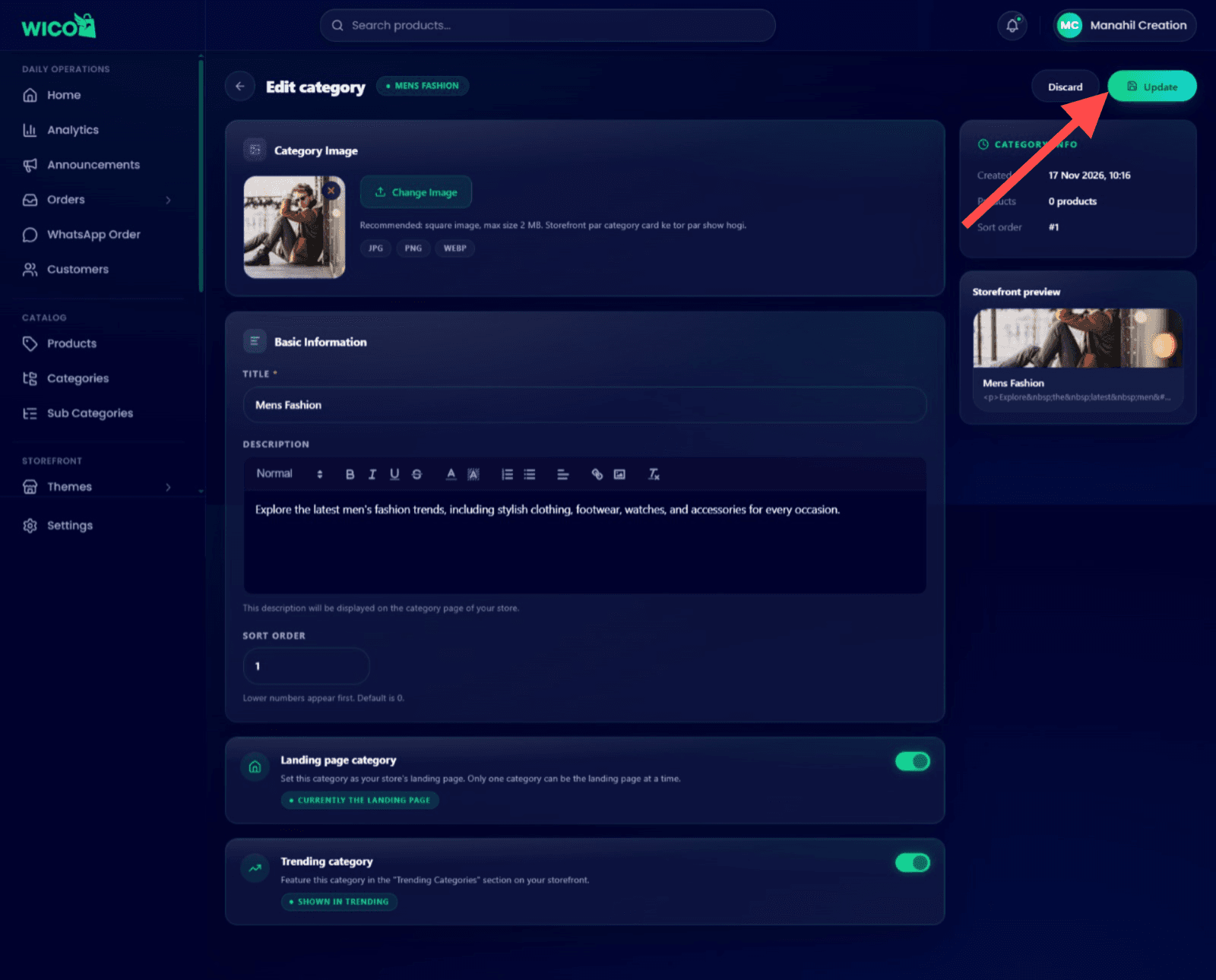
Step 4Top Right > Save
Click "Save" to apply your changes.
Changes sync immediately to your live storefront without any downtime.
accounts.wicofly.com/dashboard
Click Save
That's it!
Your edit a category task has been configured successfully. Your Wicofly store is updated.
Related Helps
products categories
Create a Category
Organize your products into categories like Clothing, Electronics, or Footwear.
5 stepsRead
products categories
Delete a Category
Permanently remove a category that is no longer needed.
3 stepsRead
products categories
Create a Sub-Category
Create nested sub-categories under parent categories for better product organization.
5 stepsRead