
Products & Categories 1 min read·3 Steps
Delete a Category
Permanently remove a category that is no longer needed.
0 of 3 steps completed
1
Step 1Sidebar > Categories
Go to Categories from the left sidebar.
View your categories list.
accounts.wicofly.com/dashboard
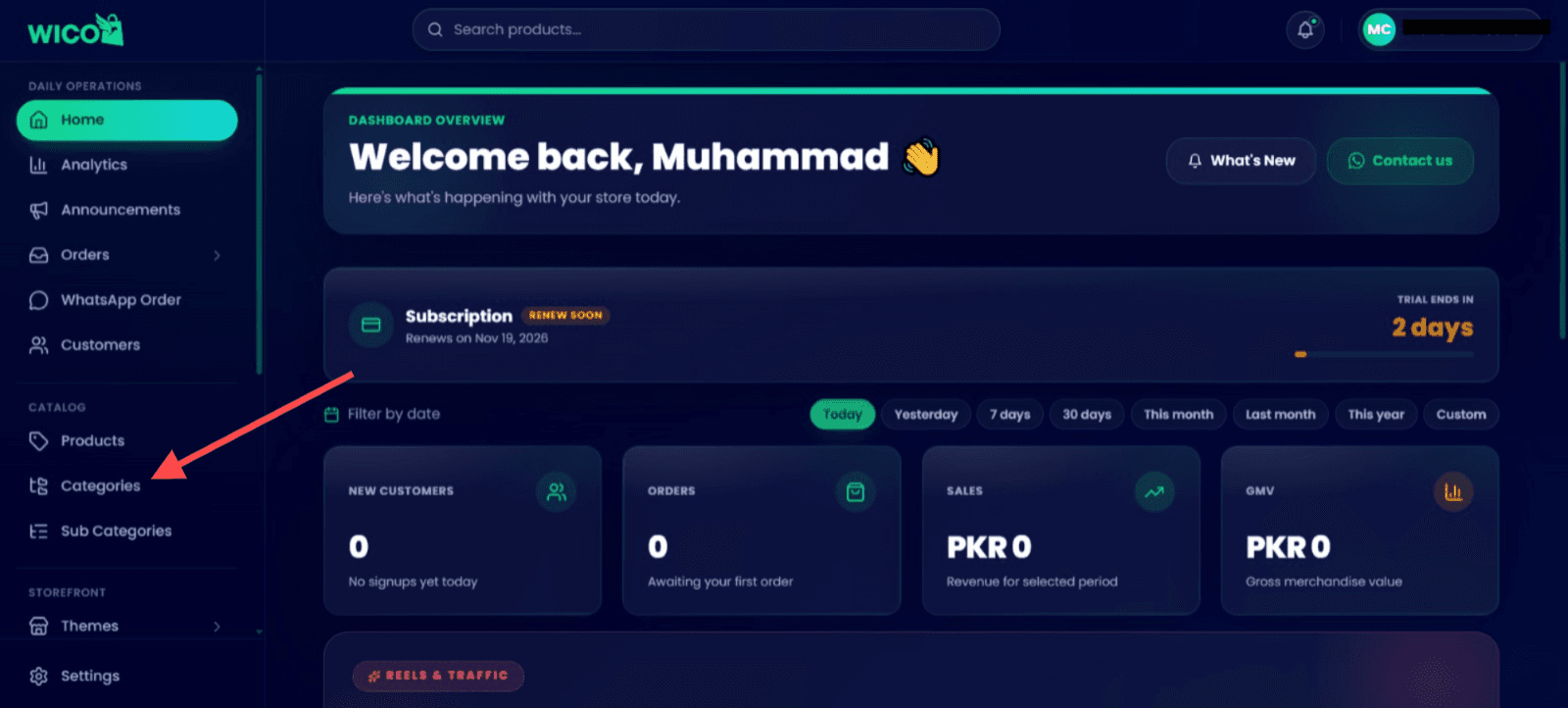
Open Categories
2
Step 2Actions > Trash Icon
Click the Delete (trash) icon in the Actions column for the category.
A confirmation modal will appear to prevent accidental deletion.
accounts.wicofly.com/dashboard
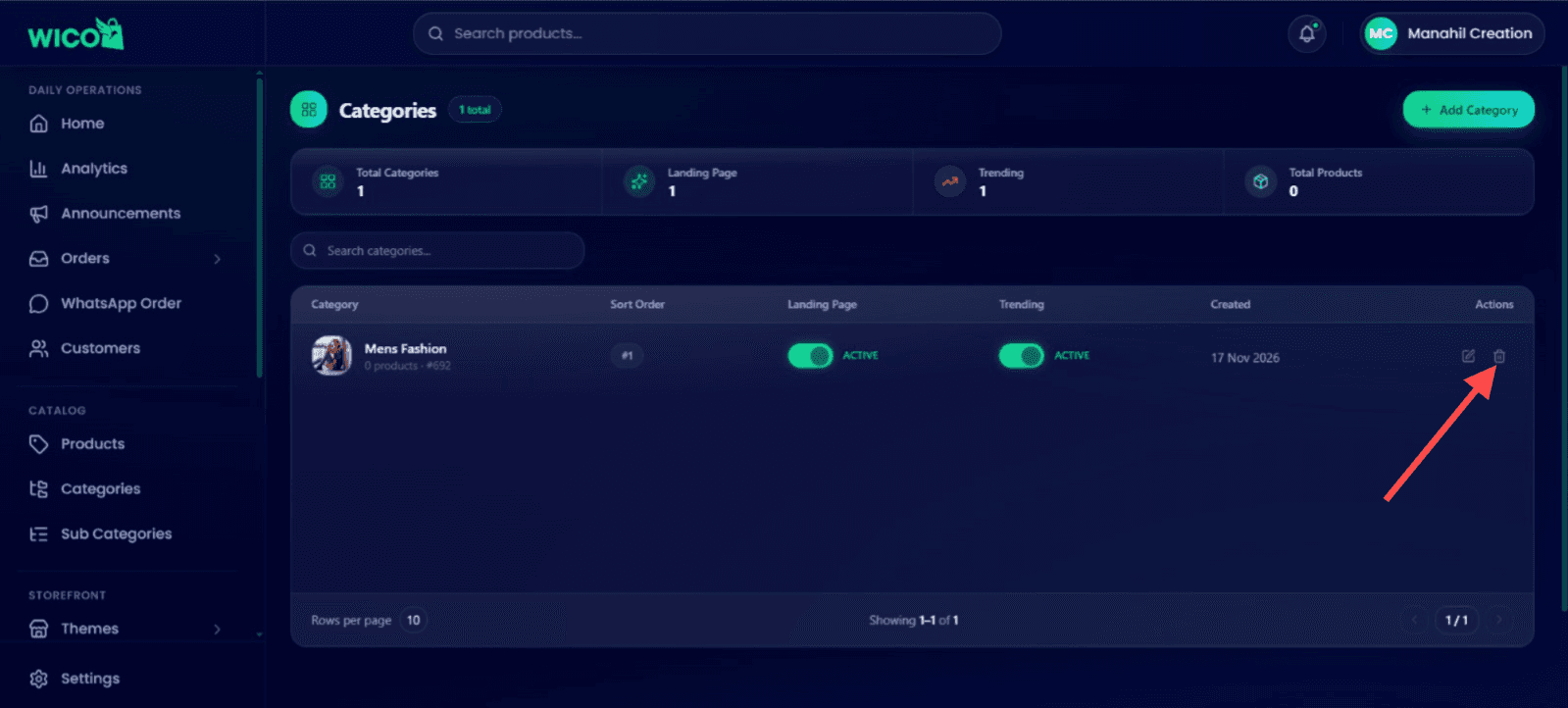
Click Delete icon
3
Step 3Confirmation Modal
Click "Delete" in the popup.
The category is permanently removed. Products assigned to this category will become uncategorized.
accounts.wicofly.com/dashboard
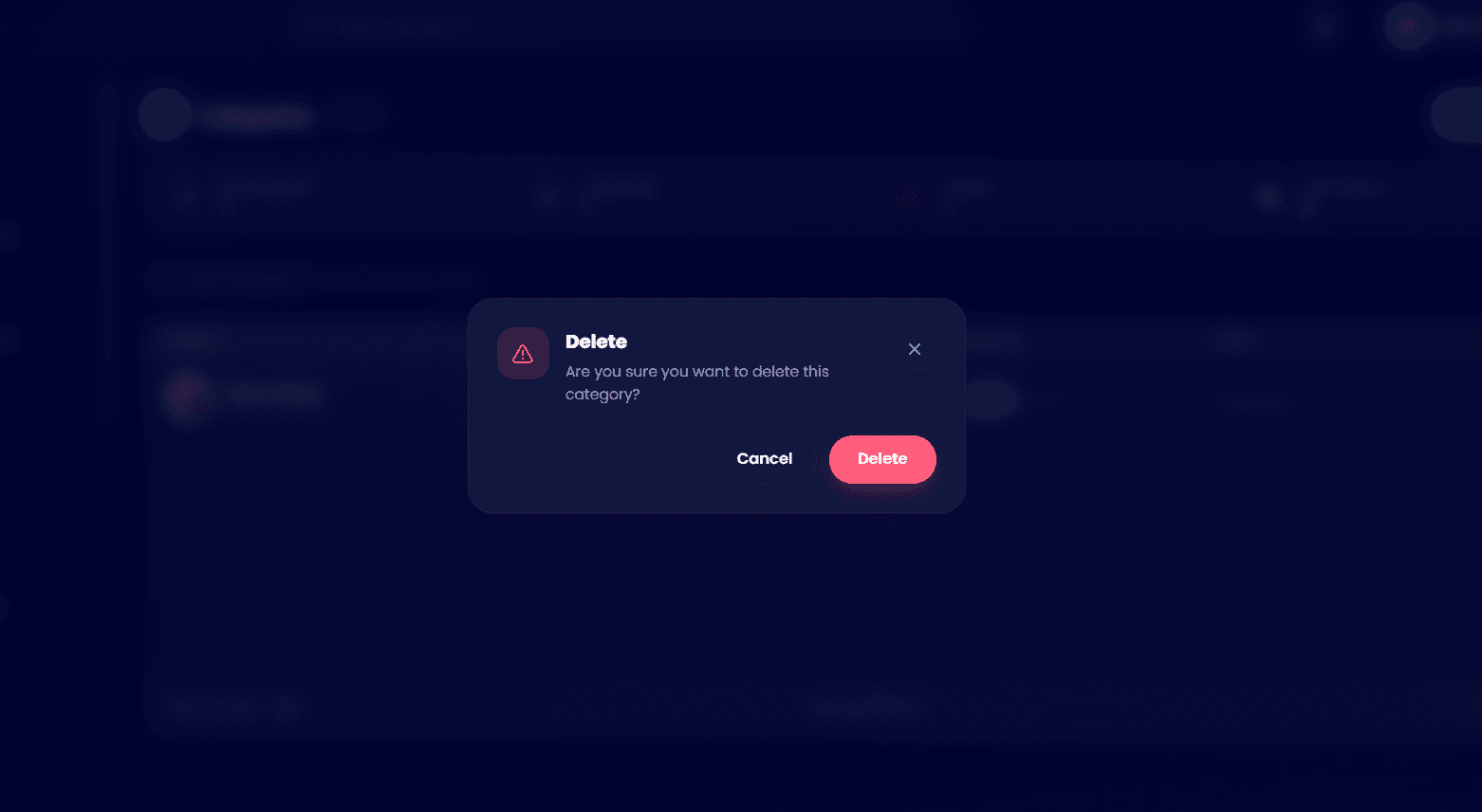
Confirm Delete
That's it!
Your delete a category task has been configured successfully. Your Wicofly store is updated.