
Manage Store Settings
Update your store name, country, and currency to configure your store's regional preferences.
Click "Settings" from the left sidebar.
Open the Settings section from your store dashboard.
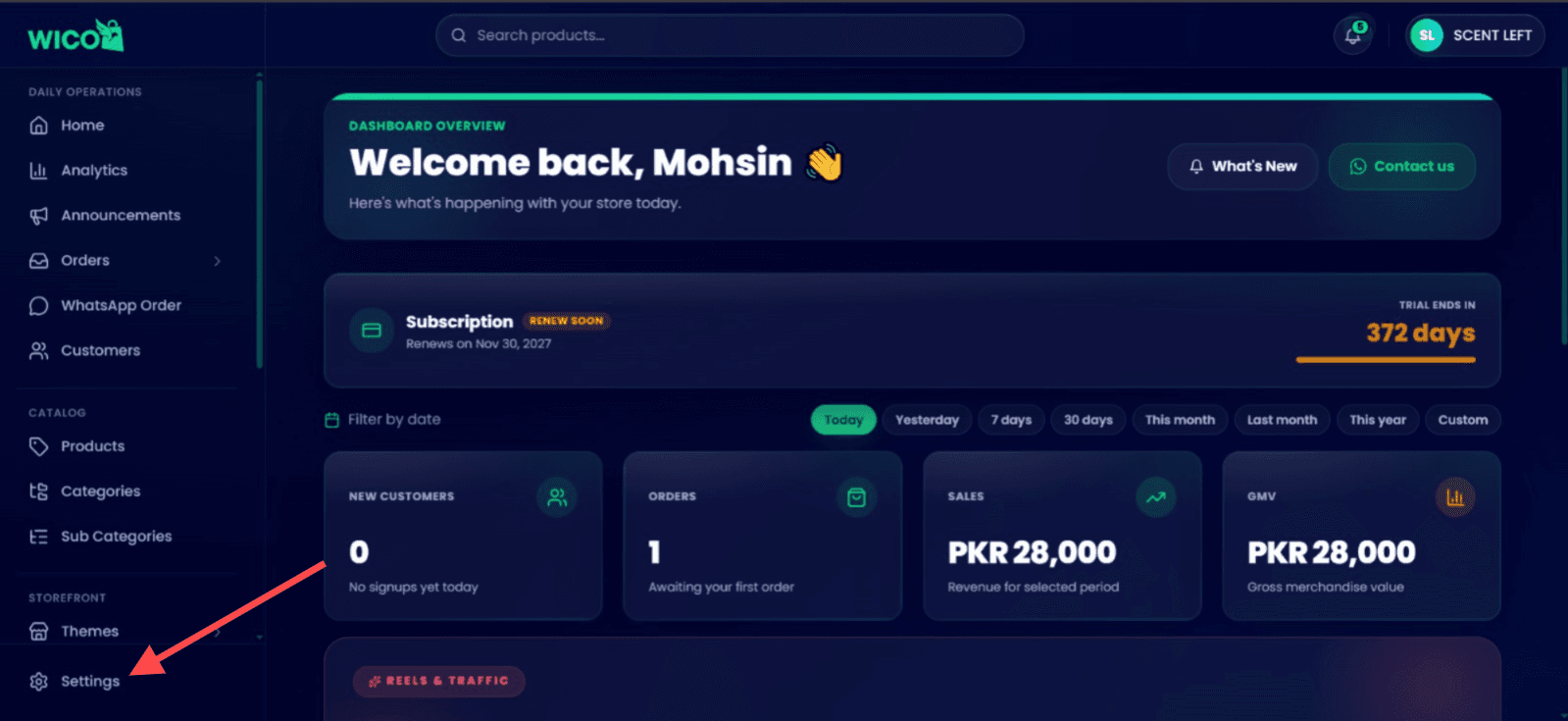
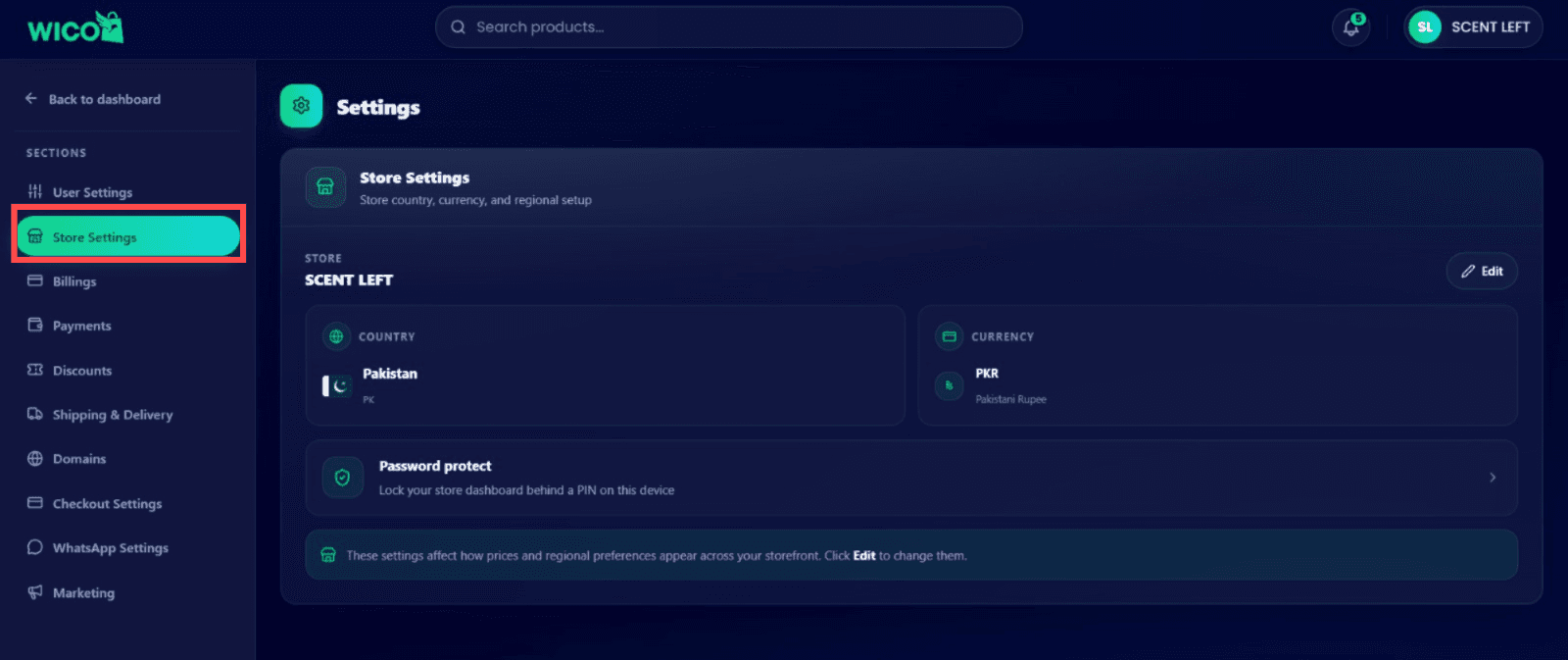
Select "Store Settings".
Click Store Settings from the settings sidebar to view your store information, country, currency, and password protection option.
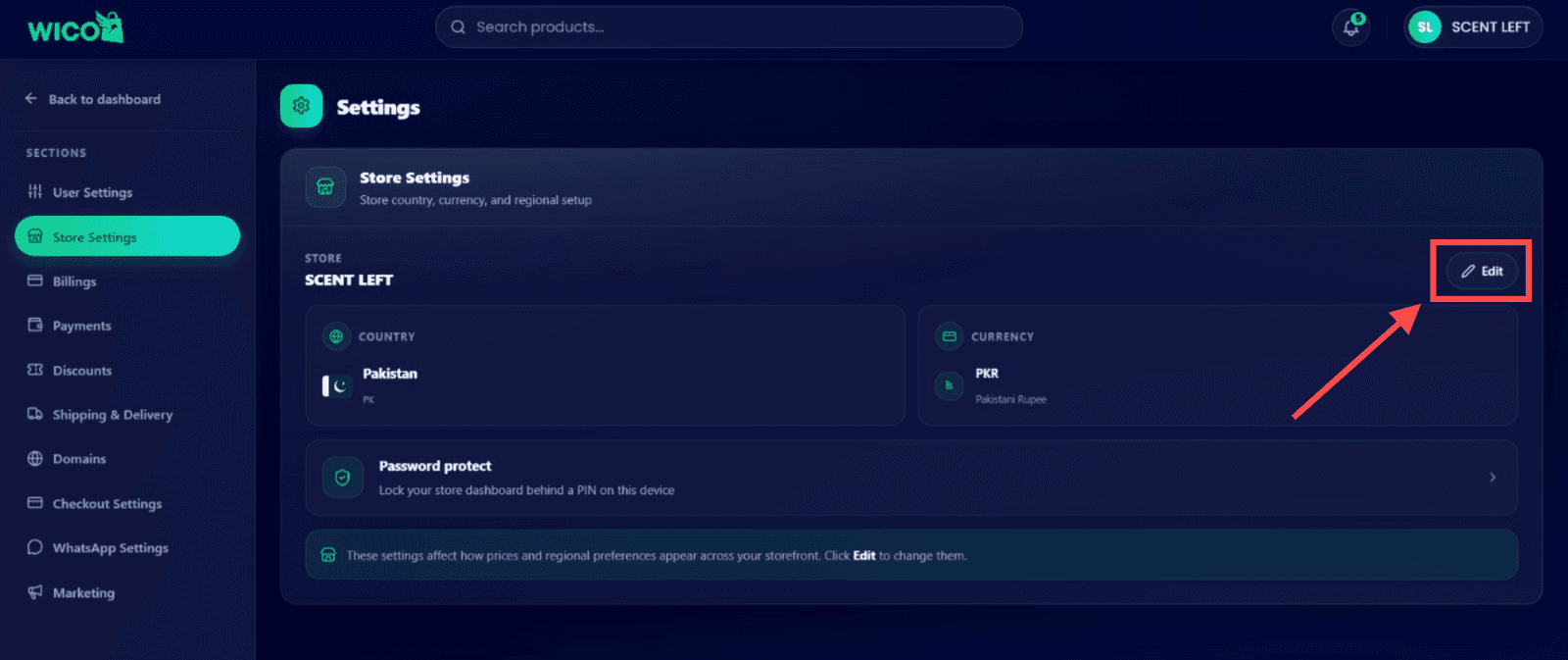
Click the "Edit" button in the Store section.
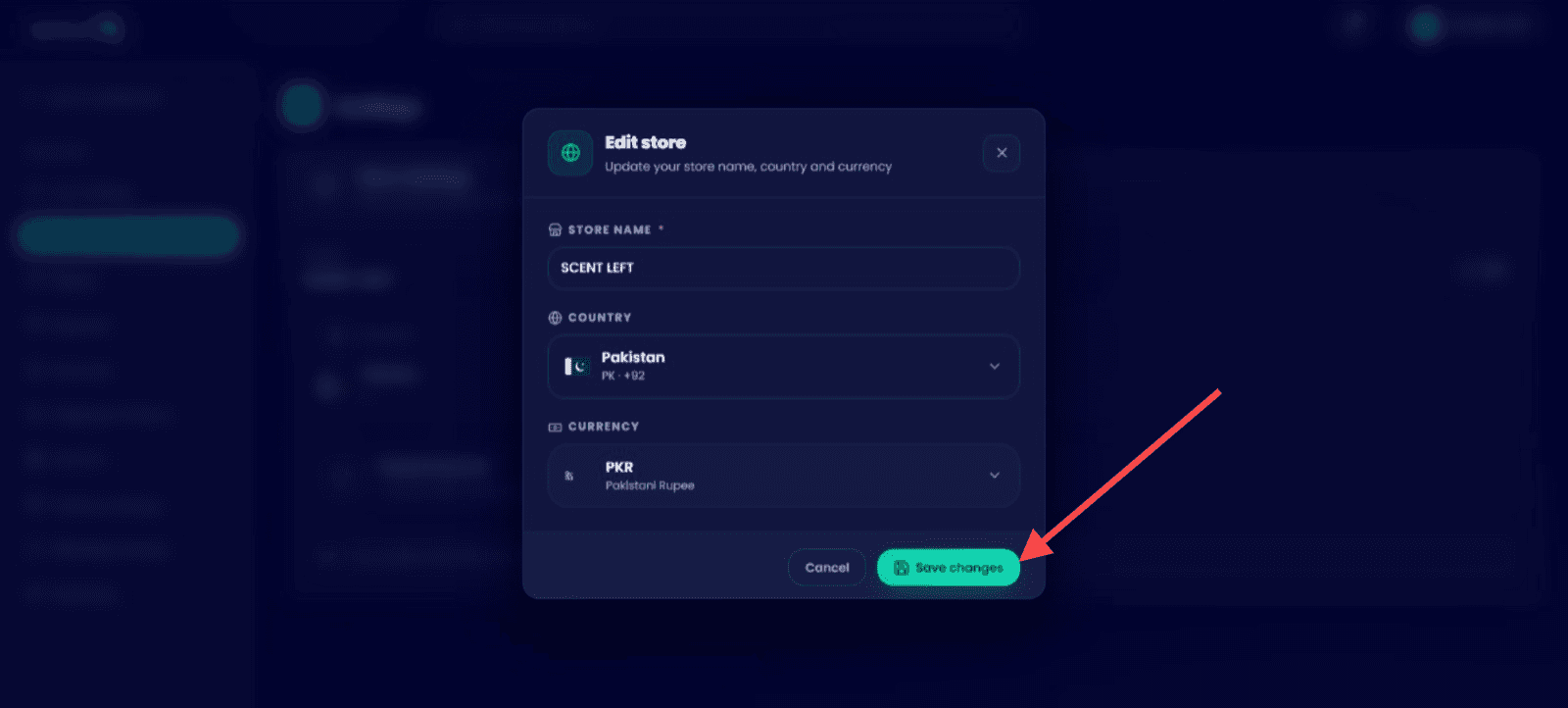
The Edit Store window will open, allowing you to update your store information.
Update your Store Name, Country, and Currency.
Enter your store name and select your preferred country and currency from the available dropdown options.
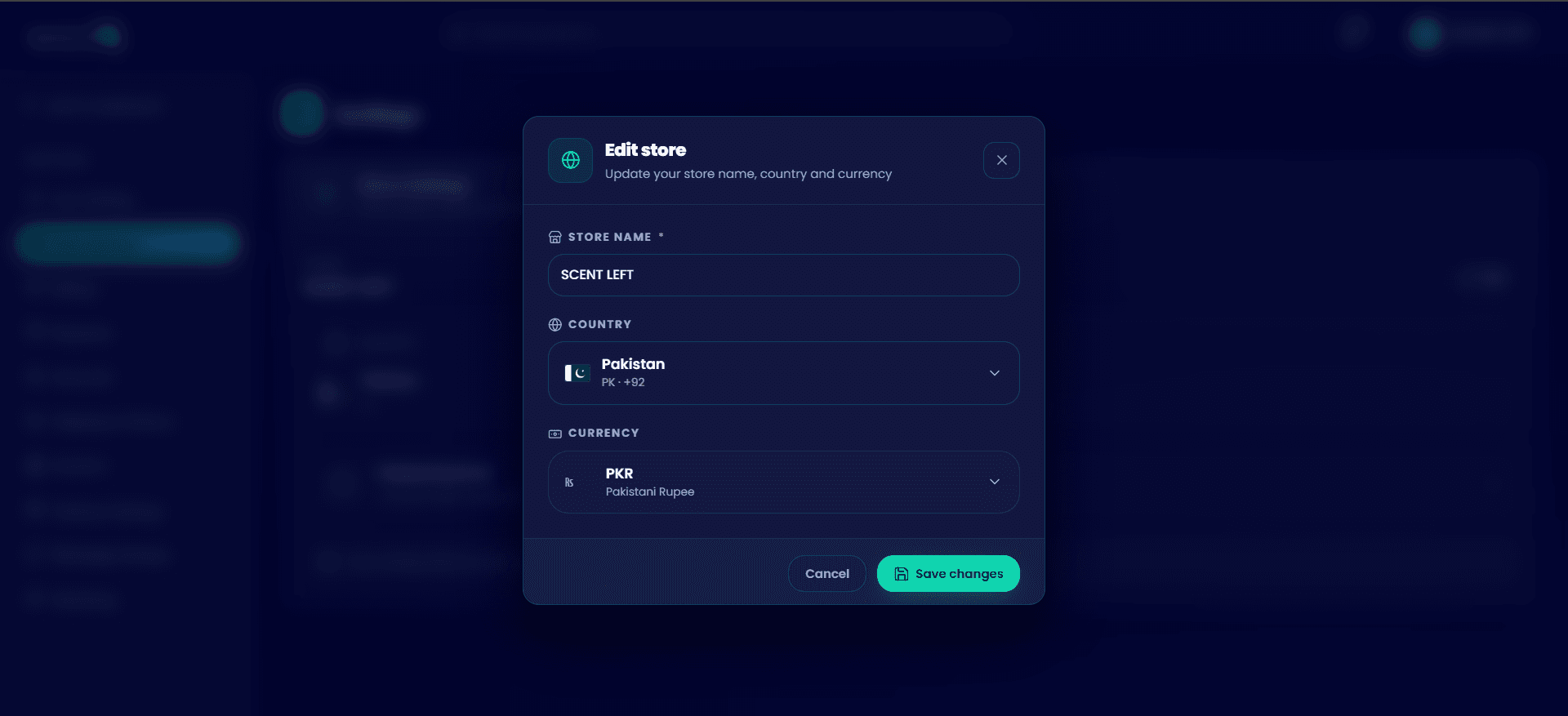
Click "Save changes" to apply your store settings.
Your updated store name, country, and currency will be saved.
That's it!
Your manage store settings task has been configured successfully. Your Wicofly store is updated.
Related Helps
Create Your Online Store
Fill in your store details and launch your free Wicofly storefront instantly.
Manage User Settings
Update your personal profile information, avatar, phone number, country, and account password.
Manage Billing Details
View your subscription history, access billing details, and manage invoices and payments.
Configure Checkout Page
Customize checkout form fields by changing labels, setting required fields, controlling visibility, and arranging their order.