
Products & Categories 1 min read·4 Steps
Edit a Sub-Category
Update sub-category name, parent, image, description, or toggle active status.
0 of 4 steps completed
1
Step 1Sidebar > Sub Categories
Click on "Sub Categories" from the left sidebar.
View your sub-categories list with status, parent, and order columns.
accounts.wicofly.com/dashboard
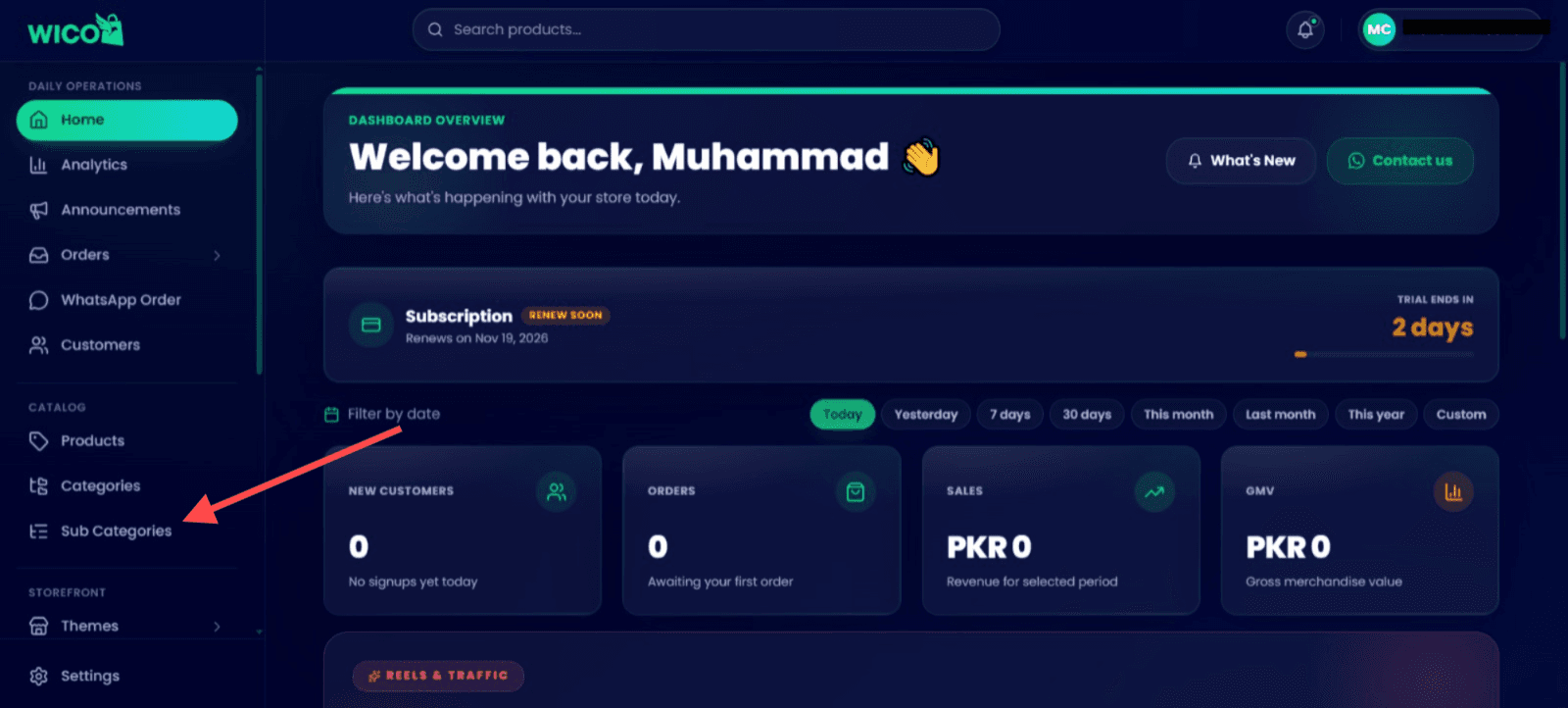
Open Sub Categories
2
Step 2Actions > Edit Icon
Find the sub-category and click the Edit (pencil) icon in the Actions column.
Use the search bar to filter by name if you have many sub-categories.
accounts.wicofly.com/dashboard
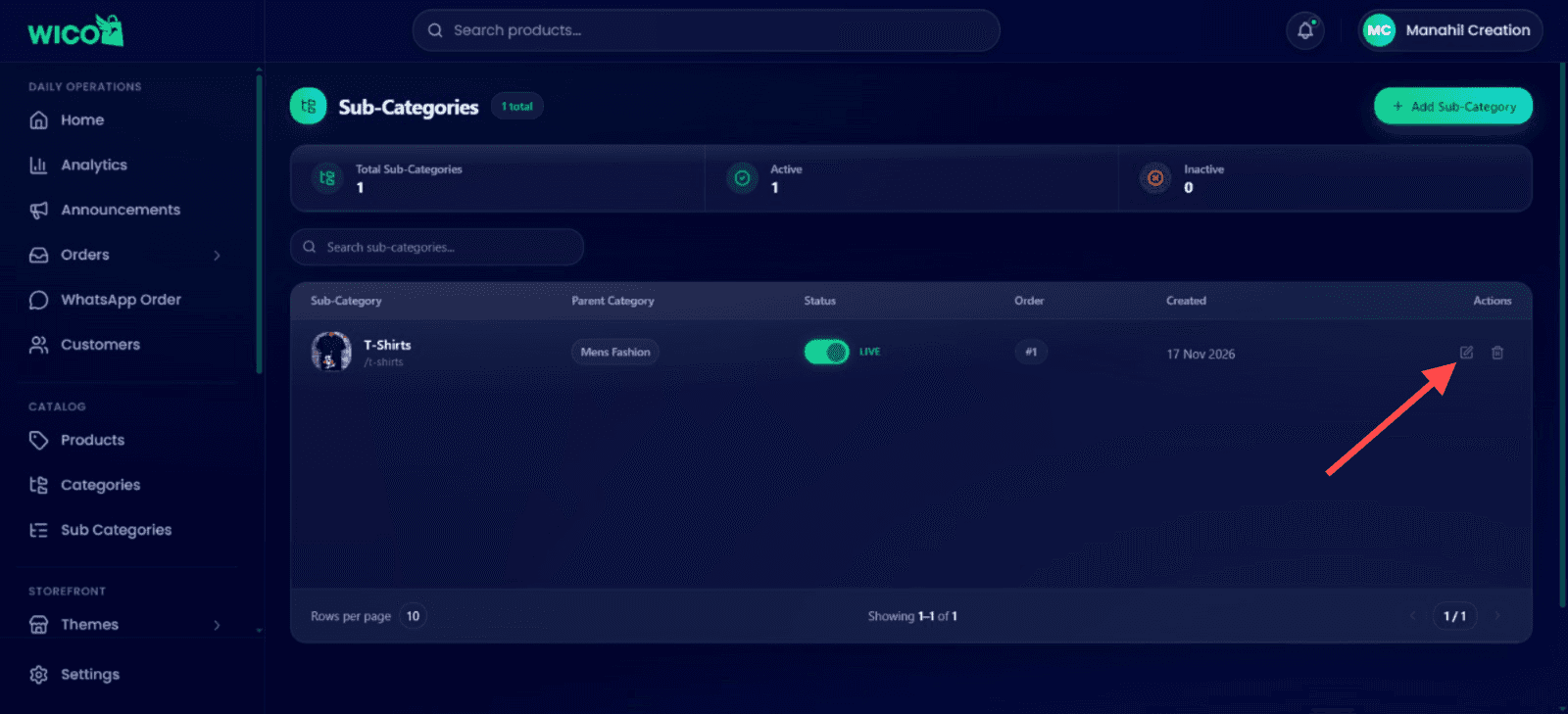
Click Edit icon
3
Step 3Edit Form
Make your changes — update title, parent category, image, description, or sort order.
You can also toggle Active Status to hide/show the sub-category on your storefront.
accounts.wicofly.com/dashboard

Update fields
4
Step 4Top Right > Save
Click "Save" to apply changes.
Updates sync immediately to your live storefront.
accounts.wicofly.com/dashboard
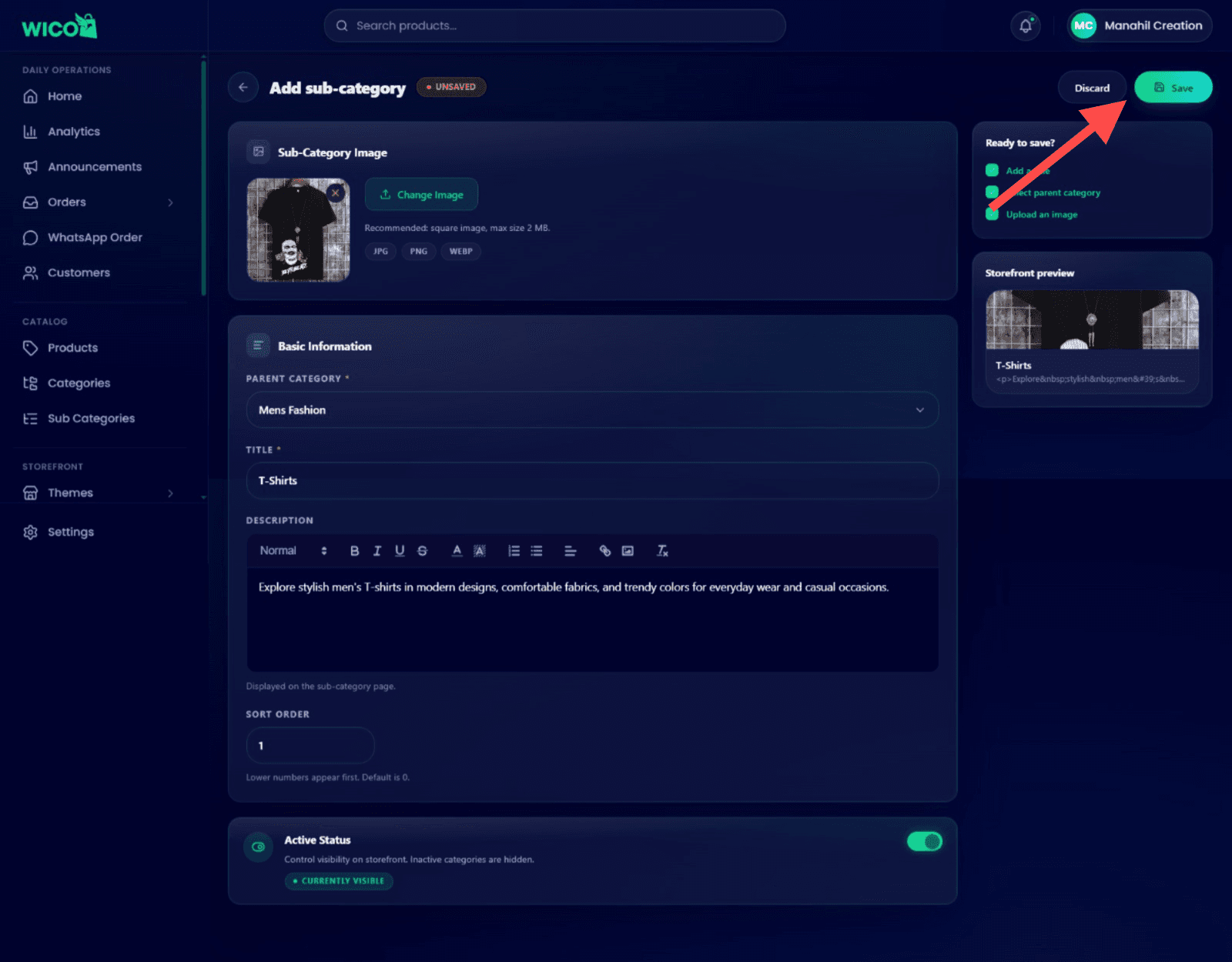
Click Save
That's it!
Your edit a sub-category task has been configured successfully. Your Wicofly store is updated.
Related Helps
products categories
Create a Category
Organize your products into categories like Clothing, Electronics, or Footwear.
5 stepsRead
products categories
Create a Sub-Category
Create nested sub-categories under parent categories for better product organization.
5 stepsRead
products categories
Delete a Sub-Category
Permanently remove a sub-category that is no longer needed.
3 stepsRead