
Edit a Blog Post
Update blog title, content, cover image, category, or toggle visibility.
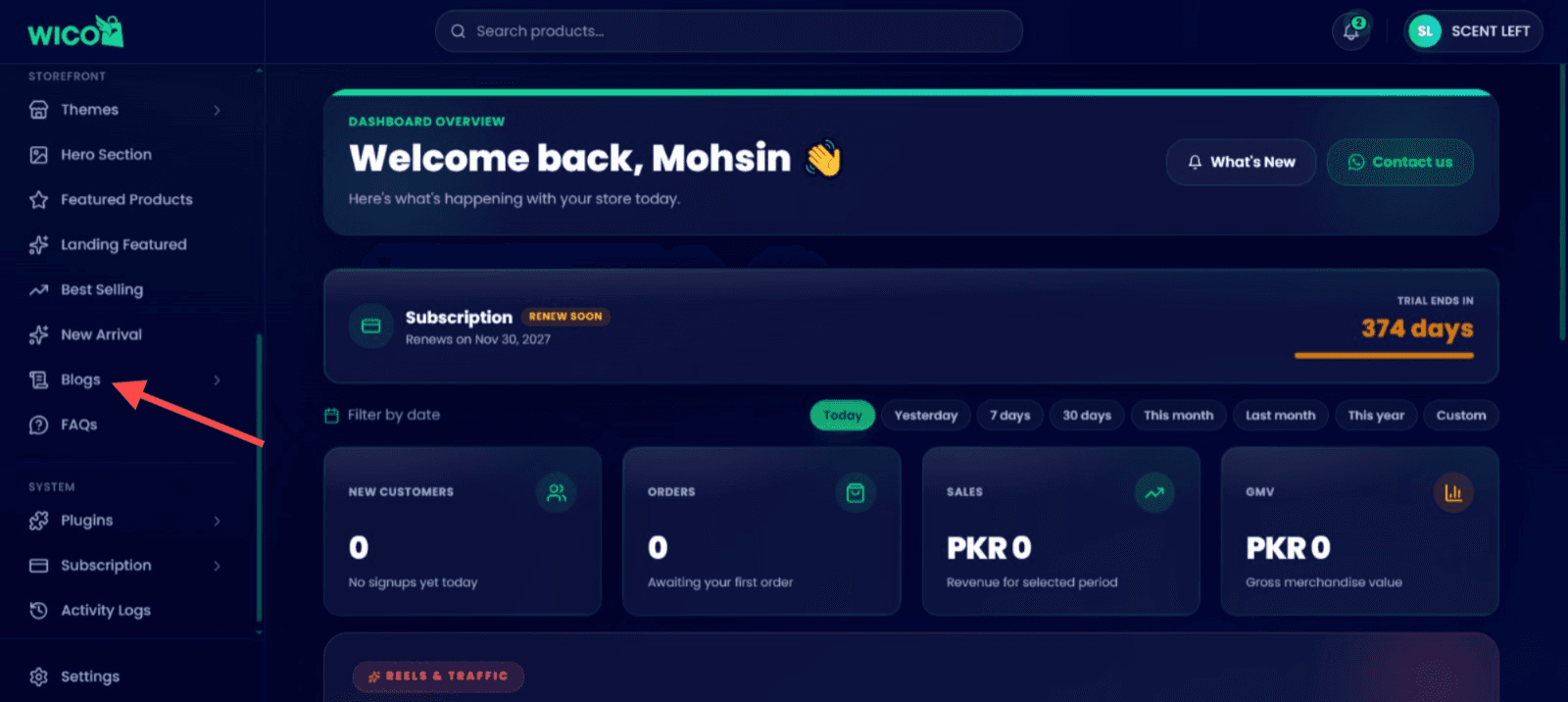
Go to Blogs from the left sidebar.
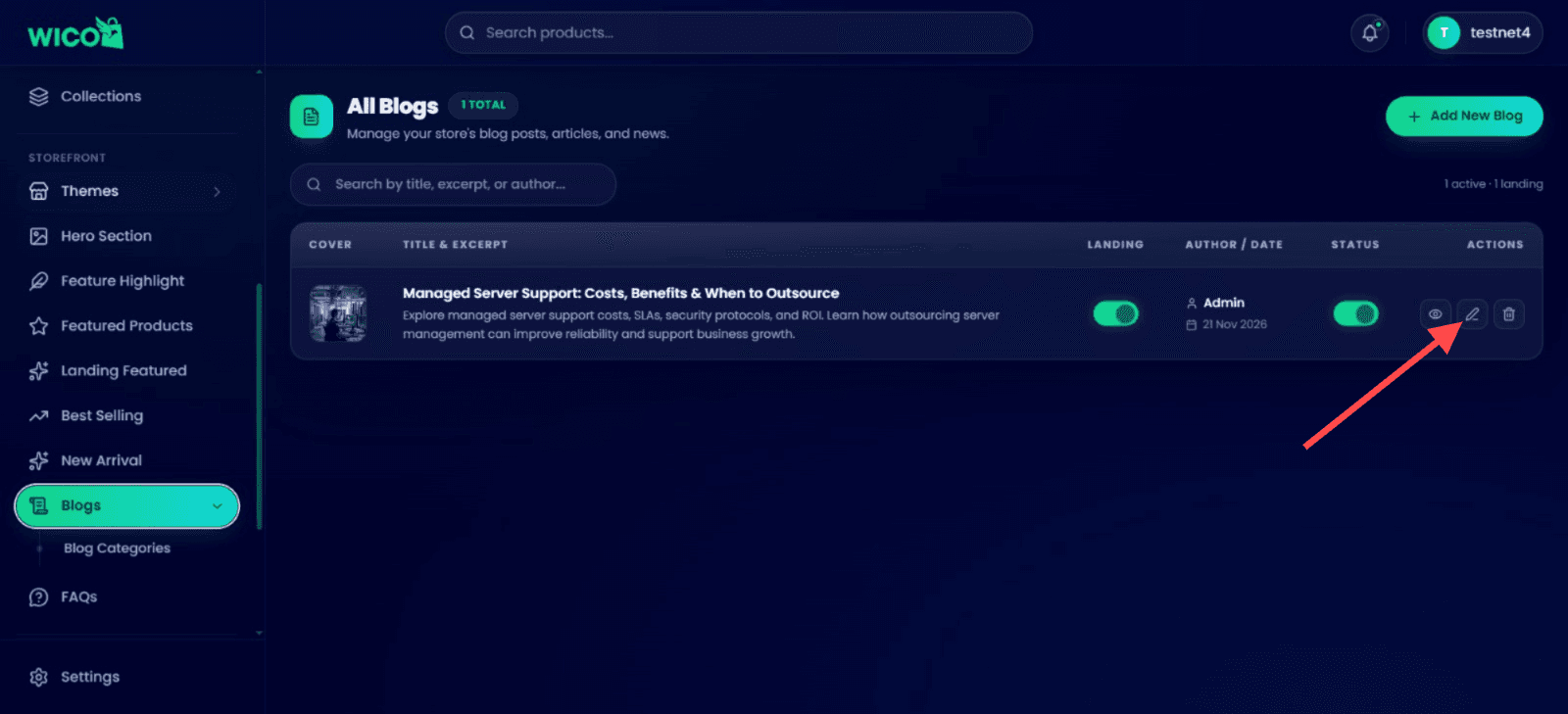
View your blog list with title, excerpt, author, date, and status.
Click the Edit (pencil) icon on the blog you want to update.
You can also click the Eye icon to preview the blog first, then click "Edit this Blog" from the preview.
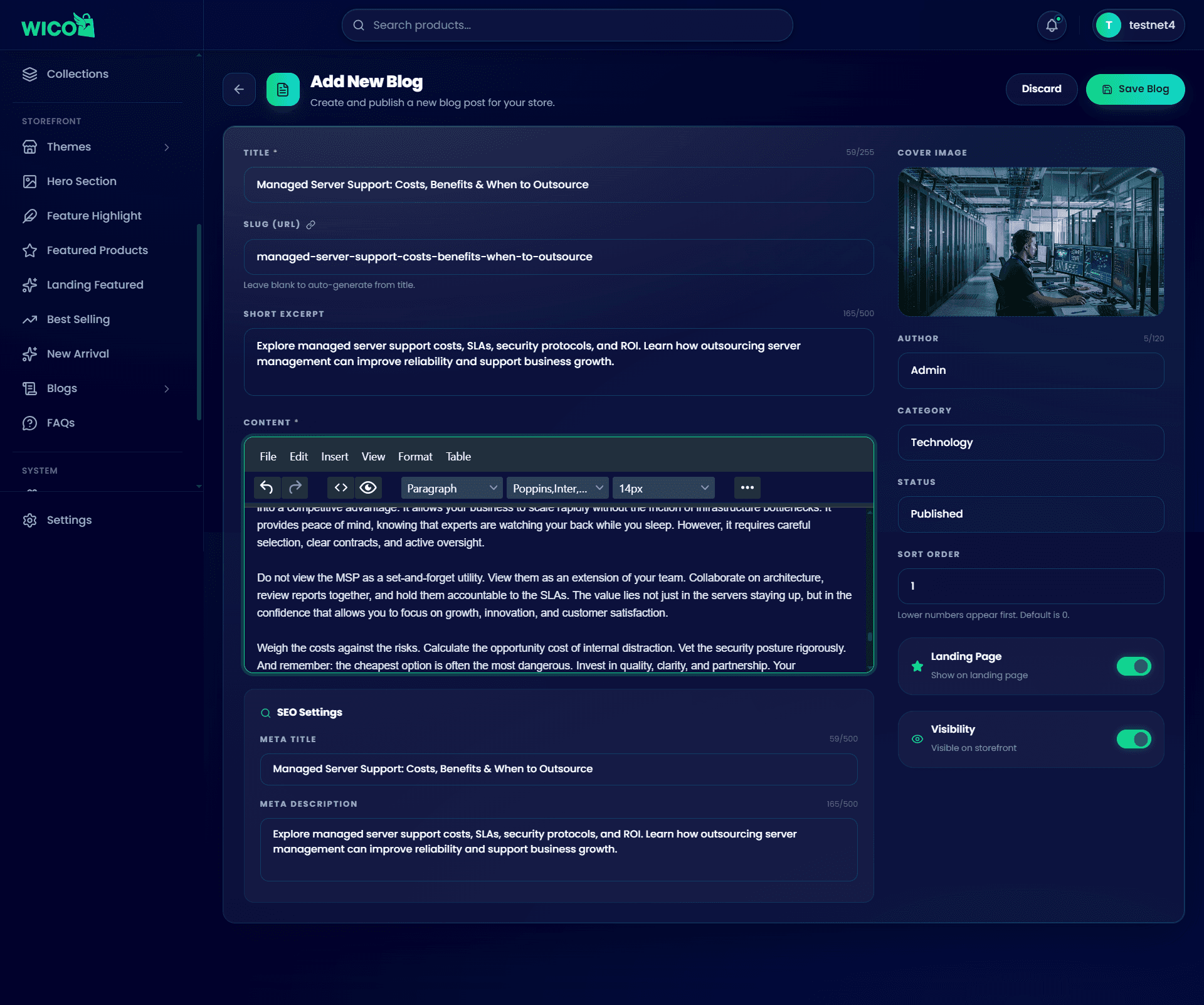
Make your changes — update any field.
All fields are editable: title, slug, excerpt, content, cover image (via Media Library), author, category, status, sort order, landing page toggle, visibility toggle, and SEO meta tags.
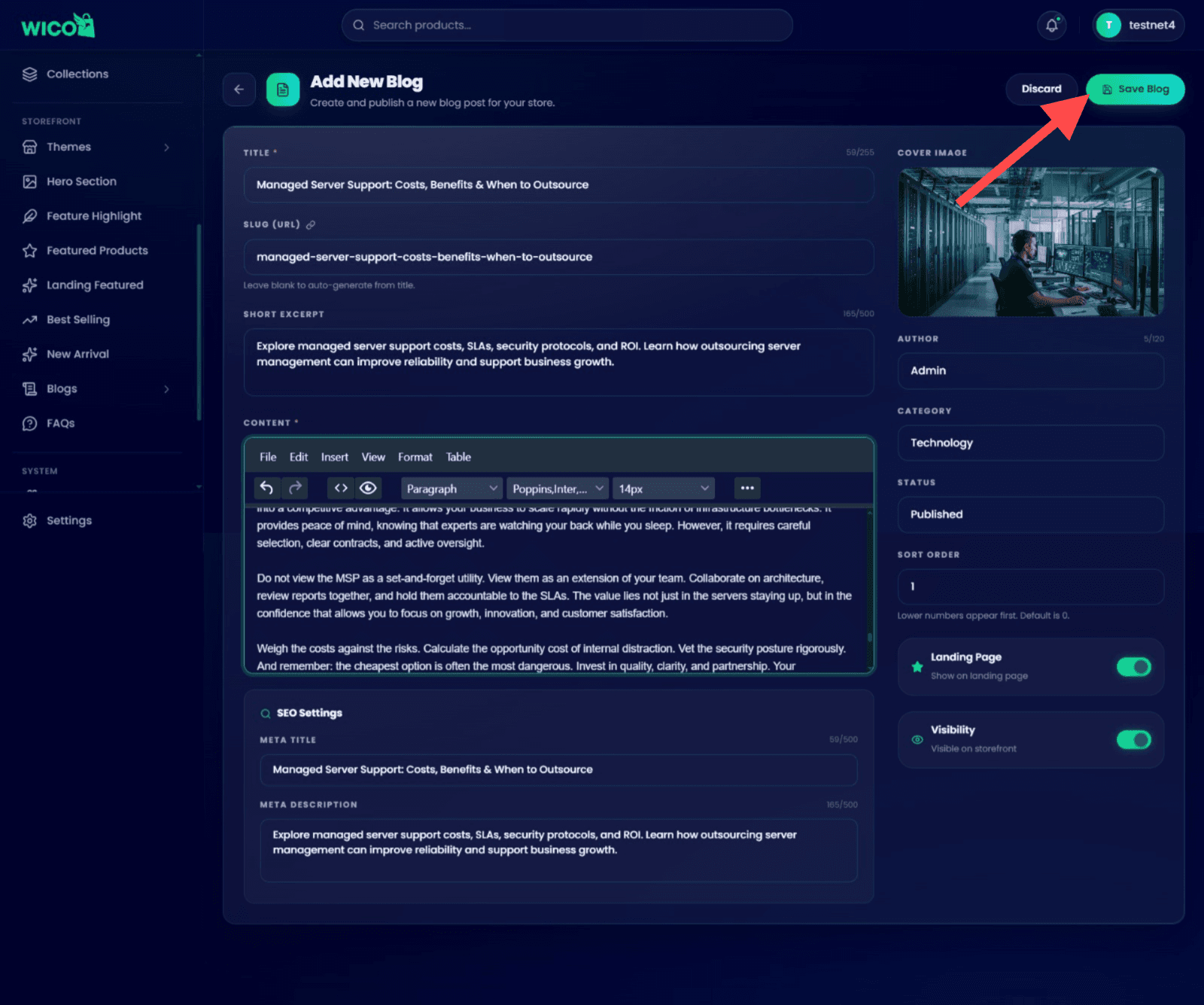
Click "Update Blog" to save.
Changes sync immediately to your live storefront.
That's it!
Your edit a blog post task has been configured successfully. Your Wicofly store is updated.
Related Helps
Manage Blog Categories
Create, edit, and delete blog categories to organize your posts.
Create a Blog Post
Write and publish a new blog post with cover image, SEO settings, and rich content.
Delete a Blog Post
Permanently remove a blog post that is no longer needed.