
Create Automatic Discount
Set up discounts that automatically apply at checkout without requiring customers to enter a code.
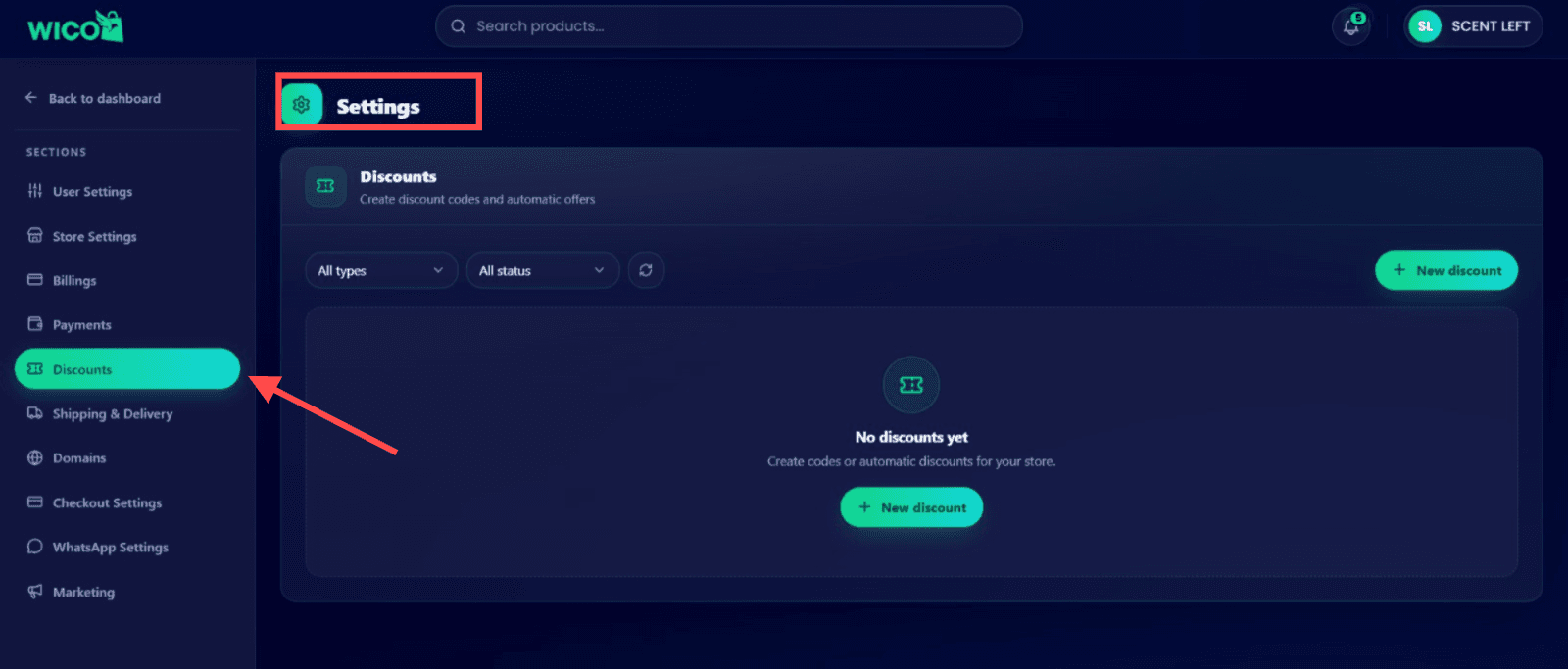
Open Settings and go to "Discounts".
Navigate to the Discounts section from the left sidebar.
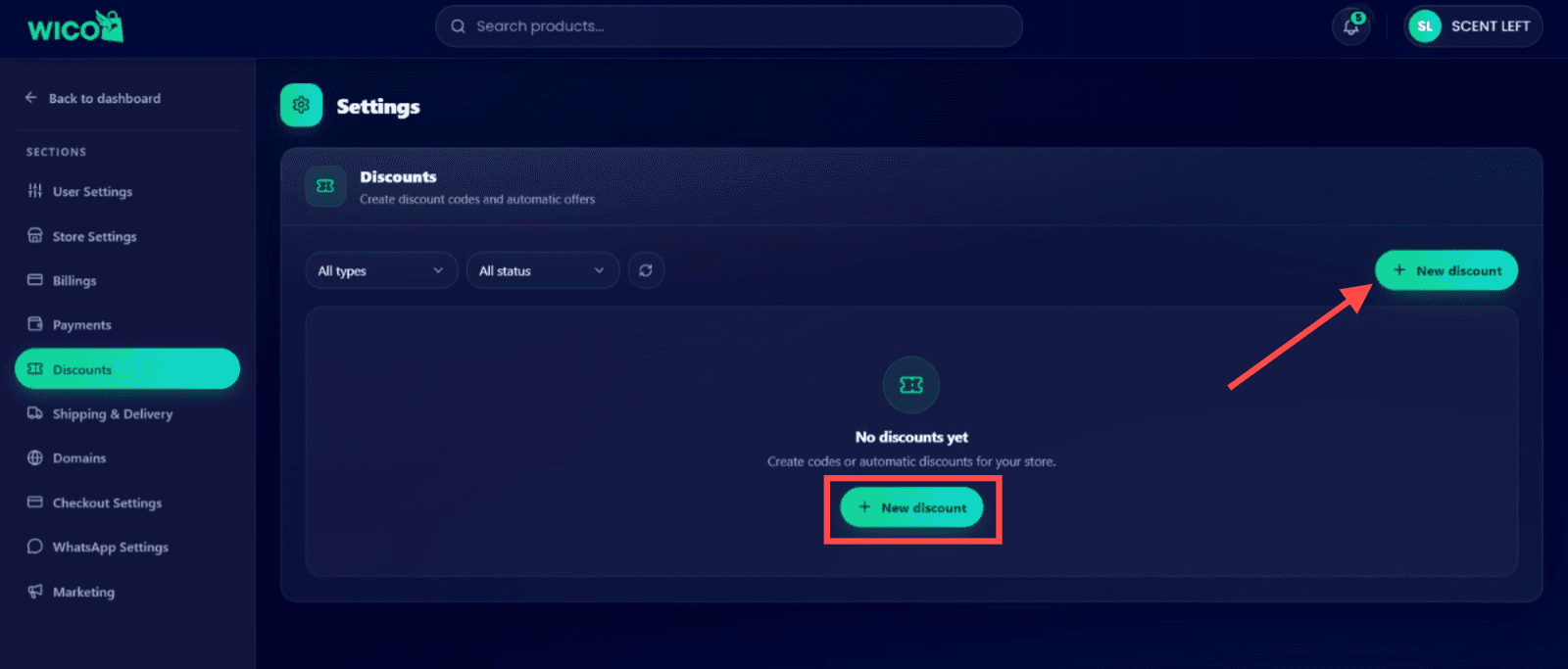
Click "New Discount".
Click the New Discount button in the top-right corner to open the discount creation form.
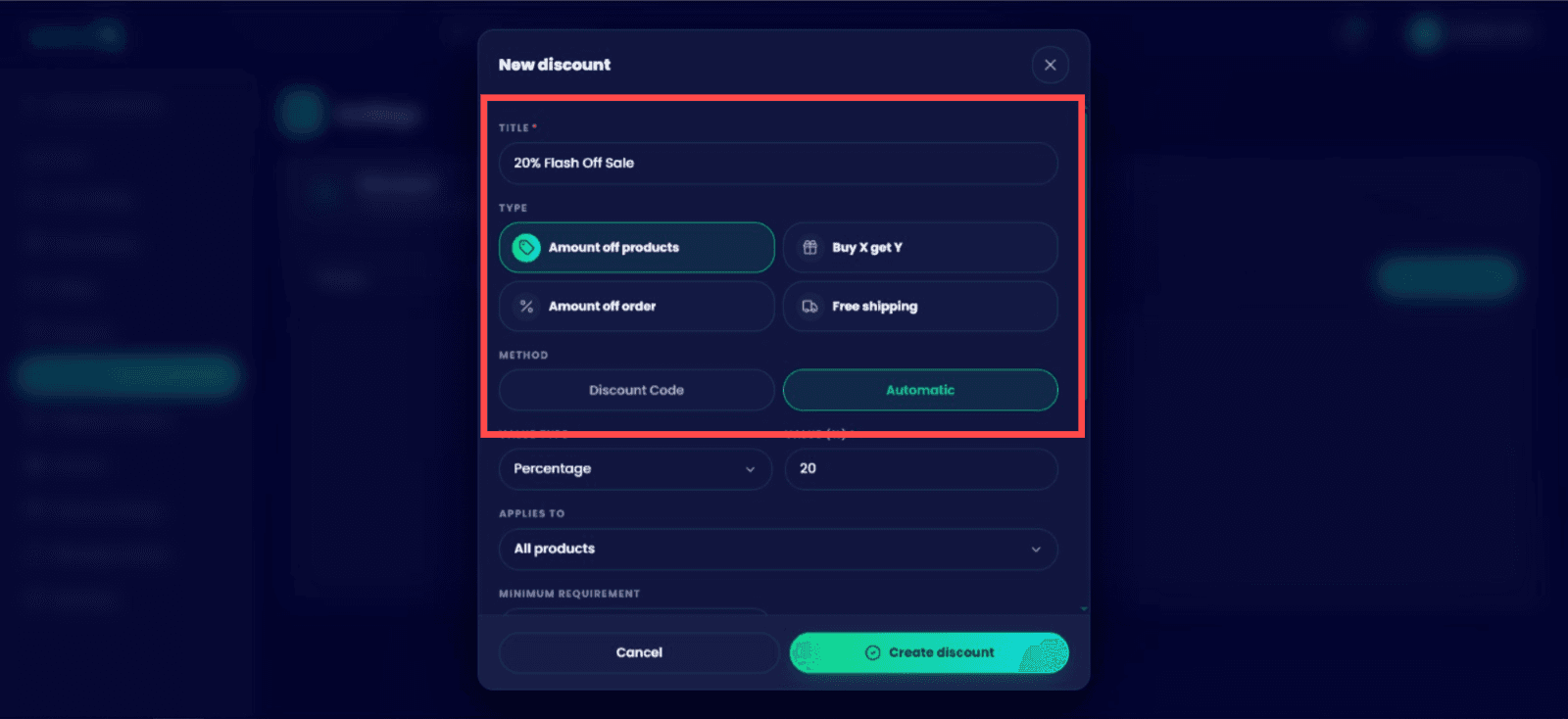
Enter a discount title and choose a discount type and select "Automatic" as the method.
Choose Amount off products, Buy X Get Y, Amount off order, or Free shipping. Select Automatic instead of Discount Code. No coupon code is required.
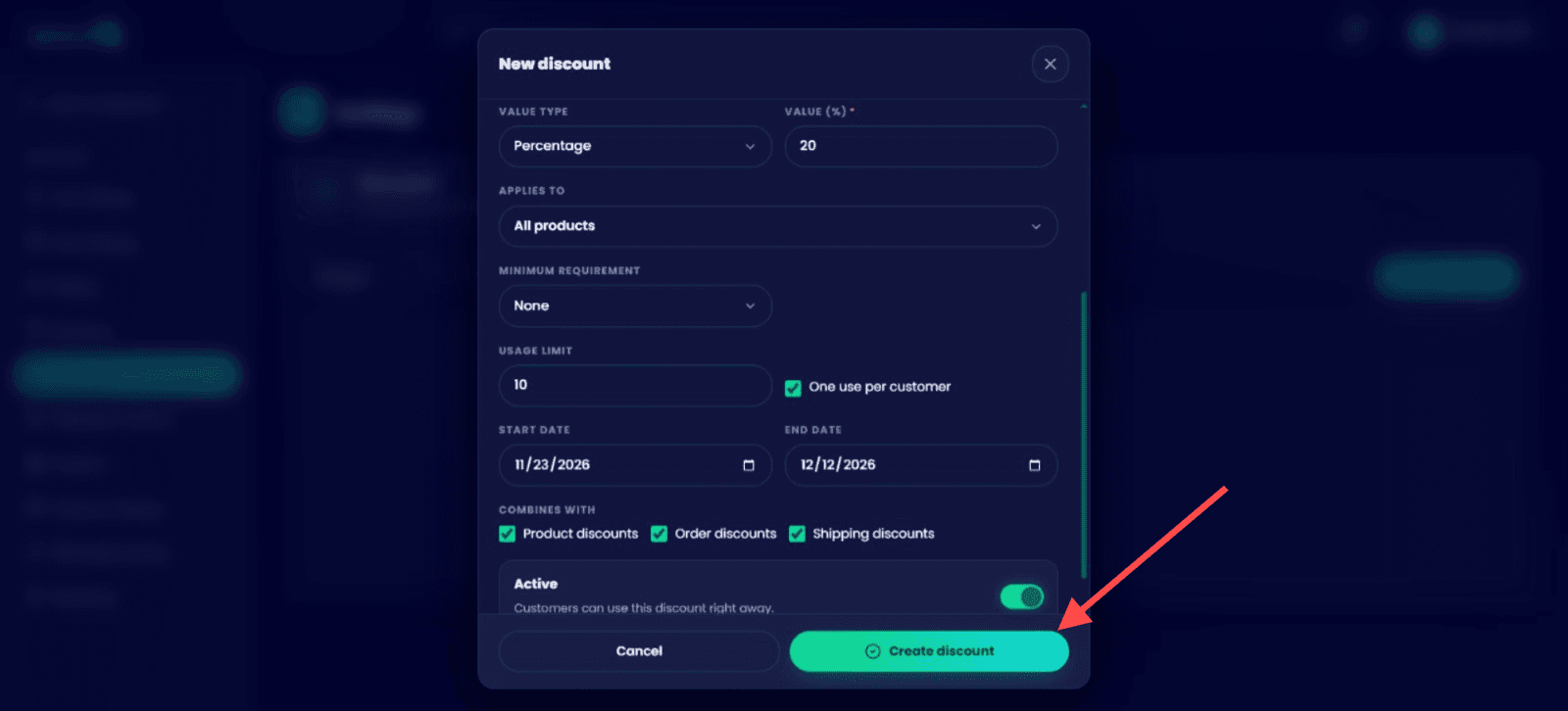
Configure the discount value and requirements.
Depending on the selected discount type, configure the discount value, applicable products, and minimum requirements where available. Set usage limits, dates, and discount combinations as needed.
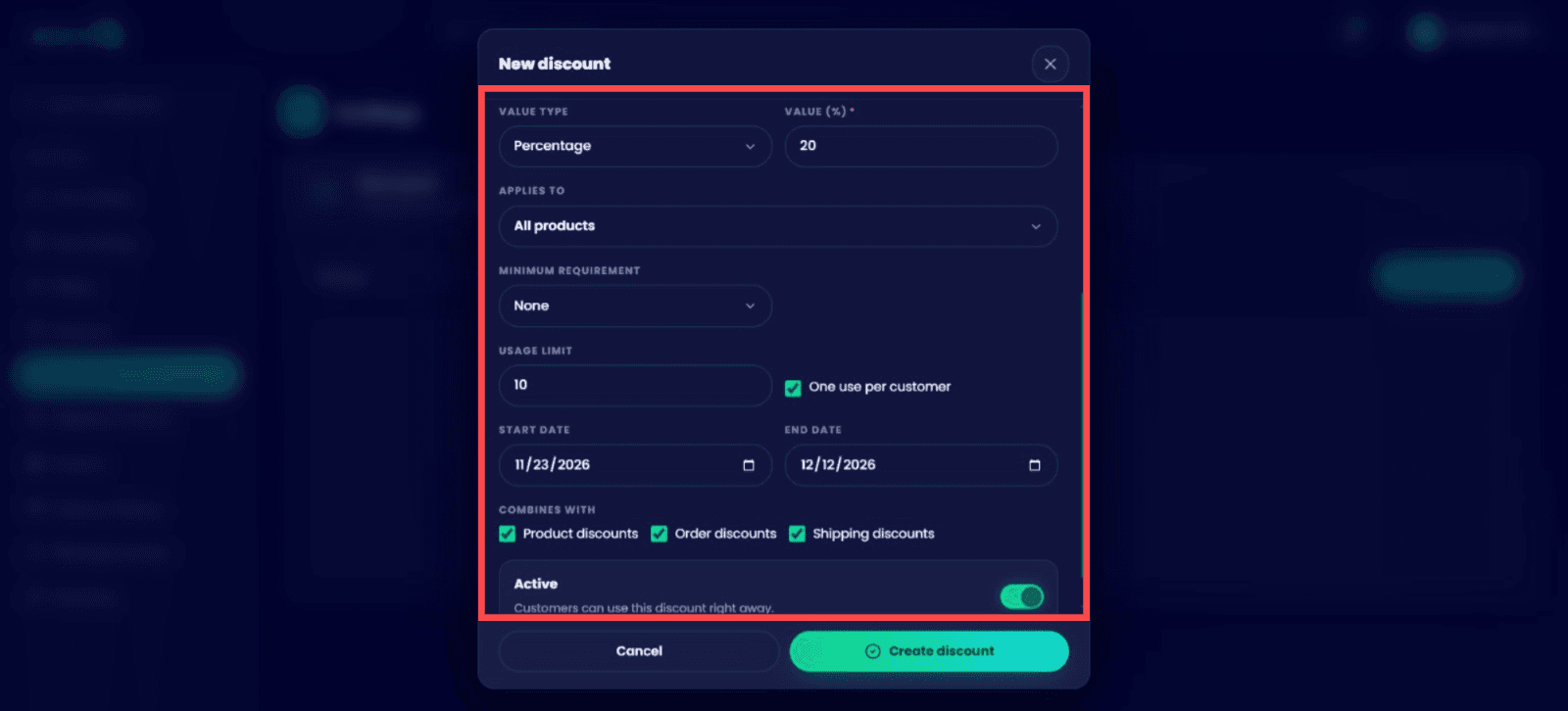
Enable the discount and click "Create Discount".
Make sure the Active toggle is enabled. Once created and eligible conditions are met, the discount will apply automatically at checkout.
That's it!
Your create automatic discount task has been configured successfully. Your Wicofly store is updated.
Related Helps
Create Discount Code
Create a coupon code that customers enter at checkout to receive percentage or fixed discounts.
Buy X Get Y Setup
Create promotional deals such as Buy 2 Get 1 Free to encourage customers to purchase more products.
Free Shipping Rules
Offer free shipping to customers through discount codes or automatic discounts.